

Reply and Reply All can disappear from Outlook's right-click menu with conversation grouping. Open the individual email and use its actions first. A missing command in that menu doesn't mean your mailbox can't send replies.
The original report was about Outlook's redesigned website in 2019. Current Outlook still offers message-level replies, though changing conversation view won't repair every missing button in today's desktop app.
In this guide
1. Reply from the email instead of its list entry
Select a received email in your Inbox and read the sender and recipients. In a grouped conversation, expand the particular message you mean to answer. A highlighted conversation row can contain several messages from different senders.
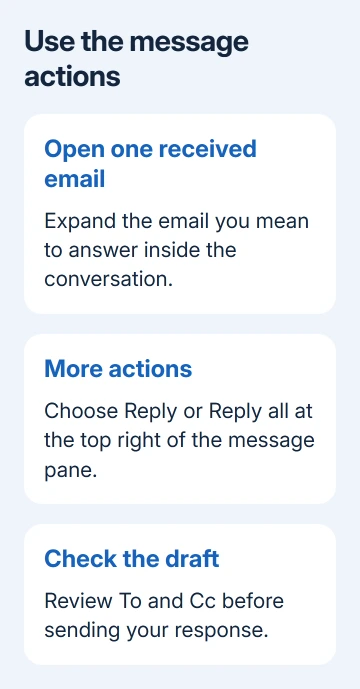
In the browser's Outlook message pane, select More actions in its upper-right corner, then choose Reply or Reply all. This menu acts on the email you're reading; right-clicking the Inbox list opens a different menu.
Reply addresses the sender. Reply all includes the sender and the recipients on the original To and Cc lines. Review the new draft's recipients before typing anything intended for just one person.
If the response opens successfully, keep working from that draft. That tells you replies still work, even though the right-click menu is missing the command. You can check conversation settings after finishing urgent mail.
If no reply action appears on an open message either, go to the recipient and message checks in section 3. Changing the list layout won't remove a restriction on the message itself.
2. Compare individual messages with conversation grouping
Open Settings > Mail > Layout in Outlook on the web. Find Message organization and choose the option that displays individual messages rather than grouping them into conversations. Save if the page presents a Save button.
The official message-list settings cover both the browser and new Outlook for Windows. The wording of the grouping choice can vary, so follow its description rather than the old design's exact switch label.
Return to the same folder, locate the same email and right-click that individual row. Compare the available commands with the grouped view. This tells you whether grouping the messages changes which commands appear.
The accepted answer linked the old menu difference to conversation grouping. A later reply thanked the adviser but left out which setting they changed. Try the layout comparison, though it won't fix every missing button.
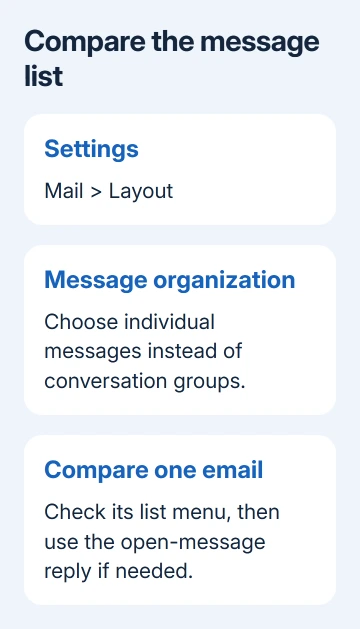
Keep separate rows if they make replying easier. Otherwise, restore your preferred grouping and use the open-message action. A list-menu difference doesn't call for clearing the mailbox or removing its account.
In classic Outlook for Windows, conversation grouping belongs to the View tab, rather than the website's Settings panel. Use the open email's Reply, Reply All or Forward command on the ribbon while checking that version.
3. Check the selected message and who can receive a reply
Try a normal received email from someone you know. Check a received message rather than a sent item, a draft or a conversation that mixes them. Those items don't all offer the same reply controls.
For Reply All, check whether the original email actually has other visible recipients. A message addressed only to you won't have the same group to reply to as one sent to several coworkers.
Names on Bcc are hidden from other recipients. Reply All can't reveal that hidden list. If a coworker needs the response, add their verified address to the draft instead of trying to recover names the original message doesn't expose.
Check for a protection notice in the open message. The sender can use a protection policy to limit what you can do with the message. Send the restriction's wording to the sender or IT; changing views won't remove it.
If the message is protected with S/MIME, meaning certificate-based email security, use the Outlook encrypted-message checks when its content or reply won't open. That's a different case from a normal readable message with a short list menu.
For a normal message, the draft should show the intended recipients and an editable response area. Check those details before pressing Send, particularly after moving from a conversation summary to one older message inside it.
4. Find your app's reply controls
Microsoft's web reply instructions describe the More actions route. Look for the Reply or Reply all label inside the menu, rather than identifying it by an icon's shape.
New Outlook for Windows also has reply commands inside the received email. Its Mail layout can also organize messages individually. Don't use classic Outlook's File > Options instructions for this app's web-style settings.
In classic Outlook, reply buttons can appear on the ribbon, in the Reading Pane header or near the message edge, depending on the window and version. Opening the email in its own window gives you another place to reach them.
If a reply opens in the Reading Pane and you want a separate compose window, use Pop Out. That changes where the draft appears; it doesn't change who Reply All includes.
A reaction to an Outlook message has account requirements separate from replying. A missing reaction button doesn't indicate a Reply All failure, and reacting doesn't replace a written reply.
5. Report a failure that affects open messages too
For a company mailbox, tell IT your Outlook version and whether you use it in a browser or desktop app. Say whether the problem affects one email or all normal incoming messages. Include the wording of any protection notice.
Take a screenshot of the message's action menu, keeping the body and people's addresses out of it. Explain whether the action is absent, disabled or opens a draft that then fails. Support needs that distinction to choose the next check.
Ask IT to try your mailbox in a supported browser and check the service-health notices for your organization. For a personal mailbox, use Outlook's Help area to reach support and describe the same open-message comparison.
I'd keep using the message-level reply while the menu issue is checked, if it produces the correct draft. It lets you answer mail without changing account data or treating old layout advice as a repair for every version.
The Short Version
Open the individual email and use its Reply or Reply all action. Compare individual-message layout when only the right-click list menu is missing commands. A failure inside an open message needs recipient, protection and account checks.
Checked November 17, 2026.
 If you have any business, I can build it online






