

External mail rejected for one user with 550 5.4.1 often comes from Exchange Online not recognizing that recipient's address. Check the exact address first, then have your mail administrator inspect its directory entry.
For a mailbox still receiving internal mail, one owner fixed external delivery by refreshing its primary email address. Ask IT to handle that repair: cloud-only mailboxes and mailboxes synced from a local server need different steps.
In this guide
1. Check the address in the bounce, not just the contact name
Ask the sender to send you the full bounce message through another working address or your help desk. Find the rejected recipient and confirm that the error is 550 5.4.1 Recipient address rejected: Access denied.
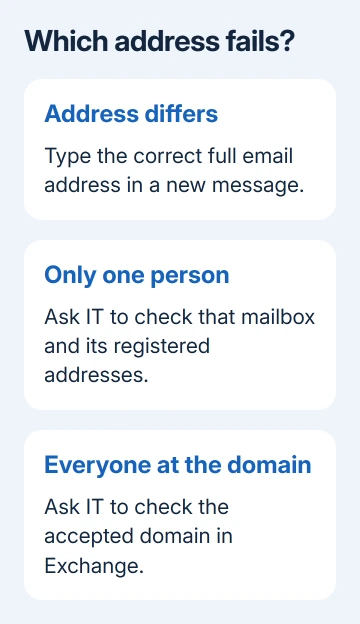
Compare every part of that address with the address your organization has assigned to the mailbox. A familiar display name doesn't tell you which email address the sender actually used.
Ask the sender to compose a fresh email using the verified address, bypassing old address suggestions. A fresh message that arrives points to a stale or incorrect saved recipient, rather than an Outlook installation fault.
If the same verified address bounces again, keep that new report. Its date, time and full recipient address give IT something specific to check. Don't reinstall Outlook for this error: the receiving mail service is rejecting delivery.
2. Compare one coworker and one internal message
Ask an outside sender to email another person at the same company domain. Separately, ask a coworker to send an internal message to the affected mailbox. These checks tell IT whether the problem affects one address or the whole domain.
The useful pattern is external mail failing for one person while coworkers receive normally and internal mail still arrives. Give your administrator those results together, rather than reporting only that email isn't working.
If an existing onmicrosoft.com alias is assigned to this mailbox, IT can also compare delivery to that address. Don't guess an alias or create another account to run the comparison.
In the original report, the existing alias worked while the main company address failed. The mailbox could receive mail, but not through its main address. That isn't a reason to replace the company domain.
For messages that reach the service but disappear from the Inbox, use the separate Outlook receiving checks. A sender's rejection report means something different from mail filed into another folder.
3. Have IT check the mailbox's registered email addresses
Your administrator should confirm that the rejected address actually belongs to the intended recipient in Exchange Online. Being able to sign in or find the person in the internal address book doesn't explain why outside mail is rejected.
Directory-based edge blocking checks recipient addresses before Exchange Online accepts mail. An unrecognized address can stop delivery before the message reaches the mailbox. Emptying the Inbox or changing a password won't fix the address.
For a cloud-managed user, the Microsoft 365 admin center has Users > Active users. Select the person, then Manage username and email on the account panel to check their addresses.
If the panel says the user is synchronized with local Active Directory, edits belong in that local directory. IT needs to check the local mailbox and whether its details have synced to the cloud. The cloud field is read-only.
I'd send the administrator the exact rejected address and the comparison results before asking for any changes. It helps IT avoid editing a similarly named person or the wrong alias.
4. Refresh the affected address only in the matching case
One Microsoft forum owner got external mail working by changing the user's primary SMTP address, then reversing that change. Their organization was cloud-only, and only the primary company address was failing.
SMTP address means the actual email address used for mail delivery. This repair changes the mailbox's address configuration; it isn't the same as editing a contact on the sender's laptop.
For that matching cloud-only case, ask IT to record the existing addresses, set an approved temporary primary address, then restore the original primary address. The original adviser suggested waiting 30 minutes before changing it back.
That 30-minute wait was advice for the original case, not a promised repair time today. IT should preserve existing aliases and coordinate the change with the mailbox owner, since outgoing mail can use the temporary primary address.
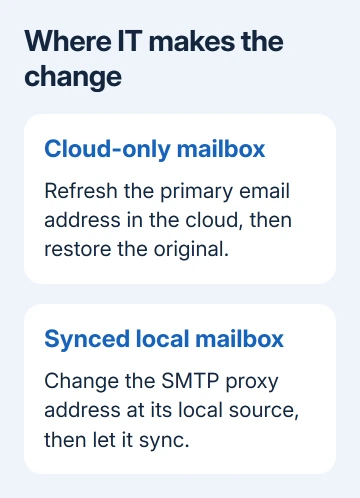
For a hybrid mailbox hosted on a local Exchange server, the official 550 5.4.1 repair steps call for resetting its SMTP proxy address at the source.
The administrator changes the proxy address temporarily and restores it, then allows synchronization to finish. For a mailbox on a local server, allow 24 hours for the directory update.
Don't delete the mailbox to refresh its address. If your administrator can't safely identify the right address property or management system, the next step is an Exchange Online support case.
5. Treat a whole-domain rejection as a different repair
If outside messages fail across the whole domain, stop treating this as one person's account. IT should review that domain in Exchange admin center > Mail flow > Accepted domains.
For an affected authoritative domain, the vendor's repair is to switch its type to Internal relay, then switch it back to Authoritative. This resynchronizes the domain and applies to the domain-wide case.
If your organization already uses Internal relay to route mail, IT needs to keep that setup working. Leave that decision to the mail administrator rather than changing the domain type to see what happens.
The SMTP authentication error guide covers an app that can't authenticate to send. Don't apply its sending-account changes to a recipient rejected by Exchange Online.
When the verified address still gets rejected
Ask IT to request Microsoft 365 assistance through Help & support in the admin center. Include the full recent bounce, affected address, internal and external test results, mailbox location and the time of any address change.
Once the address changes have finished updating, ask the outside sender to try again. The new message must reach the original company address without a rejection; appearing in the sender's Sent folder doesn't confirm delivery.
The Short Version
Check the rejected address and another recipient, then involve IT. A primary-address refresh restored one cloud-only owner's delivery. Hybrid mailboxes and domain-wide failures need different Exchange repairs.
Checked November 17, 2026.






