

Wide letter spacing, unusually short lines, or a different reading background in Outlook can come from Immersive Reader being turned on. Close it before resetting fonts when incoming mail looks wrong but the app looks normal.
Several owners with this sudden formatting change restored their usual view by turning the reader off. A changed composing font or enlarged message list is a separate problem; closing a reading tool won't change those settings.
In this guide
1. Close the reader and reopen the same email
In the classic Windows app, select the email with unusual spacing. On the ribbon, choose View > Immersive Reader > Close Immersive Reader. Return to that same email and check its spacing and line width.
Microsoft's Immersive Reader instructions give this route for desktop versions 2111 and later. The tool changes the reading view, with controls for spacing, column width, and page color.
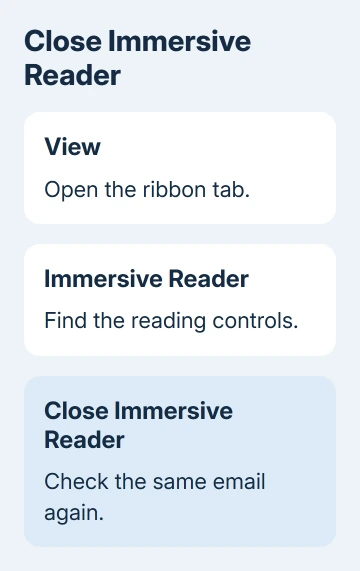
Look for a return to the message's ordinary layout. Words should no longer be spread out by the reader's Text Spacing option, and the content should stop using its chosen narrow column or reading background.
If the ribbon is collapsed, expand it or use Outlook's search box to look for Immersive Reader. One owner found the control through Outlook's search/help box after trying the ordinary view and font settings.
Open a second affected message after closing the reader. If both now look normal, keep your existing font settings. Changing them as well could create a new appearance problem after the reading tool is off.
If only your newly typed text looks different, check the composing fonts in section 4. If the incoming message still looks odd, compare its appearance with the reader controls in section 2.
2. Match the unusual layout to the reading control
Immersive Reader has several independent options. A message can look wrong in more than one way even though only this one tool is involved. Match what you see to these controls before resetting other Outlook views.
Text Spacing spreads out words, characters, and lines. This can make familiar email look as though its font changed, even when the letter shapes are still recognizable.
Column Width changes how long each line is. A narrow setting makes paragraphs much taller because fewer words fit on each line. It doesn't mean the sender inserted a line break after every few words.
Page Color changes the reading background. Line Focus limits the part of the message emphasized at once. Neither is the same setting as Outlook's overall light or dark appearance.
Syllables shows breaks within words. If the message suddenly looks broken into small pieces, look for that reader control before changing spell check or the message's language.
If you like the reader's accessibility features, adjust the particular option instead of closing the tool. For example, keep its reading layout but turn off Text Spacing when the extra gaps are the only problem.
To get the old appearance back, close the reader first. That lets you see the message without the reader's changes and check whether the unusual layout is part of the email itself.
3. Exit the full-screen reader in Outlook on the web
The web version of Immersive Reader opens the selected email in a full-screen reading layout. Press Esc to leave it and return to your mailbox. Check the same message in the ordinary reading view.
The web controls differ from the desktop ribbon. The reader has Text options, Parts of Speech, and Reading preferences controls. Don't search for classic Outlook's File > Options dialog inside a browser tab.
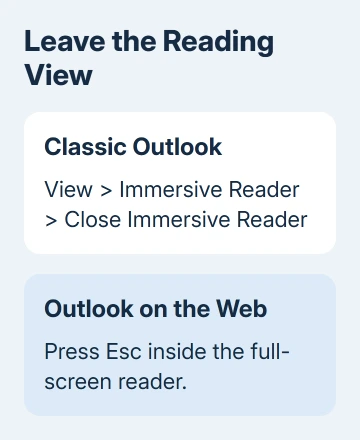
If the reader is useful but its text looks unfamiliar, open Text options inside it. That area controls text size, crowding between letters, the font, and background color in the web reading layout.
If your desktop app looks different, check whether it's new Outlook or classic Outlook. Use the exit control offered in that reading view. The classic ribbon path doesn't apply to every Outlook app.
If leaving Immersive Reader fixes the appearance, one of its reading settings was responsible. If the message still looks wrong in your normal mailbox, compare incoming mail with a new draft next.
4. Separate reading text from composing fonts and app colors
Open an incoming message, then start an empty new draft. Compare them without pasting text. This tells you whether the unusual appearance affects reading, your default composing style, or a block copied from somewhere else.
If fresh typed text is the problem, use the Outlook default-font controls. Classic Outlook has separate settings for new messages and replies, so check the message type that actually changed.
If only one sender's email looks different after leaving the reader, compare another message from a different sender. HTML email can contain its own fonts, spacing, and layout; your composing default doesn't rewrite incoming messages.
If all of Outlook's window colors changed, use the Outlook appearance settings. Page Color inside Immersive Reader changes its reading background, while the app's theme affects the surrounding interface.
Zoom is another separate control. Incoming text that looks bigger or smaller throughout can be a zoom change, whereas extra gaps between letters and a narrow reading column point toward the reader's options.
I'd check the reader before changing fonts when the complaint is sudden spacing in incoming mail. In the confirmed formatting discussion, several owners said closing it restored normal viewing.
5. Report a change that survives the reader exit
If closing the reader doesn't help, record exactly what changed: incoming text, typed replies, the message list, or the entire app. Include whether it affects all senders or a single email.
In classic Outlook, open File > Office Account > About Outlook and record both the version number and full build. For webmail, give support the browser name and say the change remains after pressing Esc and returning to the normal mailbox.
Crop an example to remove private message content and send it to your help desk. Ask them to check the affected reading or composing view. Check whether a reading setting is still on before trying an Office reinstall.
The Short Version
Close Immersive Reader in classic Outlook through View > Immersive Reader > Close Immersive Reader. In the web reader, press Esc. Check composing fonts or app appearance only if the remaining problem affects those parts of Outlook.
Checked November 16, 2026.
 If you have any business, I can build it online






