

The message We are unable to connect right now can appear when Outlook's Office sign-in can't reach Microsoft services, even while ordinary websites work.
Check whether Windows reports an internet connection, then compare the result on another permitted network before reinstalling Outlook.
For this exact activation error, blocked sign-in traffic or disabled Windows connection checks can be responsible. An Outlook window showing Working Offline is a different case, so first check where the message appears.
In this guide
1. Separate Office sign-in from an offline mailbox
Look at the window carrying the error. A sign-in or activation box that also mentions checking your network points to the Office account connection. Note whether Word or Excel shows the same box when signing in.
If several Office apps fail together, focus on the account and network connection they share. Rebuilding an Outlook mail profile won't change a firewall rule that blocks Office sign-in across the computer.
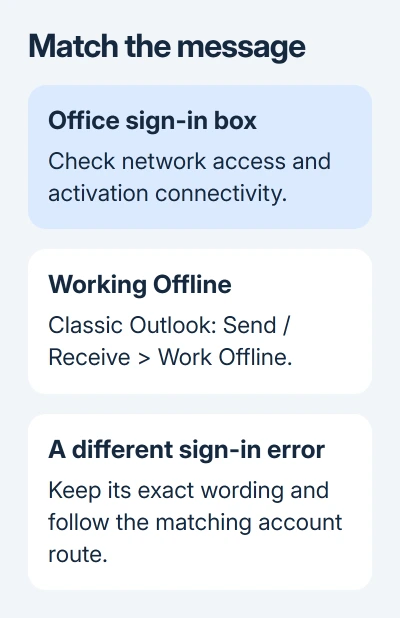
If classic Outlook opens normally but its status bar says Working Offline, open Send / Receive and check Work Offline. That's the mail-connection switch, rather than the activation error described in the rest of this guide.
For a mailbox that still won't receive messages after that, use the Outlook mail-delivery checks. Keep the exact wording with your notes; a missing message and a failed account sign-in aren't the same fault.
The new Outlook has different controls and doesn't use the classic ribbon path. If its error has different wording, use the Outlook sign-in guide to choose the account-specific route.
2. Compare the connection Office is using
Open Settings > Network & internet and check the connection status. In Windows 11, this page shows the current network; Windows 10 also has a Status page. Note whether Windows says there is internet access.
One working web page doesn't mean Office can reach its sign-in and activation services. A network filter can allow general browsing while blocking the requests that open your Office account.
Close the Office apps, restart Windows, and retry sign-in. If you're using your own optional VPN, disconnect it for one attempt, then restore your normal setup after comparing the result.
On a managed computer, leave mandatory security connections enabled. Ask IT to compare the networks under its approved setup.
If permitted, try a different trusted network, such as your own phone's hotspot, and open the same sign-in box again.
I'd make this network comparison before reinstalling Office. If the same app and account sign in through the hotspot but fail on office Wi-Fi, you've given IT a concrete network difference to work with.
If both networks fail, note whether Windows reports internet on both. Continue with connection detection and Office checks. If several colleagues are affected at once, have the Microsoft 365 administrator check service health too.
3. Have IT check blocked activation and sign-in traffic
Microsoft documents two causes in its exact-error article. They are blocked access to *.microsoftonline-p.net and disabled active network checks.
That article describes a particular firewall or proxy setup blocking an older sign-in agent. In that setup, the documented workaround is an allow rule for MSOIDCRL before the rule denying Internet Explorer 6 traffic.
Give that detail to the administrator rather than enabling an obsolete browser or disabling the entire firewall. The rule is blocking a sign-in request. Office doesn't need you to browse with Internet Explorer.
For current setups, have IT also review the Microsoft 365 activation network requirements. They cover proxy configuration, activation endpoints, and blocked account-broker traffic.
A Windows account broker is the component that helps apps sign in. If security software blocks it, Office can fail even when the user can browse.
Ask IT to check whether the organization's rules allow that component to reach the services it needs.
Retry the same Office sign-in after a relevant rule changes. If it now opens the account screen and activates the apps, the network change fixed the connection problem.
If nothing changes, keep the test result and check Windows connection detection.
4. Restore Windows connection checks if they were disabled
NCSI, the Network Connectivity Status Indicator, is the Windows feature that checks internet availability. The exact-error article names disabled active probing, its automatic connection test, as another cause of this message.
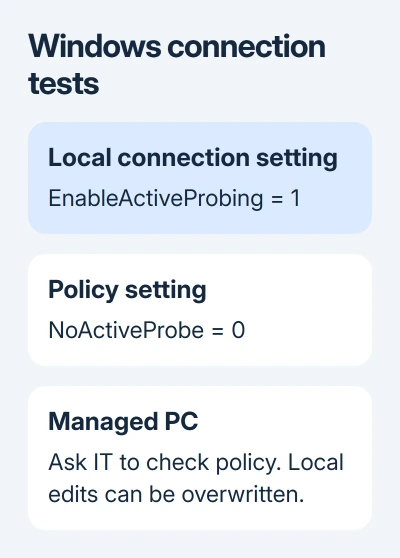
For a managed computer, let IT review the connection-test policy first. Management software can overwrite local registry changes. The administrator also needs to know why the policy was set before changing it.
For an unmanaged PC where this setting was changed, back up the registry before editing it. Press Windows + R, enter regedit, approve the prompt, and open this location:
HKEY_LOCAL_MACHINE\SYSTEM\CurrentControlSet\Services\NlaSvc\Parameters\Internet
Check the EnableActiveProbing DWORD. The enabled value in the instructions is 1. Change it only to restore disabled connection tests, rather than as a performance tweak or a reason to change other network values.
The policy location is HKEY_LOCAL_MACHINE\Software\Policies\Microsoft\Windows\NetworkConnectivityStatusIndicator. A NoActiveProbe DWORD of 0 allows the test.
If a policy controls the value, let IT handle it instead of changing it back and forth yourself.
In Group Policy, the corresponding setting is Turn off Windows Network Connectivity Status Indicator active tests.
It sits under Computer Configuration > Administrative Templates > System > Internet Communication Management > Internet Communication settings.
The instructions call for Disabled. The double negative matters: disabling the policy that turns tests off lets Windows perform them.
Group Policy Editor isn't available in every Windows edition; don't install an unofficial replacement to reach it.
Restart the PC after the relevant change and check Windows' connection status, then retry Office sign-in. If the same error remains with active tests enabled, move on rather than repeatedly changing these values.
5. Run activation help after the network is checked
Install available Windows updates through Settings > Windows Update on Windows 11. On Windows 10, use Settings > Update & Security > Windows Update. Restart if requested, then test the Office account again.
If the account still won't activate, use the Microsoft 365 activation troubleshooter linked from the activation reset instructions. Run it on the Windows PC where Office is installed.
The troubleshooter opens Get Help and reports its result there. Follow the advice that matches your account rather than deleting mail data or removing the Windows work account to force another sign-in.
If it fails, give the Microsoft 365 administrator the exact error, time, Office version, Windows connection status, network comparison, and troubleshooter result.
Ask them to check whether Office can reach its activation services and review the sign-in logs for that attempt.
The Short Version
Check that this is the Office sign-in error, then compare Windows' internet status and another permitted network. Have IT review blocked sign-in traffic and disabled NCSI tests.
Use activation help after the connection checks, keeping the exact error and results.
Checked November 13, 2026.
 If you have any business, I can build it online






