

Excel's opening settings can stop Outlook attachments from opening even when File > Open works. For older Excel, try clearing its DDE ignore setting before repairing Outlook.
A missing attachment, a failed preview, and a workbook that crashes Excel are different faults. Start with one trusted attachment and try opening it from Outlook and from Excel to see which setting fits the problem.
In this guide
1. Check the older Excel DDE option
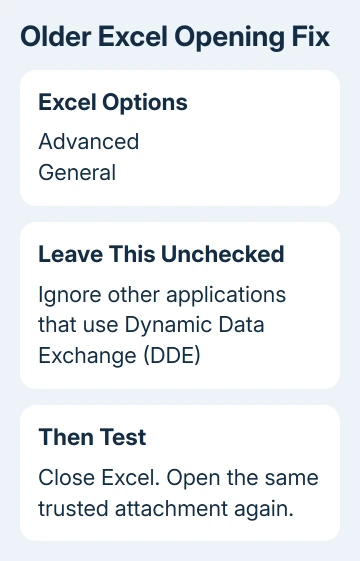
Close the email message and start Excel on its own. In Excel 2010 and later Windows editions that show this control, choose File > Options > Advanced. Scroll to General, near the end of the options list.
Clear Ignore other applications that use Dynamic Data Exchange (DDE). Choose OK, close every Excel window, then return to Outlook and open the same attachment again.
DDE lets older programs send instructions to each other. If Excel ignores that request, it can launch without opening the workbook. Changing the setting lets that opening request reach Excel; it doesn't change the email's contents.
For Excel 2007, use Office Button > Excel Options > Advanced > General and clear that checkbox. In Excel 2002 or 2003, use Tools > Options > General and clear Ignore other applications.
One owner confirmed that Outlook opened Excel attachments directly after this change. One later reply says it didn't work for them, so don't assume every Excel attachment problem has this cause.
Leave other security settings unchanged if the checkbox is already clear or missing from your edition, and continue. This older opening preference isn't the same as the DDE security controls in other Office dialogs.
2. Compare the attachment with a saved local copy
In classic Outlook, use the attachment's menu and select Save As. In new Outlook, choose Download. Save the trusted workbook somewhere easy to locate, then open Excel and use File > Open to select it.
Next, close Excel and double-click that saved file in File Explorer. This compares opening through Excel's own menu with having Windows send the workbook to Excel from another app.
If File > Open works but double-clicking the saved file fails, the problem extends beyond Outlook. Check the file association and Excel startup. Repeatedly downloading the attachment won't repair those settings.
If the saved file opens both ways but the email attachment fails, keep using the saved copy while you check Outlook. Write down the exact error, including whether Excel launches empty or the message appears before Excel starts.
The missing Outlook attachment checks apply when no file is listed. Downloading a visible attachment and restoring an absent one are separate jobs.
For a workbook that crashes as it enters Protected View, use the Excel attachment crash checks. An empty Excel window that stays open and an application crash need different repairs.
3. Set Excel as the app for the workbook's file type
Find the saved workbook in File Explorer, right-click it, and open Properties. Note its extension and the app listed beside Opens with. Windows keeps separate default-app choices for .xlsx files and older .xls files.
On Windows 11, open Settings > Apps > Default apps and search for the extension, such as .xlsx. Select the current app and choose Excel. Repeat for another workbook extension only if you use that type and it opens incorrectly.
On Windows 10, go to Settings > Apps > Default apps and select Choose default apps by file type. Find the relevant extension and choose Excel. This tells Windows which program should receive that type of file.
Double-click the local workbook again. Success means its contents appear in Excel, rather than just the program window. Then retry opening the attachment from Outlook to see whether the original problem is also resolved.
Microsoft's blank Excel opening guidance covers default-app settings and add-in repairs. Its current instructions differ from the older DDE remedy in the original attachment thread.
If Excel opens an apparently empty workbook, also check View > Unhide. Select the workbook if it appears in that dialog. A hidden workbook isn't the same as Windows choosing the wrong application.
4. Compare Excel startup with its add-ins disabled
Save your work, close Excel, press Windows + R, enter excel /safe, and press Enter. Check for Safe Mode in the title bar, then use File > Open on the trusted local copy.
If the file opens in Safe Mode but not normally, check what Excel loads at startup. Safe Mode skips several customizations, so a working result doesn't identify one particular add-in by itself.
Start Excel normally and choose File > Options > Add-ins. Under Manage, select COM Add-ins and choose Go. Record which entries are enabled, then uncheck one. Close Excel completely and test the saved workbook by double-clicking it.
Restore an entry that made no difference before trying the next. Check Excel Add-ins from Manage too when disabling COM entries hasn't helped. Keep a record so unrelated tools aren't left disabled accidentally.
If disabling one entry fixes the problem, request an update from its maker or ask IT to update it. A later owner reported success after enabling Analysis ToolPak, but that unusual result isn't a reason to enable it on every affected PC.
I'd use the local file for these comparisons first. That shows whether changing what Excel loads at startup helped before you try the attachment again.
5. Repair Office when the opening failure continues
Close Office apps and open Windows Settings > Apps. On Windows 11, use Installed apps; on Windows 10, use Apps & features. Locate your installed Office or Microsoft 365 entry, then select Modify.
For Click-to-Run Office, try Quick Repair first. If the local workbook still won't open correctly, use Online Repair with internet access and your account details available. Finish setup and test again.
If local files open but Outlook still fails, give IT your Outlook edition, Excel build, file extension, and attachment error. Ask them to compare opening it directly with saving it first in your account. Make clear that the file arrived.
Use Get Help from Windows Start for a supported Office installation. Older Office 2003/2007 versions need a migration plan as well as a workaround; reinstalling an obsolete edition isn't a dependable long-term repair.
The Short Version
Clear the older DDE ignore option when present. Compare internal opening with a saved file's double-click, then check associations, add-ins, and Office. Keep attachment protection enabled during the repair.
Checked November 17, 2026.
 If you have any business, I can build it online






