

Chrome's dinosaur game works without an internet connection, and it also opens while you're online at chrome://dino.
Enter the address in Chrome and open it. Start with the Space key if you're using a keyboard; on a phone, tap the dinosaur.
The game needs no download, account or extension. If you're seeing the dinosaur on a failed web page, playing it passes the time but doesn't repair the connection that stopped the page loading.
In this guide
Open the built-in game directly
Launch Google Chrome, select the address bar, and type chrome://dino. Press Enter on a computer or your phone keyboard's key for opening an address. Enter the address directly rather than searching for the words Chrome dino.
The built-in page shows the dinosaur and playing area. A search-results page means the browser searched the text instead, so select the address bar again and enter the complete address, including the colon and two slashes.
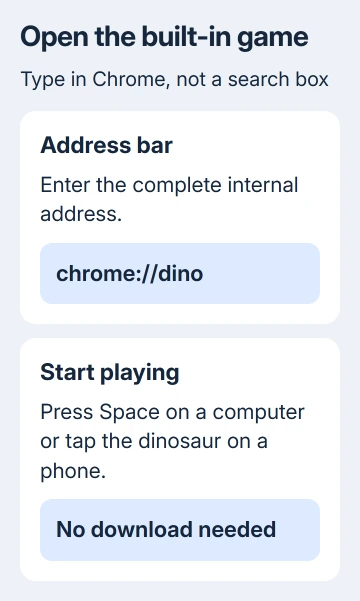
Google says the dinosaur is built into Chrome. This internal page opens it directly, much like opening the browser's own settings. It isn't a normal website address, and the game files come with the browser.
Opening it doesn't need a working search engine or a website download.
Use Chrome itself if a link opened in another app's small browser window. Other browsers can have their own offline screens or games; the Chrome address isn't a general command for every browser installed on your device.
I'd use the direct address even when the connection works. Keep Wi-Fi enabled and leave downloads or other connected apps running while you play.
Start a run and use the right controls
On a computer, press Space or Up Arrow to start running and jump. Jump over the cactuses as they approach. Timing matters more than repeatedly pressing the key without watching the next obstacle.
Press Down Arrow to duck during a run. Ducking handles flying obstacles that don't need a jump. The keys work when the game page is selected and ready for keyboard input.
On a touchscreen phone or tablet, tap the dinosaur or playing area to start and tap again to jump. The touchscreen controls don't give you the same separate Down Arrow key as a computer keyboard.
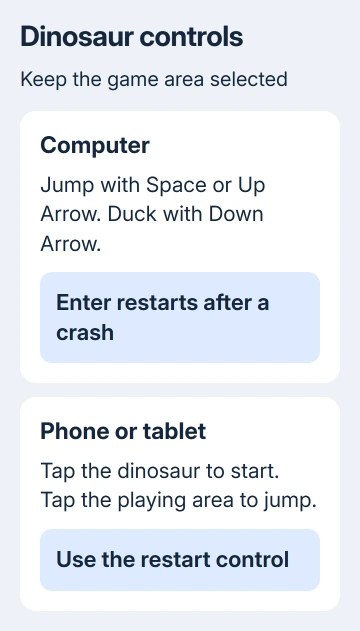
If Space types into the address bar or moves a different page, select the game area first. Close the address suggestion list and click the playing area, then try the game control again.
Hitting an obstacle ends your run and brings up the game-over screen. On a computer, Enter restarts after a crash; the restart control in the game is another option. On a phone, use the displayed restart control or tap to begin again.
Leave the game page open between attempts if you want to keep playing in the same session. Closing the page ends that session, so don't expect to recover that score through an account on another computer.
Play when a normal website won't load
When Chrome can't reach a website, its network-error page can show the dinosaur. Start the game from that screen when it's offered, or open chrome://dino directly if you want the full game page.
The error page explains the connection failure and offers an optional game. Read the error if you want to get the website open. A working game means Chrome can still open content stored inside the browser.
Router trouble, a provider outage and an unreachable website can all leave the local game playable.
The game doesn't load its playing area from the website that failed, so the dinosaur can keep running while the original connection remains broken.
Try loading the original site again after the connection returns. Stop playing first if you need to read the updated page rather than assuming the browser has already completed the task you started.
For a specific error, use the Chrome page-loading checks and match the message shown. A failed website and a blocked game on a managed device need different help.
Tell the built-in game from an imitation website
The address bar for this game begins chrome://dino, rather than an internet domain ending in .com or another suffix. That is the simplest way to confirm you opened the version bundled with Chrome.
A website offering a dinosaur game might still be playable, but it is a separate site with its own features and data use. You don't need that site to play Chrome's version. Return to the internal address for the built-in version.
Don't install an extension or downloaded executable just to unlock this game. Chrome already contains it. A download prompt after searching for dinosaur games belongs to the page you opened, not Chrome's built-in game.
A working local game also doesn't make every other browser task available offline. Documents and websites need their own offline support.
The Google Docs offline setup covers preparing those files before the connection disappears.
Check browser management if the dinosaur is disabled
On a device managed by an organization, an administrator can disable the dinosaur game. Check for a disabled-game message; simply needing to click the playing area before the keys work is a different problem.
If Chrome says it's managed by your organization, ask the administrator whether games are restricted. Give them the exact disabled message and device name. Reinstalling Chrome won't help with a restriction your administrator chose.
On your own device, confirm you're in the full Chrome app and re-enter the address. Update Chrome through its normal update controls if the internal page isn't behaving as expected, then reopen it after the update finishes.
For a Windows PC without internet access where Chrome itself isn't installed yet, the offline installer procedure explains how to get the browser from another connected computer.
The dinosaur game doesn't require a separate installer afterward.
If the internal page still fails after updating Chrome on a device you manage yourself, report the Chrome version, operating system and visible error through Help > Report an issue on desktop Chrome.
Include whether ordinary pages and other internal pages open.
The Short Version
Enter chrome://dino in Chrome. Use Space or Up Arrow to jump, Down Arrow to duck on a computer, and taps to jump on a phone.
The game works online or offline, but it doesn't fix a connection problem or override a school's browser restrictions.
Checked November 15, 2026.
 If you have any business, I can build it online






