

Color Typewriter can still play in PowerPoint 2010 when it's missing from the choices for new text. Copy a text box that already has the effect, then replace its words. For a new typing reveal, use an entrance effect with By letter.
Those two results aren't identical. Reusing the old text box keeps its existing effect; a letter-by-letter entrance creates a typing appearance without restoring the missing Color Typewriter entry.
In this guide
1. Copy a text box that already works
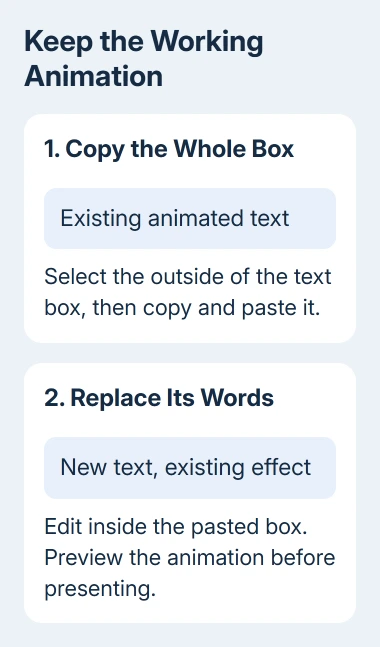
Open the older presentation and select the animated text box by its outside edge. Copy the whole box onto the destination slide, then replace the text inside it. Keep using that pasted box so it retains its animation.
One owner used this method, and another confirmed that a copied PowerPoint 2007 animation appeared for the pasted text in 2010. A missing gallery entry didn't mean that existing animation had vanished.
Open Animations > Animation Pane and select the pasted box. Check that its effect is listed, then preview the slide. Watch whether the text changes as intended during playback; the name on the ribbon isn't enough to check that.
If the pasted box works, keep an untouched copy on an extra slide within the working file. That gives you a source for the next label without searching an old presentation every time. Remove the spare slide from the copy you distribute.
If the effect doesn't arrive, check what was copied. Selecting words inside a text box copies text; selecting the outside of the box copies the object that carries the animation. Try the whole object before changing any other settings.
I'd keep the original presentation alongside your working copy until the replacement text plays correctly. It's easier to return to one known working box than to recreate a legacy effect from memory.
2. Try Animation Painter for another box
Animation Painter copies animation from one object to another. It's useful when you've already laid out a new slide and would rather keep its existing text boxes in place.
- Select the text box with the animation you want.
- Open the Animations tab.
- Select Animation Painter in the Advanced Animation group.
- Click the destination text box.
- Preview the destination box in the Animation Pane.
The asker thanked the reply suggesting this as a better workaround. Preview your destination box to check that it plays the effect you wanted, even if Animation Painter appeared to copy it.
Microsoft's Animation Painter instructions explain how to copy effects between objects.
Animation Painter transfers animation, so use it on a copy when the destination already has timing you've carefully set. Review the destination object's effect entries afterward, including any timing you wanted to retain.
If the legacy effect won't transfer this way but copying the whole original box works, use the whole-box method. Don't spend time rebuilding a working slide just to make one transfer tool behave differently.
3. Build a typing effect without the old animation
For new text with no old animated box to copy, use an entrance effect and set the text to appear by letter. That gives you a typing effect even when Color Typewriter isn't in the gallery.
In Windows PowerPoint, select the text box and open Animations > Add Animation. Choose an entrance such as Appear or Fade, then open Animation Pane to adjust that effect.
Open the menu beside its entry in the pane and choose Effect Options. In the dialog's Effect tab, find Animate text under Enhancements and select By letter. Adjust the delay between letters, then preview the effect.
Find the full Effect Options dialog
The ribbon also has an Effect Options control, but it can show different choices for the selected animation. If you can't find Animate text there, use the animation entry's menu in the pane to open the full dialog.
One reply suggested Fade with By letter. That creates a letter-by-letter entrance. It doesn't reproduce every color behavior of the original effect, so compare it against what your slide needs to communicate.
If the whole sentence still appears together, reopen the same effect's dialog and check that Animate text says By letter. The By Paragraph choice controls whole paragraphs, rather than individual letters.
For a supported Mac edition, select the effect in Animation Pane, expand Text Animations and set Animate text > By letter. Its pane layout differs from the Windows dialog, so don't search for a Windows-only dialog tab.
4. Check the words and the timing together
Changing a short animated label to a longer sentence can make a letter-by-letter reveal feel slow. Preview the complete replacement text, then adjust the between-letter delay to suit that actual sentence.
Keep that setting separate from Start, Duration and the main Delay control. Start determines when the animation begins; the delay between letters determines how the text unfolds after it has started.
After Preview, start Slide Show and watch this slide play. Check the click that starts the text, its full reveal and the next animation on the slide. Even when the letters animate correctly, the word can still appear at the wrong moment.
For a crowded sequence, remove the unwanted animation from the selected object before rebuilding that part. Work on one text box at a time so the next preview has a clear result.
If the presentation needs to run repeatedly, finish the effects before setting up a looping slide show. A loop setting won't put a missing text animation back into the gallery.
When no usable original remains
Use By letter for a new typing reveal, or ask the presentation's author for a copy containing the working Color Typewriter box. A screenshot of their slide can't carry an editable text animation.
The 2010 edition no longer receives support. If you're moving to a supported edition, give your Office administrator both the original slide and your edited slide. Ask them to compare playback of the same effect.
The Short Version
Copy and edit a box with Color Typewriter, or transfer its effect with Animation Painter. For new typing text, use an entrance effect with Animate text set to By letter. Preview the whole slide before presenting.
Checked November 21, 2026.
 If you have any business, I can build it online






