

PowerPoint Online can ignore a slide link attached to SmartArt even when that same link works in desktop PowerPoint. Put the link on a separate text box in front of the graphic, then test it in Slide Show.
That workaround fixed the original owner's presentation. A link that only selects text while you're editing is a different case: start the show before deciding the destination is broken.
In this guide
1. Test the link as a viewer would use it
With the Simplified Ribbon, start Slide Show > Play from Beginning. The other ribbon layout starts the show from View. Go to the slide with your link, then click the linked words instead of the space around them.
Editing and presenting do different jobs. A click in the editor can select a text box for editing. In the show, the same click should take you to the destination slide without opening a separate presentation.
In desktop PowerPoint, you can also right-click the hyperlink in Normal view and choose Open Hyperlink. That checks its destination without starting the whole talk. Follow the PowerPoint hyperlink instructions for other link types.
Watch which slide opens. If the wrong slide opens, the link works, but you need to change its destination. No response from an old SmartArt link calls for the text-box repair in the next section.
The owner's older deck failed online while links in a fresh deck worked. The old links also worked in desktop PowerPoint, but recreating them in PowerPoint 2016 didn't fix the web copy.
2. Put the slide link on a separate text box
Save a separate repair copy before changing a presentation used by other people. Try the repair on one broken button. Once it works, you can repair the remaining buttons.
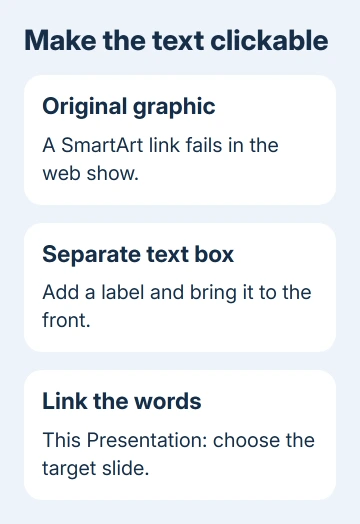
Select Insert > Text Box and add a short label beside or over the SmartArt item. Use words that identify the destination, such as the name of the section the button should open.
Select the new text box and use Bring to Front from the Arrange controls or the object's right-click menu. This puts the clickable label in front of the graphic rather than leaving it behind an object that receives the click.
Highlight the words inside that box, then select Insert > Link. In the web dialog, choose This Presentation, choose a destination slide, then select Insert. The label should now carry the internal slide link.
Microsoft's current slide hyperlink steps include this web destination option. It doesn't require a copied browser address or a link to a separate file.
Run the show and click the label. One owner confirmed that a separate linked text box in front of SmartArt opened the target slide. The new label worked; the original graphic itself wasn't repaired.
Once that label works, repeat the change for other affected navigation items. Keep the visible text large enough to click. I'd use a clear destination name rather than a tiny invisible hotspot that viewers have to hunt for.
3. Rebuild a link that opens the wrong destination
Select the linked text and open the control for editing its link. Check the chosen slide title, especially in a deck with several slides called Summary or Questions. Choose the actual destination rather than guessing from its position.
For Windows desktop PowerPoint, use Insert > Link > Insert Link > Place in This Document. Expand Slide Titles if needed, select the target and confirm with OK.
On Mac, select the words and choose Insert > Link > This Document. Pick the slide in the document destination list and confirm. The desktop apps use these labels where the web dialog uses This Presentation.
A link to the presentation's OneDrive address opens a file. A link to a slide inside the current presentation controls navigation within the show. Use the internal destination when building a contents slide or a return button.
After deleting PowerPoint slides, check any navigation that pointed to them. Select an existing destination and test the jump again instead of leaving the button aimed at a removed section.
4. Compare a plain link against the graphic
If the new label also fails, add a plain text link in an empty area of the same slide. Point it to a slide with a distinctive title, start the show and click it. This comparison checks whether the trouble follows the original graphic.
If the plain link works, you can use it to move through the presentation while you repair the other buttons. If both plain and SmartArt links fail, try the same two-slide link in a new blank presentation in your account.
Keep these comparisons small. Changing the file, browser and destination together leaves you guessing about which change helped. Use the same destination while comparing the original graphic with its replacement label.
If the fresh presentation works but the old file doesn't, repair that existing deck first. The original report included working SmartArt links in another deck, so SmartArt alone doesn't explain every failure.
Don't convert all SmartArt to ordinary shapes just because someone suggested it. The confirmed outcome in this case came from the separate text box. A large conversion can change an editable diagram without fixing the affected links.
When the text-box repair still fails
Use Open in Desktop App if the desktop copy's links work and you need to present immediately. Test it on the computer you'll actually use, including the return links from each section.
For a work account, send IT a small copy containing the broken slide and its target. Include the browser, PowerPoint edition, whether plain text works, and whether the same file works in the desktop app.
For a personal account, use PowerPoint's Help support option. Explain that links between slides fail in the web viewer. Send the small example without private material, so support can try the broken jump.
The Short Version
Test in Slide Show first. For an old SmartArt link that fails online, add a separate text box, bring it to the front and link its words to This Presentation. Check the destination and compare a plain link before rebuilding more slides.
Checked November 22, 2026.
 If you have any business, I can build it online






