

A Surface Pro can open a right-click menu without a mouse: touch an item and keep your finger still until its shortcut menu appears. With a keyboard cover attached, a two-finger touchpad tap is usually the quicker choice.
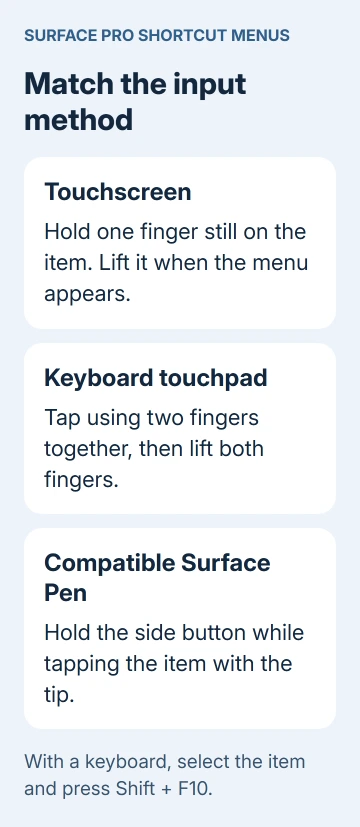
The method depends on what you're using: screen, touchpad, keyboard, or compatible Surface Pen. A two-finger tap belongs on the touchpad; on the touchscreen, use a single-finger press and hold for the ordinary shortcut menu.
In this guide
Use a single-finger hold on the screen
Touch the item you want and keep your finger in that spot. Once its menu appears, release your hold and tap a command. For a simple check, try an ordinary file or folder in File Explorer.
The target matters. Holding a file opens commands for that file; holding empty space opens commands for the current location. A menu with View or sorting choices can mean you held the folder background rather than its file.
Keep your finger still while waiting. Sliding across the screen can scroll the page or start moving an item instead of asking for its menu. Lift your finger, return to the intended item, and try again without moving your finger.
Microsoft's Windows touch instructions describe press and hold as the touch equivalent of right-clicking. The basic gesture applies in Windows 10 and 11.
An app can handle touch differently inside its own content. If a drawing canvas keeps making marks, compare a file in Explorer before changing Windows settings. If the menu works in Explorer, the drawing app may handle touch differently.
Use two fingers on the keyboard cover's touchpad
With a Surface keyboard cover connected and working, tap its touchpad using two fingers together. Use a light tap, then lift both fingers. You don't need to press a mouse-style button for this gesture.
On supported Surface touchpads, pressing the lower-right area is another right-click method. This is a press rather than a tap, so compare both actions if one feels awkward or doesn't respond.
If the touchpad moves the pointer but two-finger tapping does nothing, check the right-click option in Windows. On Windows 11, open Settings > Bluetooth & devices > Touchpad, then expand Taps.
On Windows 10, open Settings > Devices > Touchpad and find its tapping options. Enable Tap with two fingers to right-click when available.
Also review the lower-right-corner right-click option if you prefer pressing. These controls let you choose between tapping lightly and physically pressing the touchpad.
Try your chosen method on a file again. If the menu now opens, that setting change restored the gesture. Keep the method that feels comfortable; enabling a gesture doesn't force you to use it every time.
If both the keyboard and touchpad are dead, a tapping preference won't repair the connection. Use touch to keep working, then follow the Surface keyboard checks for the cover itself.
Use the keyboard when the pointer is awkward
Select a file or other item with the keyboard, then press Shift + F10. This opens the shortcut menu for that item. Move between commands with the arrow keys, then press Enter to choose one.
Some keyboards also have a dedicated Menu key. Not every keyboard has one, so Shift + F10 is the more useful combination to remember if you switch between covers or external keyboards.
On a Surface keyboard where the top row performs media actions, use the Fn key as needed to send F10. Try Fn + Shift + F10 if the ordinary combination triggers a top-row action instead.
Select the item first. The shortcut menu applies to the item you've selected with the keyboard, which might not be the one under the pointer. If the wrong commands appear, press Esc, select the intended item, and try again.
This is handy while you're getting a touchpad fault repaired. It also avoids trying to hold a tiny screen target with your finger when the item can be selected comfortably with the keyboard.
Right-click with a compatible Surface Pen
With a supported Surface Pen that has a side button, hold that button down while tapping the item you want with the pen tip. Use an Explorer file as the first test, rather than a drawing tool with its own pen behavior.
The side button and the pen's top button aren't the same control. A top-button shortcut can launch an app or perform another configured action. Repeatedly pressing it won't reproduce the side-button right-click gesture.
Tap the intended item with the tip. If the background menu appears, dismiss it and select the file more precisely. When the pen writes normally but one app ignores its button, compare another app before replacing the pen.
Pen models and compatible Surface devices differ. Check your pen's instructions if its button layout differs from the side-button model described here. Another stylus might work for touch without having the same button controls.
For a pen that won't write or respond at all, the Surface Pen repair steps separate power, compatibility, and pairing problems. Treat that as a pen fault rather than changing the touchpad's tapping settings.
Recognize Windows 11's shorter menu
Windows 11 can show a shorter first menu in File Explorer. Choose Show more options when you need a command from the longer menu. Opening that shorter menu means the right-click action already worked.
If only one app refuses every method, note the app and the item you're selecting. Ask the app's support team how shortcut commands work in that view. Windows gestures don't require every app to offer identical menus.
If every method fails on Explorer files, open Get Help from Start. Tell support your Surface model, Windows version, and what happened with each input method. Ask them to check the input controls and Explorer before considering a reset.
The Short Version
A single-finger screen hold, two-finger touchpad tap, or Shift + F10 opens shortcut commands for the selected item. With a compatible pen, hold its side button while tapping the target with its tip.
Checked November 16, 2026.
 If you have any business, I can build it online






