Save an iPhone voicemail as an audio file using the message's Share button, then send it to your computer through Mail or AirDrop. Saving to Files is another option when it appears in the share sheet.
The message needs to appear in the Phone app's voicemail list. A carrier mailbox that only plays messages over a phone call needs a different approach, because there isn't a recording in the app to export.
In this guide
Open the recording in the Phone app
Open Phone and find the voicemail you want to keep. With the Classic layout, tap Voicemail, then tap the message. With the Unified layout, open Calls, tap the filter control and choose Voicemails to narrow the list.
Tap Play and listen before sharing. Make sure it's from the right caller and contains the words you want to keep. A missed-call entry without a voicemail recording isn't an audio file.
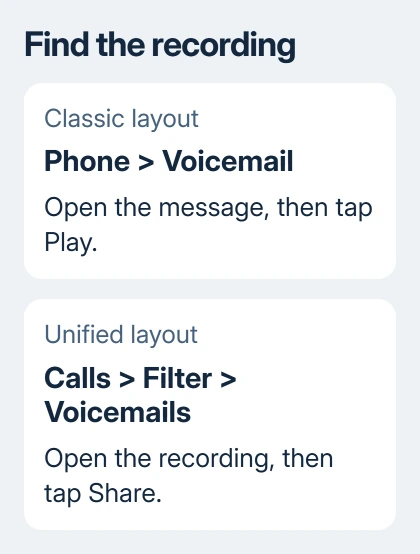
Apple says the opened voicemail has a Share button. Tap it to open the share sheet, which offers the apps and destinations available on your phone.
The transcript is useful for recognizing a message, but copying its words won't preserve the person's voice. To keep the sound, use the recording's Share button rather than selecting the transcript.
For an important family message, I'd export the audio before changing phones or switching carriers. Keep the original voicemail until you've played the saved copy on the computer. That way, you can try again if the transfer is incomplete.
Send a copy to a Windows PC or Mac through Mail
Choose Mail from the share sheet and address the email to an account you can open on your computer. Check that an audio attachment appears before sending. Add a subject that makes the message easy to find later.
On the computer, open that email and download the attachment. Save it in a named folder, such as a folder for personal recordings inside Documents, rather than leaving the only copy attached to an email.
Open the downloaded file with your computer's audio player. Listen through the ending and check that the duration makes sense. A file that appears in Downloads but won't play needs attention before you remove the voicemail from the phone.
Mail needs an account set up on your iPhone for this to work. If the compose window asks you to add an account, either finish that setup or return to Share and choose a different installed email app that accepts the recording.
A draft hasn't reached your computer yet. When an email doesn't arrive, check the phone's Outbox and the receiving account's junk folder. Try another sharing route instead of exporting more copies into unsent drafts.
Use AirDrop when the destination is a nearby Mac
Enable Bluetooth and Wi-Fi on the iPhone and Mac, and bring them close together. On the Mac, open Finder > AirDrop and check the receiving setting. If the Mac isn't set to be discoverable, it won't appear on your iPhone.
Return to the voicemail's Share menu, choose AirDrop, then select the Mac. Approve the incoming file if the Mac requests it. Your own devices can accept the transfer automatically when they use the same Apple Account.
Find the received recording, usually in Downloads on the Mac, and play it. Move it into your chosen recordings folder once you've checked it. Check for the file on the Mac even if the share sheet has closed on your phone.
For someone else's Mac, ask them to make it discoverable for the transfer, then return their AirDrop setting to its normal choice. Don't choose an unfamiliar nearby device just because its name resembles the Mac you're using.
When the Mac never appears, the iPhone and Mac AirDrop checks cover connection and receiving problems. AirDrop is an Apple-device transfer method; use email or a file service for a Windows PC.
Save to Files when that action is available
Scroll through the share sheet's actions and look for Save to Files. Select it when offered, choose a folder and save. The places you can save to depend on your phone and its apps.
Choose iCloud Drive if you want that file to reach a computer through iCloud. Choose On My iPhone for a local phone copy. A file saved only on the phone still needs a separate transfer before it's on your computer.
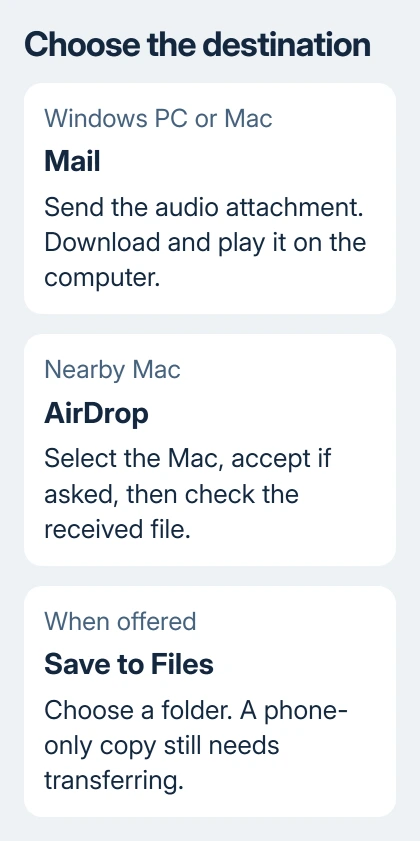
On a Mac signed into that account with iCloud Drive enabled, open Finder > iCloud Drive and find the folder you chose. Let the audio download completely, then copy it into your local archive.
On Windows, iCloud Drive in File Explorer is another route if iCloud for Windows is already set up. Otherwise, email avoids setting up a new syncing service for one recording. A voicemail extractor isn't needed for this task.
If Save to Files isn't listed, use Mail or AirDrop instead. What matters is getting an audio file you can play on the computer. You don't need to make one particular sharing option appear.
Handle dial-in voicemail and missing recordings separately
If you see Call Voicemail instead of a list of recordings, you can't export a message this way. Calling the mailbox lets you listen, but it doesn't give the Phone app a selectable file and Share button.
Ask your carrier whether your plan supports Visual Voicemail and whether existing messages can be downloaded. Explain that you need an audio copy on a computer, rather than help changing the greeting or resetting the mailbox password.
If the voicemail list used to work and has disappeared, follow the missing iPhone voicemail checks first. Restoring access to the message comes before exporting it.
Don't reset or erase the iPhone to create a Share button. Before account or SIM changes, ask the carrier how long it keeps an important message you can't access. A carrier mailbox isn't a saved computer file.
Keep the saved audio easy to recognize
Rename the computer copy with the caller and date, keeping its existing file extension. Include a short description if you have several messages from the same person. That makes the recording recognizable without opening every file.
Store a second copy on another drive or in your usual backup. For a private message, share it only with the people who need it. Once both copies play correctly, you can decide whether to keep the original in the voicemail list as well.
The Short Version
Open the voicemail, tap Share and send the audio through Mail or AirDrop. Use Save to Files when offered, then transfer that file to the computer. Listen to the saved recording before removing the phone's original.
Checked November 10, 2026.