A frame cap or display sync setting can keep Skyrim SE at a steady 30 FPS. Check its graphics-driver profile first. If the rate varies and improves at lower graphics quality, follow the performance checks instead.
Start by removing any unwanted 30 FPS restriction so the game can run smoothly. It isn't necessary to unlock a very high frame rate to make this repair.
In this guide
1. Remove a 30 FPS limit from the game's profile
Close Skyrim SE, then open NVIDIA Control Panel > Manage 3D settings > Program Settings on a PC with that control panel. Select the Skyrim Special Edition game entry, or use Add to select its executable.
Check Max Frame Rate. If it is enabled at 30 FPS, change that limit to 60 FPS for this check, then apply the setting. Work inside Skyrim's profile rather than Global Settings.
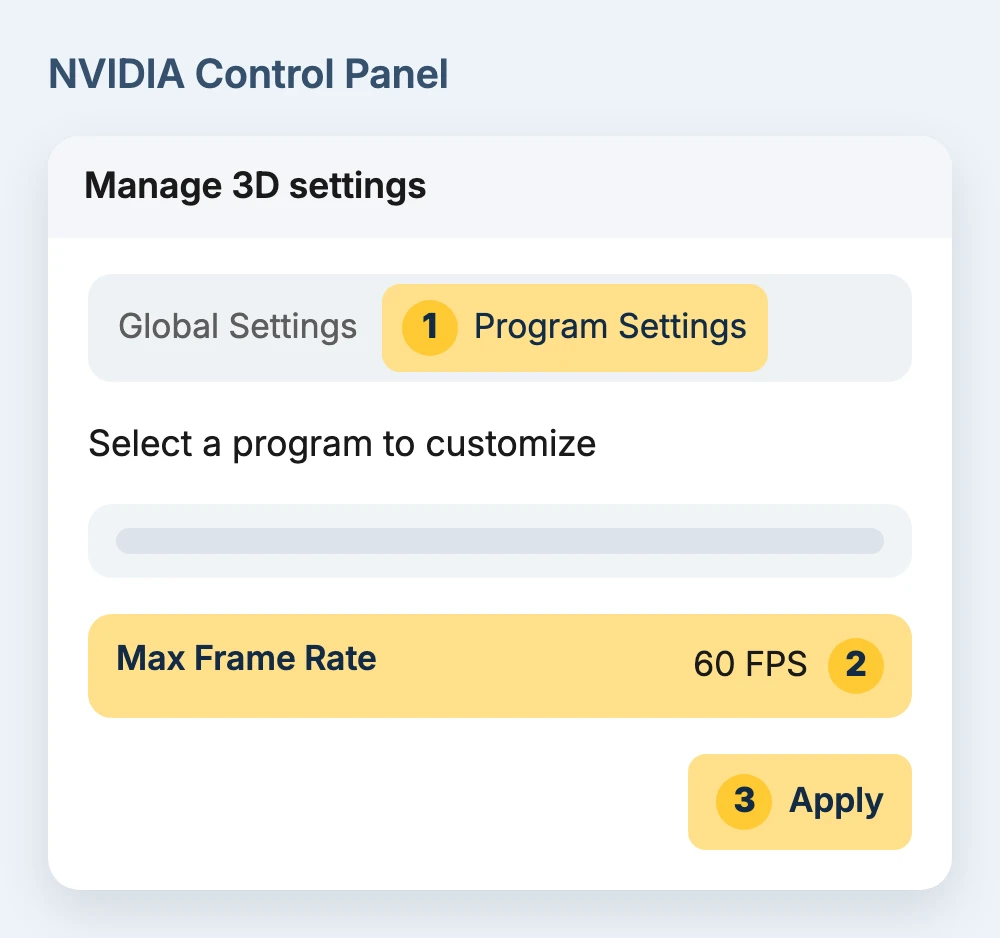
NVIDIA's 3D settings reference confirms that this control limits how many frames the GPU renders. A 30 FPS limit can hold a capable PC at that rate.
Start the game again and compare the same location with the same FPS counter. Keep the game in the foreground. Background Application Max Frame Rate is a different control for an app that isn't active.
If the game now exceeds 30 FPS, the profile limit was holding it back. If it stays at 30, check synchronization and the monitor setting before editing game configuration files.
On an AMD or Intel system, check the installed graphics software for a game-specific frame limiter. The NVIDIA menu names won't exist there. Record the current value before changing a limit you previously chose.
2. Check half-refresh synchronization and the display rate
In the same NVIDIA game profile, inspect Vertical sync. Adaptive 1/2 refresh rate is a specific mode tied to half the display's refresh rate. On a 60 Hz display, that mode can explain a 30 FPS limit.
If that half-refresh option was forced for Skyrim, change it to Use the application setting, save that preference, and relaunch Skyrim. Availability depends on the graphics card, display connection, and monitor technology setting.
Change synchronization separately from the frame limiter to see which adjustment helps. If the game runs normally, stop changing settings.
Next, check the display in Windows. A monitor connected through a different port or cable can be using a different refresh rate from the one you expected.
In Windows 11, open Settings > System > Display > Advanced display. Select the gaming display and read Choose a refresh rate. Pick a supported rate appropriate for that display if it is currently set to 30 Hz.
In Windows 10, open Settings > System > Display > Advanced display settings. Select the correct monitor under Choose Display, then use Refresh rate. The monitor and its connection determine which rates appear.
The Windows refresh-rate instructions explain these controls. Use the refresh-rate guide if the expected rate is missing.
A higher display rate doesn't make a slow graphics card render faster. It changes how often the screen updates. Next, check whether the graphics settings are asking too much of the PC.
3. Compare lower graphics settings in the same location
Open Skyrim SE's launcher and select Options. Reduce the resolution or graphics detail for a short comparison, then return to the same area in the game. Keep the comparison consistent rather than moving from a town into an empty room.
If the frame rate rises, reducing the graphics workload is helping. Work upward from the lighter settings instead of treating every dip as a hidden 30 FPS cap.
In the advanced options, reduce effects such as Godrays, Shadows, Screen Space Reflections, or SSAO. Compare each change in the area that ran badly before deciding which settings to keep.
Other options are shorter view and fade distances, a lower resolution, and changing antialiasing (edge smoothing) from TSAA to FXAA or Off. These reduce graphics work at the cost of some image quality.
If even a much lighter scene and lower resolution stay at exactly 30, return to the frame-limit and display checks. A rate that varies with scene complexity needs the game stutter and FPS guide instead.
4. Check the graphics processor on a gaming laptop
Connect the laptop's normal power adapter before comparing performance. A battery-saving setup can favor the integrated graphics processor, which is the graphics hardware built into the CPU, instead of the separate gaming GPU.
On Windows 11, open Settings > System > Display > Graphics and select the game's entry. Under its graphics options, choose High performance when more than one graphics processor is available, then save the preference.
Close and restart the game after changing the preference. The Windows graphics options describe choosing the GPU used by an app.
If the high-performance GPU was already selected, keep that setting and move to the driver check. Don't disable the integrated GPU in Device Manager just to make the game choose another processor.
5. Install the driver suited to the graphics hardware
Install the graphics driver suited to the actual NVIDIA, AMD, or Intel hardware in the PC. On a laptop, check its maker's model-specific driver guidance as well, especially when it uses switchable graphics.
Restart when the installer asks, then compare Skyrim in the same place again. Keep game mods and other settings unchanged while you compare performance with the updated driver.
I'd leave broad configuration-file recipes until the driver profile and display mode have been checked. A 30 FPS limit in the driver won't be repaired by repeatedly editing a different setting inside the game.
Send support the exact pattern if it stays capped
Use Bethesda Support's Skyrim performance route if the restriction remains. Provide the GPU, driver version, selected display refresh rate, and whether reducing resolution changes the FPS. Include a DxDiag report when requested.
Say whether the game is unmodified or uses a mod manager and performance plugins. Include any frame limiter those tools manage. Those details let support check for a forced limit or a PC that can't keep up with the chosen detail level.
The Short Version
Check Skyrim's frame limiter, half-refresh sync setting, and Windows display refresh rate first. If lower graphics settings improve the FPS, adjust the graphics quality and check the laptop GPU and driver. Keep changes specific to the game.
Checked November 27, 2026.
 If you have any business, I can build it online