

Moving from one Motorola phone to another works through the new phone's Android setup. Choose to copy apps and data, connect the old phone with a compatible cable or use the wireless option, then select what to bring across.
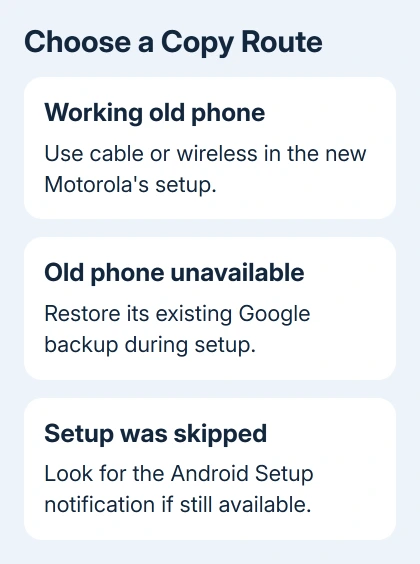
If the old phone won't turn on, you can restore a saved Google backup instead. Neither route copies every file or signs you back into every app, so keep the old Motorola until you've checked your files and apps on the new one.
In this guide
Prepare the phones and account details
Charge each phone, then join a working Wi-Fi network. Have the old phone's screen-lock PIN and your Google account sign-in details ready. That account helps transfer more content and lets you restore a cloud backup.
Check how much storage is free on the new Motorola. If the old phone holds more than will fit, choose fewer items during the copy. The new phone needs enough room for both the files you copy and the apps it installs.
Use a USB-C cable that fits both phones and supports data transfer. Older Motorola models may need an adapter or the wireless route. Don't assume that a cable charging both phones can also carry their data.
Google's Android transfer instructions recommend copying data as part of setup; that option may disappear once setup is finished. Keep the phones together and allow time for the selected content to finish.
This guide uses Android's built-in transfer, rather than an old Motorola Migrate download. For a Galaxy destination, the Samsung-to-Samsung transfer guide describes that manufacturer's separate Smart Switch route.
Copy with a cable during the new phone's setup
Turn on the new Motorola and choose the language. Tap Start, connect to the network when prompted, and look for the setup screen offering an apps-and-data copy. Choose Copy rather than skipping the transfer.
Connect both phones when the instructions ask for the cable. Unlock the old Motorola and approve the copy there. Keep following the prompts on the new phone; the exact screen order can differ with its Android version.
Enter your Google account credentials when setup requests them. Choose the apps and data to copy, then tap Copy. Review the selection rather than automatically bringing across unwanted apps and unnecessary files.
The new phone shows the copy in progress. Leave both cable ends attached throughout the copy and wait for its finished message. A home screen becoming available isn't a reason to unplug while setup still shows that data is moving.
Depending on the amount selected, copying can take minutes or over an hour. App downloads and account syncing can continue separately, so check for unfinished downloads before assuming a missing app failed to transfer.
If neither phone recognizes the cable, reseat it and check the connectors. Test a second compatible cable. When neither makes a data connection, switch to the wireless setup route.
Use the wireless option when a cable won't work
On the new phone, choose No cable when setup asks for one. At Transfer wirelessly, tap Next. Follow any prompt to unlock the old phone with its PIN.
On the old Motorola, open the Google app and search for set up my device. Tap Next and continue through the setup prompts. Compare the shapes and numbers shown on both phones.
Proceed only when the two displays match. This confirms you're connecting to the phone next to you. Then approve Copy, sign in when requested, and choose the apps and data to transfer.
Keep both phones powered and together until setup confirms the copy has finished. Wireless transfer still needs the setup connection and internet access; moving the SIM alone doesn't perform it.
Some newer Motorola setup screens may guide the pairing differently. Follow the new phone's displayed pairing instructions when offered. The Google-app steps apply to the wireless flow that presents No cable and Transfer wirelessly.
If the copy stops, note the screen and any error before trying again. Check power, storage, and the connection first. Change one thing, then retry, so the result tells you which part caused the stop.
Recover a saved backup without the old phone
An existing Google backup can restore supported data even when the old phone is broken or missing. It must have been backed up before it became unavailable; the new phone can't retrieve unsaved local files from a dead device.
During setup, continue through the copy prompts and choose the available no-cable or backup route. Use the Google account containing the old Motorola's backup.
If several backups appear, select the old phone and check the backup details before continuing. You may be asked for that device's screen-lock PIN. Select the content to restore and tap Restore.
A backup restores the content it saved and supports. Changes made after that backup can be missing. Check the new phone against what was saved rather than assuming it has everything that was on the old phone when it stopped working.
If no backup appears, confirm the Google account first. Signing in with a different account won't show the backup saved to the first account. Recover access to the correct account before resetting or erasing anything.
Finish the setup items and files that don't transfer
If copying was skipped, check the new Motorola's notification shade for Android Setup. Motorola's copy-data instructions describe using that notification to finish setup when it's still available.
Don't assume every model can restart the complete transfer from Settings after setup ends. If the notification is gone, check your model's setup help before considering a reset. A reset would erase content already created on the new phone.
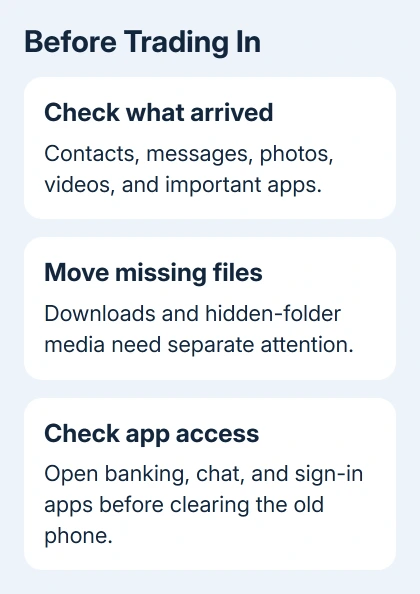
Check contacts, messages, photos, videos, and a few important apps. Calls and cellular service also need a working SIM or carrier eSIM activation. Moving app data doesn't move cellular service by itself.
Downloads such as PDFs, non-Play Store apps, hidden-folder media, some app data, and accounts outside Google aren't part of the standard copy. Move needed documents separately and sign back into the relevant services.
For documents left on the old phone, copy them through a computer if needed. The Android USB connection checks help when the phone charges but Windows can't see its files.
WhatsApp needs its own backup and restore flow. Banking apps and sign-in tools may also need fresh activation. Open your essential apps before putting the old Motorola away; some need it to approve the new installation.
I'd verify those apps before trading in the old Motorola. If setup still fails, contact Motorola support with both model names, Android versions, the transfer method, and the exact screen where it stops.
The Short Version
Choose Copy apps and data during setup, then use a cable, wireless, or an existing Google backup. Check downloads and important apps separately. Keep the old Motorola until the new phone has your files and working app access.
Checked November 16, 2026.
 If you have any business, I can build it online






