

Smart Switch copies data between Samsung phones by cable or wirelessly. Open it on both, set the old phone to send and the new Galaxy to receive, then choose what to copy. It also works after the new phone's initial setup.
Start with a cable when both USB ports work. Wireless lets you keep both phones charging during a large copy. Whichever you use, check photos, messages, and important apps before erasing or trading in the old phone.
In this guide
Prepare the phones and choose a connection
Charge both phones, keep them unlocked, and have your Google and Samsung account passwords ready. For a wired transfer, Samsung specifies at least 20% charge on each device and recommends charging fully before starting.
Open Settings, search for Smart Switch, and open the result on each phone. It may also be in the Samsung folder on the Apps screen. If it isn't installed, get Samsung Smart Switch Mobile from Galaxy Store or Google Play.
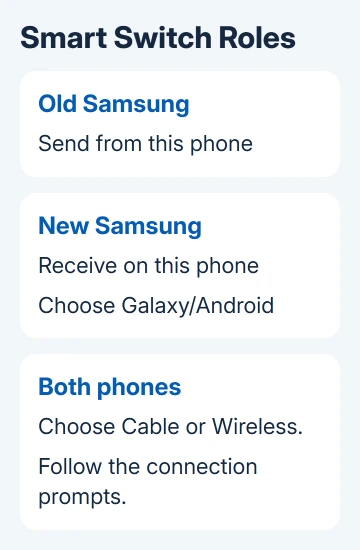
Newer Smart Switch screens use Send from this phone and Receive on this phone. Older versions may say Send data and Receive data. Choose send on the old phone and receive on the new one, even if the wording differs between them.
Check the new phone's available storage before selecting everything. A phone with less space than the old one may need a smaller selection. Use Custom to choose the categories you need rather than starting a copy that won't fit.
To protect your data if something goes wrong during the move, keep a separate Samsung phone backup. Smart Switch copies content, but a transfer session isn't the place to discover that the old phone holds your only copy.
Copy the data with a USB cable
Samsung's Smart Switch transfer steps recommend a wired connection for the widest range of transferable content. The cable must support file transfers, not just charging. Charging-only cables won't let Smart Switch copy your files.
- Connect the two phones. For two USB-C phones, use a USB-C to USB-C data cable. An older Galaxy with micro-USB may need a suitable USB-OTG adapter at the new phone.
- Open Smart Switch on both devices. On the old phone, tap Send from this phone > Cable.
- On the new Galaxy, tap Receive on this phone > Galaxy/Android > Cable.
- Accept the connection on the old phone with Connect or the access prompt shown. Wait while Smart Switch scans for content.
- Choose Everything, the smaller accounts-and-messages selection, or Custom. Review the items, then tap Next or Transfer.
- Unlock the old phone when requested to copy accounts or protected content. If prompted to copy the accounts, tap Copy.
- Keep the phones physically connected throughout the copy. Complete the final Next and Done prompts on the new phone, then tap Done on the old one.
The time estimate depends on how much content you select. Don't treat an estimate as a deadline and disconnect when it runs longer. Look for the completion screen before you put either device away.
If the estimated copy will take more than an hour, consider wireless so both phones can remain on chargers. I'd choose that over beginning a large wired transfer with a nearly empty battery.
Use Wireless when charging or ports are a concern
Place the phones close together, within about 4 inches, and plug both into their chargers. Keep them together until the transfer finishes, even after they've connected.
On the old Galaxy, open Smart Switch and select Send from this phone > Wireless. On the new one, choose Receive on this phone > Galaxy/Android > Wireless. Accept Connect or the connection request on the old phone.
Wait for the scan, choose the data categories, then tap Next or Transfer. Review any account-copy prompts and let the transfer finish. Follow the final prompts on both phones. Don't close the app just because some photos have appeared.
This is a direct phone-to-phone transfer, not a request to upload the entire old phone to cloud storage first. Some apps and account content still need an internet connection afterward to download or sync their own information.
If one phone asks for a QR-code connection instead of the older send/receive screens, follow the pairing instructions shown on the two devices. Keep checking which phone is sending and which is receiving before choosing the content.
Check the content that needs its own sign-in or transfer
Open Gallery, Contacts, and Messages on the new phone. Check an older photo, a recent photo, a familiar contact, and an existing conversation. Look for things you recognize so you're checking the content itself, not just counting app icons.
Next, launch your essential apps. Banking apps may need a fresh sign-in, and some app data is stored on the app provider's servers. An app icon doesn't tell you whether you're signed in or whether all the data on the old phone came across.
WhatsApp chats need WhatsApp's own transfer or backup process. Other messages arriving doesn't mean those chats copied too. Check the history on the new phone before removing the old installation or clearing its data.
Smart Switch can't transfer some apps and protected media. If something is missing, check how that app or service lets you move it. Google's Android data-copy guidance also separates copied content from information needing its own setup.
For two Motorola phones, copy through Android setup using the receiving Motorola rather than the Galaxy Smart Switch screens.
If you use cloud backups, check which account holds each category. A Samsung online backup can cover different content from a photo service or an app's private backup. Signing into one account doesn't restore everything from the others.
Retry a failed copy without clearing the old phone
For a wired connection that isn't detected, reseat both ends, then try a different data cable. If the ports or adapter remain unreliable, use Wireless. A charging indicator confirms power, but the data connection can still be faulty.
For a transfer that stops, check free storage on both phones and reduce the selection if needed. If Smart Switch itself keeps failing, open Settings > Apps > Smart Switch > Storage > Clear cache, then start the transfer again.
Check what arrived, then choose the missing categories for your next attempt rather than copying everything again. Check the new phone again afterward to see what's still missing.
If the same category fails again, give Samsung support both Galaxy models, the connection method, exact error, and failing category. Keep the old phone intact until they help finish the copy or recover that content another way.
The Short Version
Use Smart Switch on both phones: old phone sends, new Galaxy receives. Choose Cable or Wireless, review the categories, and wait for completion. Check important files and app accounts before erasing the old phone.
Checked November 12, 2026.
 If you have any business, I can build it online






