
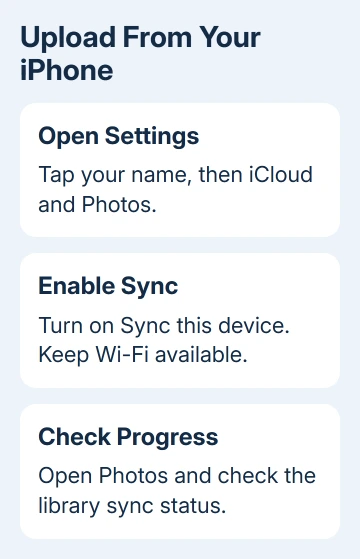
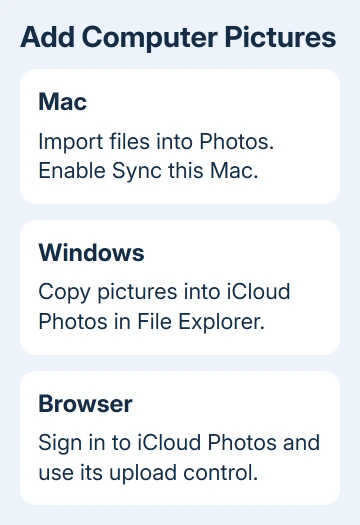
iCloud Photos uploads pictures automatically when syncing is on. On an iPhone, enable Sync this device in Settings > your name > iCloud > Photos. On a computer, add files through Mac Photos or the iCloud Photos folder in Windows.
A browser upload also works for a selected batch. Choose the method for the device holding your original files. Before removing any originals, check that the pictures have reached the same Apple Account.
In this guide
Start with the account and storage space
Check which Apple Account appears in Settings on your iPhone, or System Settings on your Mac. It needs to match the account on the device where you want to see the uploaded pictures.
Open iCloud settings for that account and check the storage bar. Photos need room in iCloud, even with lots of unused phone storage. A full cloud account stops new uploads until you free space or change the storage plan.
Apple's iCloud Photos setup instructions describe a synced library: edits and deletions travel between connected devices. It isn't a separate archive that stays untouched when you delete a picture on your phone.
Save irreplaceable pictures in a separate location before reorganizing a large collection. I'd copy a camera card or old photo folder to another drive first, then start importing from the working copy.
Turn on automatic uploads from an iPhone or iPad
Open Settings > your name > iCloud > Photos. Enable Sync this device. On versions that name the device in the switch, look for Sync this iPhone on a phone, or Sync this iPad on a tablet.
Photos already in that device's library can now upload, along with new pictures you take. There isn't a separate upload button for each camera photo. Leave the device connected to Wi-Fi and power while a large collection transfers.
Pictures stored in another app aren't automatically in your Photos library. Open that app, use its sharing control, and save the image to Photos first. Then check for that picture inside Photos.
To check progress in iOS 26 or later, open Photos, select Collections, and tap your profile button. In iOS 18, open Photos and tap the profile button. In iOS 17 or earlier, choose Library, open All Photos, then scroll to its end.
Check the library's sync status to see whether the upload has finished. Seeing thumbnails isn't enough, since those were already on your phone. A completed sync status means Photos has finished its current work.
On iOS 27 or later, Settings > your name > iCloud > Photos > Sync Immediately > For Today can prioritize the library upload. Allowing Photos to use cellular data can use your mobile allowance, so Wi-Fi suits a large collection better.
If the status is paused, read the reason shown there. The separate guide to iCloud Photos stuck on Syncing Paused covers that message without changing the upload setup again.
Import pictures into Photos on a Mac
Start by opening Photos. Pictures in a Finder folder, on a camera card, or on an external drive need to be imported into the library before Photos can sync them.
Choose File > Import, select the folder or files, and choose Review for Import. Review the selection and import the pictures you want. Dragging files from Finder into Photos is another way to add them.
Next, open Apple menu > System Settings > your name > iCloud > Photos. On newer macOS releases, Photos is under Saved to iCloud. On macOS Sonoma or earlier, look under Apps Using iCloud. Enable Sync this Mac.
The Mac uploads from its System Photo Library, the library chosen for iCloud. If you have several libraries, quit Photos, hold Option while reopening it, and select your intended library. Check Photos > Settings > General before syncing.
If Use as System Photo Library is available, that library isn't currently the one used for iCloud. Choose carefully: switching the library used with iCloud can combine its contents with the cloud collection.
In Photos, select Library, choose All Photos, and scroll to its end for progress. Keep the Mac online until it finishes. Long videos take longer to upload than still pictures, even with the same number of items.
Add computer files with iCloud for Windows
Open iCloud for Windows, sign in, and turn on iCloud Photos. Then open File Explorer and find iCloud Photos in the navigation pane. If it's missing there, open Pictures and then the iCloud Photos folder.
Drag your chosen image and video files into iCloud Photos. This is different from putting them in iCloud Drive, which stores ordinary files rather than adding them to your Photos library.
For a large transfer, copy the files into the destination so you still have the original folder. Start with a small group and confirm it appears on another synced device before continuing with the remaining files.
Editing an uploaded picture with a Windows photo editor doesn't automatically send that edit back to your other devices. Upload the edited version as a new file when you want that version in the cloud library too.
Upload a selected batch through a browser
Sign in at iCloud.com/photos with the Apple Account you want to upload to. Open Library or the destination album. Select Add Photos to Album, then Choose Files. Select your files and click Upload.
On a phone or tablet, the file chooser offers Photo Library, Take Photo or Video, or Choose Files. Pick Photo Library for existing camera pictures, or Choose Files when the images are stored in a folder.
Keep the page open until the transfer finishes, then check the library for your pictures. To upload to a Shared Photo Library, use Photos on a supported Apple device instead of the personal-library browser route.
The browser's Photos library requires sign-in. If the page won't open, viewing photos on iCloud covers account access and the setting that controls access to cloud data on the web.
When pictures still don't arrive
Check the receiving account, available iCloud storage, and Photos' sync status. If the same file fails again while other pictures upload, keep the original and note its file type and the exact error shown.
Ask Apple Support about an iCloud Photos upload that won't finish. Include the device, software version, sync message, and whether a small new photo uploads. That helps support tell an account problem from a file problem.
The Short Version
Turn on iCloud Photos for an iPhone or iPad, import computer pictures into Photos on a Mac, or copy them into iCloud Photos on Windows. A browser suits selected uploads. Check the destination library before deleting originals.
Checked November 13, 2026.






