

USB-C earphones can disappear when Windows stops detecting their USB audio connection. Reconnect them directly and check Sound settings: missing earphones need detection checks; listed but silent ones need to be selected for playback.
In this guide
1. Reconnect the earphones without a dock
Unplug the earphones, remove any USB hub or dock from the connection, and plug them directly into the laptop. Try another USB-C port if one is available, then open Settings > System > Sound.
Look under Output for the earphones' name or a USB audio device. If they appear, choose them, then play some audio. Speakers still playing can mean the selected output didn't change, rather than the earphones weren't recognized.
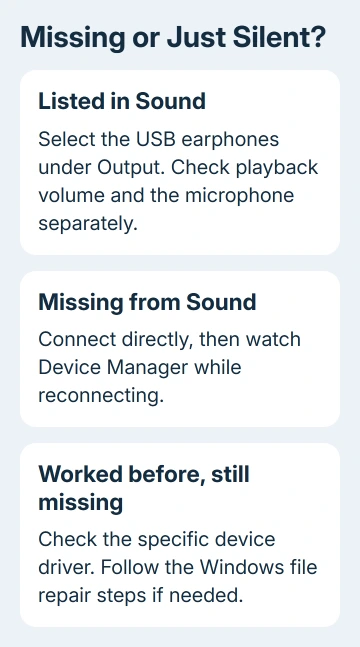
If the earphones still don't appear, restart Windows with your work saved and reconnect them afterward. A direct connection removes the dock from this check, while a restart gives Windows another chance to load the connected device.
Compare the earphones on another compatible computer if possible. Working on a phone is useful information, but a Windows test tells you more about the same USB audio connection. Also note whether they ever worked on this laptop.
For earphones that have never worked on the PC, check the headset maker's compatibility requirements before reinstalling drivers. A USB-C plug describes the connector; it doesn't tell you which audio hardware is inside the earphones.
2. Select the detected headset for playback and recording
If Windows lists the earphones, choose them in Settings > System > Sound > Output. Check both their volume and the playback app's mute control. Microsoft's audio troubleshooting steps include selecting the correct USB output.
Under Advanced, open More sound settings. On the Playback tab, find the USB earphones. If they're disabled, right-click the device and choose Enable. Select Set Default when you want ordinary playback sent there.
Don't select a Realtek entry just because it says Headphones. That entry can represent the laptop's analog audio jack. Unplug and reconnect the USB earphones while watching the list to see which device actually changes.
Check the Recording tab separately for the earphones' microphone. A working output doesn't automatically mean your meeting app selected the matching input. Choose the USB microphone in that app's audio settings as well.
Play the same clip again and make a brief microphone test. If both work, the device was present and the problem was selection or disabled audio. If the USB entry never appears, move on to Device Manager.
3. Check what Device Manager detects
In Start's right-click menu, choose Device Manager. Expand Sound, video and game controllers, then Audio inputs and outputs. Watch the list while you unplug and reconnect the earphones, and note any new device or warning symbol.
A new USB audio entry means Windows has detected hardware on the connection. Open its Properties and read Device status. Save any error code rather than treating all audio errors as the same missing driver.
If the device appears with a warning, try Update driver on that specific entry. Follow the laptop or headset maker's instructions for special drivers. Skip unknown download sites offering packages for a generic device name.
When a recent driver change caused the fault and Roll Back Driver is available under Properties > Driver, use it to restore the previous driver. Reconnect and test after the change before trying another repair.
If reinstalling is needed, uninstall the identified audio device and restart Windows. Don't uninstall every USB controller just because the earphones use USB-C; that can also interrupt other connected equipment.
For a Device Descriptor Request Failed message, use the USB recognition checks. That error means Windows is having trouble identifying the device, so choosing an output won't fix it.
4. Repair Windows files if the device used to work
One owner on a Microsoft forum restored their Lenovo Yoga's missing earphones with Windows file repairs. The speakers and a separate 3.5 mm connection had kept working, while the USB earphones weren't detected.
The owner tried several checks and repairs, so we can't say which command fixed it. Follow the repair order here rather than repeating every command they tried.
Before running the repair, apply the updates offered by Windows and restart the PC. Then search Start for Command Prompt, select Run as administrator, and approve the prompt. Run:
DISM.exe /Online /Cleanup-image /RestorehealthThe Windows component store holds replacement system files. DISM repairs that store. It can take time, so let it run through pauses in the progress display. Wait for completion before starting the next command.
After DISM completes successfully, run:
sfc /scannowSFC checks protected system files and repairs problems it can fix. Let verification finish at 100%. Note the result, restart Windows, and reconnect the earphones. Our SFC repair results guide explains a failed repair result.
Check Sound for the USB headset and try playing audio again. If SFC reports no problems but the earphones still don't appear, the repair hasn't solved it; running the same scan again isn't the next step.
5. Ask for a headset or laptop repair check
If the earphones fail on two compatible computers, ask the headset maker about repair or replacement and provide the model. For earphones that work on another PC, send your laptop maker the OS build and the USB audio entry's Device status.
Report the dock comparison, any earlier successful use, and whether another USB device functions in that port. With those results, support can narrow the problem to the earphones, Windows, or the physical port.
I'd keep using a working audio connection while you arrange that check. Resetting the entire laptop would be a large change for a single missing headset while its other audio devices work.
The Short Version
Connect directly, then separate a missing USB device from a wrong audio output. Check its specific Device Manager entry, and run the Windows component repair before SFC if previously working earphones stay missing.
Checked November 17, 2026.
 If you have any business, I can build it online






