Apple ID verification asks you to confirm an email address or enter a six-digit sign-in code. Open the email for an address check; for a sign-in code, approve the request on a trusted device or use your trusted number.
The name has changed to Apple Account; your existing Apple ID and password still work. Check the prompt before requesting another code, because verifying an email and approving a sign-in are different tasks.
In this guide
Match the verification request to the right method
An email-verification request checks that an address on your account belongs to you. It can appear when you add or change an address. The email goes to the address you're verifying, which may not be your primary address.
A two-factor request appears when you sign in on a new device or browser. It asks for the six-digit code from a trusted device, or a text or call to the trusted number. Two-factor authentication adds this second check to your password.
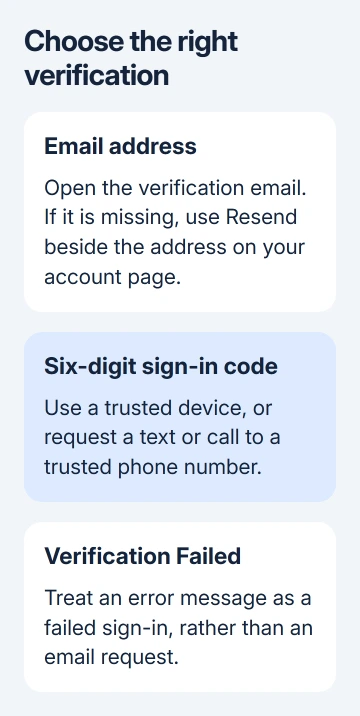
A Verification Failed error is a third situation: the sign-in hasn't gone through. Use the Apple ID verification error checks if that is the actual message, rather than waiting for an email.
Don't create another account to get through a verification prompt for an existing one. Purchases, iCloud information, and the device you're setting up may belong to the original account.
Confirm an email address on your account
Start with the inbox for the address you're trying to verify. Search for mail from Apple and check Spam, Junk, Trash, Deleted Items, and Archive if your mail service has those folders.
- Open the verification email for the address you added or changed.
- Follow the verification instructions in that email. Keep the account page open if it is waiting for a code or confirmation.
- Return to the account page to confirm the address no longer needs verification.
- If nothing arrived, sign in at account.apple.com, review the email addresses on your account, and check the spelling of the one you're verifying.
- Click Resend beside that address to request another verification email. If the address is wrong, correct it before sending again.
Apple's missing verification email instructions also advise allowing messages from email.apple.com in your email settings. If ordinary email isn't arriving either, ask your email provider to fix delivery first.
Your account's address list is available after you sign in. It won't be visible on the public welcome page, and seeing that welcome page doesn't mean an email has been verified.
If you're unsure which account you're using, find the Apple ID already on your device before editing an address. That avoids requesting mail for a different login by mistake.
Approve a sign-in on a trusted device
A trusted device is one you've already signed in to with your Apple Account and two-factor authentication. Keep it nearby while signing in on the new device or browser.
- Enter your Apple Account and password on the device or website where you want to sign in.
- Look for a sign-in notification on your trusted iPhone, iPad, or Mac. Other supported trusted Apple devices can display codes too.
- Choose Allow if this is the sign-in you just started. The trusted device displays a verification code.
- Enter that six-digit code on the device or browser that requested it. Finish any further account prompts shown there.
The notification's map uses the new device's IP address, so it may show the network's approximate location rather than your exact position. Before approving it, check that it's the sign-in you just started.
Don't approve a request you didn't start or give a verification code to someone who calls claiming to be support. That code belongs in your own sign-in process.
Get the code by text message or phone call
At the code screen, choose Didn't Get a Code? or Can't get to your devices?. Choose your trusted number and request the offered text-message or phone-call option.
Read the code from the message or call and enter it on the waiting sign-in screen. The trusted number must be one already on your account; typing a different number doesn't instantly make it trusted.
If the text seems missing, check Unknown Senders in Messages as well as the main inbox. Filtering can put a verification message somewhere other than the conversation list you usually read.
I'd try the phone-call option before starting account recovery when the trusted number still works. It uses the existing trusted number and avoids waiting for an SMS that may be delayed.
Sometimes an iPhone verifies the trusted number in the background, so a separate code entry isn't needed. Don't restart a successful sign-in just because you didn't see a six-digit prompt.
Keep a second trusted number available
After signing in, review the trusted numbers while you still have access. On iPhone or iPad, open Settings > your name > Sign-In & Security > Two-Factor Authentication, then choose Add Trusted Phone Number.
On a Mac, open Apple menu > System Settings > your name > Sign-In & Security > Two-Factor Authentication. Scroll to Add Trusted Phone Number and follow the prompts.
Use a number you can still reach if your main iPhone is missing or damaged. An additional trusted number is useful only if you can receive its call or message when the primary phone isn't available.
When the trusted phone and devices are unavailable
If you can't use your trusted device or number right now, waiting until you can may be faster than account recovery. Don't remove a working signed-in device simply to restart the verification process.
For a number you can no longer use, select Didn't Get a Code? or Can't get to your devices?, then Can't use [phone number]. Follow the account-recovery prompts when no trusted route is available.
If you also need a password reset, open iforgot.apple.com, enter your Apple Account email (or its phone number), then follow the recovery options. Recovery helps you get back into your account; it doesn't skip the second security check.
Recovery may take days or longer. Follow its instructions about using signed-in devices during the wait, because account use can cancel the request. Apple Support can't shorten the waiting period.
For a prompt that still won't accept a code, ask Apple Support for Apple Account sign-in and security help. Give the exact screen wording and say whether you can access the email address, trusted number, and a signed-in device.
The Short Version
Verify an email through its inbox and use Resend on your account page if needed. For a six-digit sign-in code, approve your own request on a trusted device or use the trusted phone number. Recovery is for lost access to those routes.
Checked November 10, 2026.