

VIDEO_DXGKRNL_FATAL_ERROR means Windows' DirectX graphics system detected a serious problem. Start with the graphics driver: undo a recent driver update, or install the computer maker's matching package if no recent update needs undoing.
The stop code doesn't identify a failed graphics card by itself. Note whether the crash happens when a game starts, after waking from sleep, or after a driver update before choosing the next step.
In this guide
1. Note the error and what changed before it
Take a photo of the error screen or write down VIDEO_DXGKRNL_FATAL_ERROR. Its bug-check number is 0x113. Keep any different code from another crash too, rather than assuming every restart has the same cause.
Microsoft says 0x113 indicates that the DirectX graphics kernel subsystem detected a violation. That points you toward the graphics system without naming the part or driver that caused the crash.
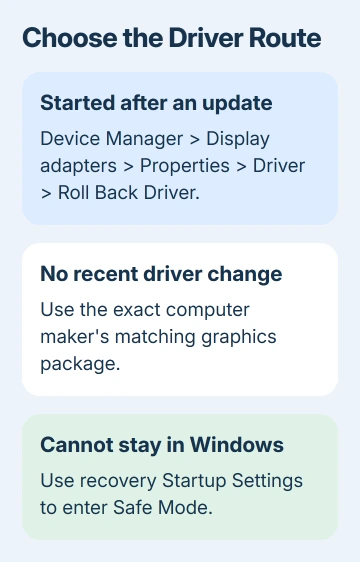
Note what was happening: opening a game, switching to battery, connecting a display, or waking the laptop. Also record the computer's exact model and Windows version from winver.
If Windows stays open, continue with Device Manager. If another crash interrupts the driver procedure, use Windows Recovery Environment > Troubleshoot > Advanced options > Startup Settings > Restart, then select Safe Mode.
On a Windows 11 PC you can still use, reach recovery through Settings > System > Recovery > Advanced startup > Restart now. Windows 10 places Advanced startup under Settings > Update & Security > Recovery.
Save your BitLocker recovery key before using advanced recovery tools on an encrypted PC. If recovery asks for it, use the key for that computer rather than changing firmware security settings to get past the prompt.
2. Undo the graphics update when crashes began afterward
Right-click Start, select Device Manager, and expand Display adapters. Double-click the graphics adapter whose driver changed, then look on Driver for an available Roll Back Driver button.
Choose the reason when prompted and confirm the rollback. Restart if Windows requests it, then retry the game or other task that caused the stop error. Use the same game or wake-from-sleep sequence so you're comparing the same behavior.
A grayed-out rollback button means Device Manager has no saved earlier package to use. Move to the matching manufacturer package instead of searching for another rollback control.
On a laptop, two display adapters can be normal: integrated processor graphics plus a discrete NVIDIA or AMD adapter. Write down both names before making changes. Don't remove both just because they're listed together.
If the crash returns, keep the driver version you tested and the time it happened. One successful game launch is useful progress, but repeated failures still need the next repair and the crash information.
3. Install the graphics package for the exact computer
Use your computer maker's installed support utility to check model-specific updates. For the ASUS laptop family in the original report, MyASUS can provide system updates when that feature is supported.
ASUS's blue-screen troubleshooting steps include driver updates, rollback after a driver change, checking recent software, and hardware diagnostics. Match the download to both the full model name and the Windows release.
If the support utility doesn't offer the needed package, request the graphics installer from the computer maker's support team. Have them confirm the model and both adapters for a hybrid-graphics laptop before you replace a package.
Close games and other apps before running the supplied installer, then follow its restart prompts. A driver package for a desktop graphics card isn't necessarily a match for your laptop maker's setup.
If support asks you to reinstall the device through Device Manager, right-click the affected adapter and choose Uninstall device, confirm, then restart. Windows then tries to restore the device's driver during startup.
Have the matching manufacturer package ready if that automatic reinstall fails. If Windows restarts with only a basic display driver, install the matching package before checking whether the crashes have stopped.
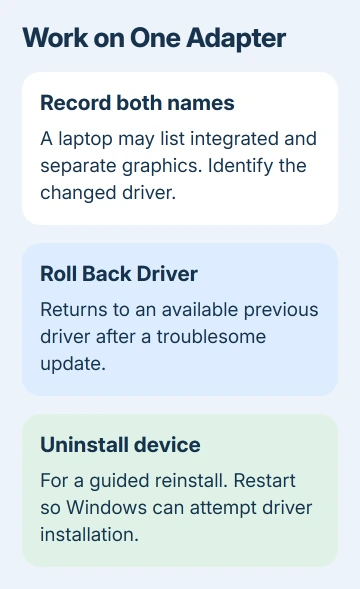
After restarting, check the original trigger. Record the driver version if that package change stops the crashes. If they continue, check related hardware and software instead of installing the same release repeatedly.
4. Remove recent additions and use the maker's diagnostics
Disconnect recently added USB accessories, docks, or external displays, then restart and repeat the failing activity. If the crash stops with an accessory removed, report that comparison to the accessory and computer makers.
For software added just before the trouble, check Settings > Apps > Installed apps on Windows 11. Windows 10 calls the page Apps & features. Remove a suspected optional app through its own uninstaller, then retry the activity that crashed.
Don't remove software just because another crash report names its driver. The original thread suggested removing Intel and Samsung components, but the asker hadn't tried that advice when they reported that the crashes had paused.
For a supported ASUS computer, open MyASUS > System Diagnosis. Run the available hardware checks, then the Blue screen error check if offered. Some models don't include these diagnosis controls.
If a check reports a hardware error, send its details to ASUS support and ask whether the computer needs repair. A check can miss intermittent crashes, so keep the stop code and driver history if the problem continues.
If the main symptom is temporary blanking across several monitors without a stop error, use the multi-monitor black-screen checks for that display behavior. Those refresh-rate adjustments aren't a confirmed fix for 0x113.
5. Keep the crash files for a targeted support request
Open File Explorer and enter C:\Windows\Minidump in the address bar. If Windows created small crash dumps, this folder contains .dmp files from the crashes. Keep the files matching your recent crash times.
An absent folder can mean no small dump was saved. To review the setting, press Windows + R, enter sysdm.cpl, and open Advanced > Startup and Recovery > Settings. Check Write debugging information with support's guidance.
Send the crash dump, adapter names, and driver versions to your computer maker for review. For an ASUS model, include the MyASUS diagnosis result. For a managed PC, send those details to IT through its approved support channel.
Crash dumps can contain private information, so use the private file-transfer method your support team gives you. A public file link isn't necessary to get the stop code assessed.
When neither the desktop nor Safe Mode will load, the Windows recovery guide covers the startup route. Ask support for a recovery or repair plan that protects your files before attempting a reset.
The Short Version
Note when 0x113 happens. Undo a recent graphics update or use the computer maker's matching driver package. If crashes continue, ask support to review the hardware checks and crash dumps. That code can't identify a failed graphics card.
Checked November 16, 2026.
 If you have any business, I can build it online






