

Word 2010 can fail to draw a selection rectangle around shapes in a DOCX file while individual clicks still work. Use Home > Select > Selection Pane to choose objects by name, or hold Ctrl while clicking the shapes you need.
This is different from being unable to highlight text. The Word 2010 reports describe a drag-selection problem that changed with document format. Check the selection method before replacing a mouse that works elsewhere.
In this guide
1. Open the Selection Pane and choose one shape
In Word 2010 for Windows, open the Home tab. In the Editing group, choose Select > Selection Pane. Click an object name in the pane and check which shape gets selection handles on the page.
Look for the small handles around the shape to confirm you've selected it. A text cursor inside a text box means you're editing its words; handles around the box mean the box itself is selected.
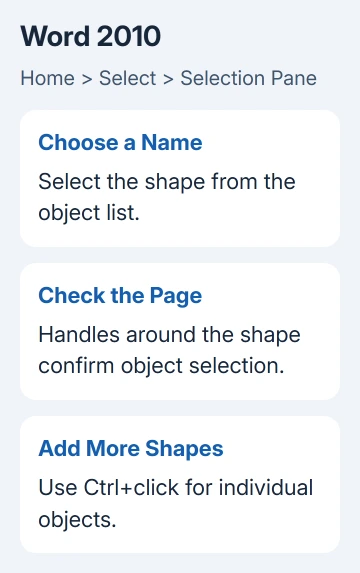
The Word 2010 discussion describes dragging failing in Word 2010-format documents while working in Word 97-2003 compatibility mode. The Selection Pane was the proposed way around that failure.
This lets you reach small or overlapping shapes without trying to hit a narrow visible edge. Start with one item so you know which name belongs to which object before selecting a larger set.
If the object list is long, rename the relevant shapes with useful names when the pane allows it. Names such as Top label or Left circle make later editing easier than guessing among several rectangles.
If you can select the shape from the pane, Word can still find and select the object. Continue with multiple selection instead of repeating the drag that isn't drawing a rectangle.
Once selected, a tilted line can be corrected through its height or width without drawing another arrow.
2. Select several shapes without drawing a rectangle
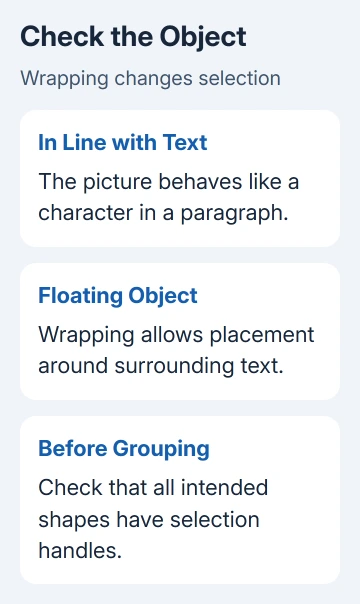
Hold Ctrl and click the individual shapes you want. Keep holding it while adding each object. Check that handles remain around all the intended shapes before moving or grouping them.
Where the pane supports multiple selection, use Ctrl+click on its object names instead. This is useful when the page contains many tiny pieces or one shape covers another.
Don't assume Shift+click will select a whole run of names in Word 2010's pane. The historical report specifically notes that the pane didn't offer the range-selection behavior the person wanted.
If you accidentally add the wrong shape, hold Ctrl and click the unwanted item to deselect it. Work through a small set first, then add more shapes once you're comfortable with the method.
For overlapping items, select a visible object and press Tab to cycle forward through objects. Shift+Tab cycles backward. Watch the handles so you can tell which object is currently active.
Microsoft's object-selection instructions describe selecting shapes and cycling through a stack. These controls are more useful here than changing mouse speed, since the problem is the selection operation inside Word.
I'd use the pane for a crowded diagram. It takes less trial and error than dragging a larger rectangle repeatedly and discovering afterward that a tiny piece wasn't included.
3. Check whether the item is inline or floating
With In Line with Text wrapping, a picture sits in its paragraph like a typed character. A floating picture or shape has wrapping and can be positioned relative to surrounding content. That affects which items you can select together.
Select one picture and check its Wrap Text command on the contextual Picture Tools > Format tab in Word 2010. Newer Word versions use Picture Format for that tab.
An inline item may appear in a modern Selection Pane without allowing multi-selection, hiding or reordering there. A listed inline item can still have some pane commands unavailable.
If you need to group pictures, check whether you need to change their wrapping from inline to a floating option first. Make the change on a copy, because altering wrapping can move content and change pagination.
For a text box, select its edge to work with the whole box. Clicking between its letters starts text editing instead. The Word text-box instructions explain that difference when a caption keeps receiving a cursor.
If the problem is a drawing tool leaving marks instead of selecting anything, leave Word's drawing mode before choosing an object. Ink selection and ordinary shape selection aren't the same operation.
4. Group only after checking the selected set
Once the intended shapes are selected, use the contextual Drawing Tools > Format tab in Word 2010. Find Arrange > Group > Group when available. In newer desktop Word, the tab is named Shape Format.
After grouping, click away and select the result again. Moving it should move the grouped pieces together. Check that labels and small decorative parts weren't left behind before replacing your working copy.
If Group is unavailable, inspect the selection rather than clicking harder. Make sure you've selected several objects that Word can group, then check their wrapping using the steps in section 3.
A group still contains its original pieces. If you need to edit one of them later, select the group and then the specific shape, or use the pane's group entries where available.
For a diagram with many pieces, save a copy before reorganizing it. That gives you a version to compare if grouping or a wrapping change moves a label to another page.
5. Keep the format test separate from the final document
Check the title bar and save type to see whether you're working with DOCX or a Word 97-2003 Document (.doc) in compatibility mode. The historical report found different drag-selection behavior between those formats.
I'd test DOC conversion on a copy, rather than use it as the first fix for your only document. The older format can change newer document features, so use a separate copy when showing support the difference between formats.
Word 2007 was reported to behave differently from Word 2010 in the same discussion. Don't treat a video of another release as confirmation that the same drag should work in this one.
If individual clicks, Ctrl-click and the pane also fail, compare a blank document with two newly inserted shapes. If selection fails only in the original file, send a duplicate sample to its creator or IT and explain what happens.
Office 2010 no longer receives support. Ask IT to test the file's grouping and layout in supported desktop Word. Describe the missing drag rectangle and the document format, rather than reporting a dead mouse.
The Short Version
Use the Selection Pane or Ctrl-click when Word 2010 won't drag-select shapes. Check wrapping before grouping and keep format experiments on a copy. Give support the document format and blank-file comparison if selection still fails.
Checked November 16, 2026.
 If you have any business, I can build it online






