

Text boxes that won't resize in Word can be caught in an older document's Compatibility Mode. Save a new .docx copy with Maintain compatibility with previous versions of Word cleared, then try the box again.
Owners confirmed that change for an older Word update fault with unresponsive sizing handles. If the file is already outside Compatibility Mode, check object selection and the ribbon's size controls before assuming it's the same bug.
In this guide
1. Save a copy without the older compatibility settings
Look at Word's title bar for Compatibility Mode. The original report involved Word version 2110, build 14527.20072, and sizing handles that stayed visible but didn't respond to the mouse.
That report dates from 2021. With current Word, check the affected file's compatibility status first instead of assuming a new update introduced the same old fault.
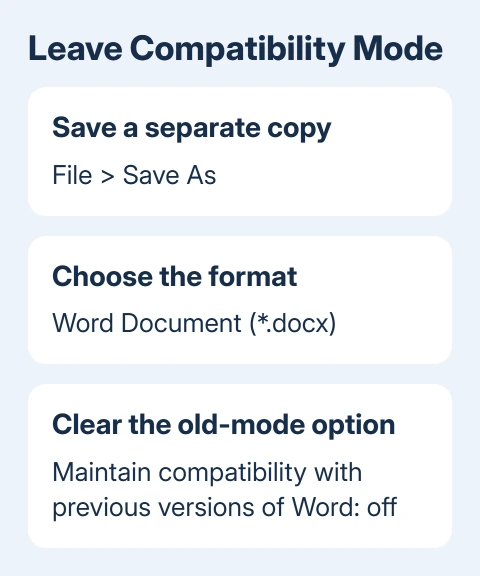
Microsoft's document conversion instructions explain that compatibility settings preserve older behavior. A .docx filename by itself doesn't tell you those settings have been removed.
- Use Windows desktop Word to open the affected file.
- Choose File > Save As and select a folder for a new copy.
- Give the copy a different filename, leaving the original unchanged.
- Set Save as type to Word Document (*.docx).
- Clear Maintain compatibility with previous versions of Word if that option appears, then save.
- Reopen the copy. Its title bar should no longer show Compatibility Mode.
If Save As offers More Options, open it and save from that dialog after clearing the checkbox. An owner found that canceling out of that dialog and saving elsewhere left the problem in place.
Conversion can change older document layout, so compare the new copy's page breaks and drawings with the original before sharing it. Keep the original until you're satisfied with the converted file.
Select the text box's edge and drag a corner handle. If the box changes size now, continue working in the converted copy. If it still won't respond, check how the object is selected next.
File > Info > Convert is the other conversion route when Word offers it. That route converts without making a separate copy; I'd choose Save As for a document whose layout matters.
2. Select the box rather than the words inside it
A blinking text cursor inside the box means Word is editing its contents. The font controls then affect the words, while dragging through them selects text. Select the outside edge to work on the box itself.
Selecting the object should reveal sizing handles and a formatting tab. Depending on the Word edition and object, the tab is called Shape Format, Drawing Tools Format, or Format.
If a picture covers the box, open Home > Select > Selection Pane and choose the object from the list. The Word text-box selection guide explains this distinction for overlapping objects too.
Try a middle side handle to change one dimension, then a corner handle to change both. Watch the box's actual edge, rather than assuming that handles left on screen belong to the current selection.
The old report described ghost handles that didn't respond after selection changed. When that happens, close the saved document and reopen the converted copy then try selecting the box again.
If normal paragraphs also resist mouse selection, use the Word mouse-selection checks. A general input problem needs different attention from a single drawing object's size.
3. Enter the dimensions instead of dragging
For an urgent layout edit, try the ribbon's numeric size controls. This also tells you whether Word can resize the box even when its mouse handles don't respond.
- Select the text box's outside edge or its entry in the Selection Pane.
- Open Shape Format or the Format tab shown for that object.
- Find the Size group. Expand it if the narrow window hides the controls.
- Enter a new Height or Width, then press Enter.
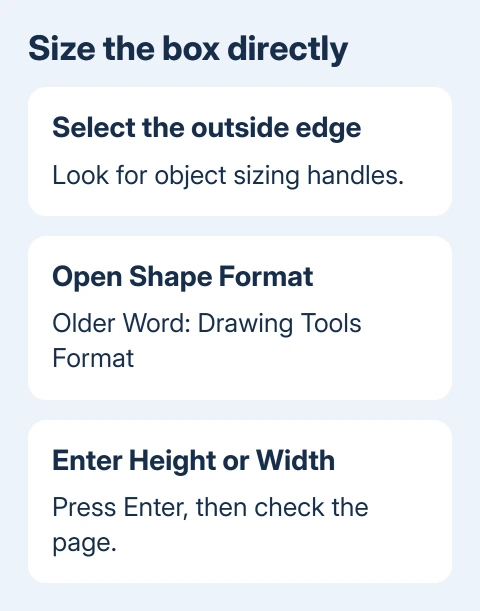
Use a small change first and watch the page. If the box changes size, save your edit, close the file and check its dimensions after reopening. Numeric sizing can keep the task moving even when dragging remains unreliable.
If height and width change together, open the Size dialog using the group's dialog launcher and clear Lock aspect ratio. That lets you change each dimension independently; it doesn't change object selection.
The object sizing instructions cover these controls. Changing the box's size doesn't change the font size of the text inside it.
For spreadsheet lettering that needs different proportions, apply an Excel WordArt Warp effect before stretching the object.
Don't keep shrinking the box when your actual aim is smaller lettering. Select the words inside and change their font size on Home. Then adjust the box to fit the layout you want.
4. Try a fresh text box, then check Word startup
Create a blank document with File > New > Blank document. Use Insert > Text Box > Draw Text Box, draw a small box and type a short label. Check whether its handles and numeric dimensions work.
If the new file works, the problem is in the older document. Keep the converted copy and examine the affected objects there. When other documents work, try rebuilding the damaged box before reinstalling Office.
Before replacing a box, save its text and note any layout linked to that box. A replacement can change positioning, wrapping and page flow; compare page flow against the original before rebuilding more objects.
If the new blank file fails too, close Word and open it in Safe Mode: press Windows + R, enter winword /safe, and press Enter. Open the test file from inside that Word window.
A working test in Safe Mode points toward something Word loads during normal startup.
A startup warning about missing macro language support also needs the VBA component and dependent add-ins checked.
Open File > Options > Add-ins. Set Manage to COM Add-ins, choose Go, and clear one recent add-in's checkbox. Restart normally and compare the test box before changing another add-in.
If neither normal startup nor Safe Mode helps, try Office repair. On Windows 11, open Settings > Apps > Installed apps; Windows 10 uses Apps & features. Select Microsoft 365 or Office, then Modify.
Start with Quick Repair when offered. Save open work before repair. If it doesn't help, the repair dialog also offers Online Repair, for a more thorough repair over the internet.
Report a repeatable failure with a small sample
For a persistent fault, open File > Account > About Word to record the installed release and build number. Give Microsoft Support the results for the original file, the converted copy and the blank test document.
Describe the results from numeric sizing and the Safe Mode test. Send a small sample that has the same fault, with private content removed. That gives support the actual text box to check, rather than a description of its handles.
The Short Version
Convert an older file to a fresh .docx copy without maintaining compatibility. Select the box's edge, then try numeric dimensions if dragging fails. Compare a blank document and Safe Mode before repairing Office.
Checked November 17, 2026.
 If you have any business, I can build it online






