

Word's HTML mail merge can fail when its desktop connection to Outlook is missing. Make classic Outlook the default mail app, then check for mixed Office versions if plain text sends but HTML creates nothing.
Several owners fixed this when they had older Office installed alongside Skype for Business 2016. That needs different checks from messages already in Outlook's Outbox, or a merge that hasn't connected to its recipient list.
In this guide
1. Check whether Word creates an email at all
Open classic Outlook and send an ordinary message to yourself. Confirm that it reaches your Inbox. This checks the account's ability to send without involving Word or the merge document.
Next use a test recipient list with just your own address. In desktop Word for Windows, choose Mailings > Start Mail Merge > E-mail Messages, connect that test list and use a short message with a recognizable subject.
Choose Mailings > Finish & Merge > Send Email Messages. In the dialog, set To to the column containing the address, enter the subject, and select HTML under Mail format. Send only the test record.
Some Office interfaces label the finish command Merge to E-Mail. Check the final dialog: To needs the email-address field, and the format needs HTML. Choosing a name field or sending as an attachment changes the result.
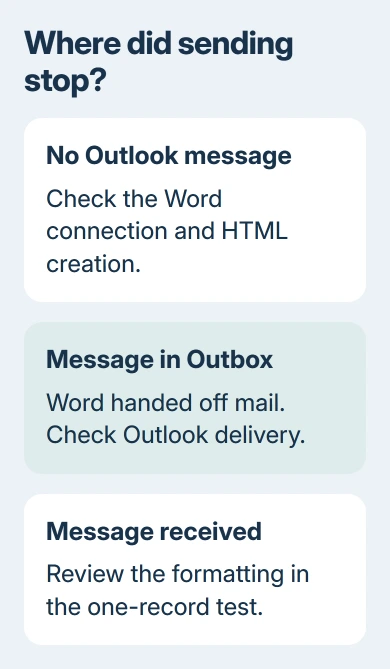
Check Outlook's Outbox and Sent Items, then the receiving Inbox. A message in Outbox means Word handed something to Outlook. Nothing in either folder points to an earlier failure, before Outlook tries to deliver the mail.
If the test record doesn't merge correctly even in Preview Results, fix the recipient connection first. The Excel-to-Word merge guide explains how the source rows connect to fields.
For External table is not in the expected format, use the separate mail-merge source repair. That error happens while reading recipients, before HTML email creation.
2. Connect the right Outlook edition to Word
Check which Outlook you're using. The classic Windows app has a File tab and traditional Office account controls. New Outlook has different features and can't replace classic Outlook for every connection to a desktop app.
Word's email merge uses MAPI, the connection through which a desktop program passes mail to an email application. The current Outlook feature comparison lists MAPI in classic Outlook and as unsupported in new Outlook.
Mail merge itself has a separate entry in that comparison. A mail-merge feature inside an email app doesn't mean that app supplies the MAPI connection Word's desktop workflow expects.
Use classic Outlook when available, check that the account you want to send from is set up, and make that classic app Windows' default email handler. On Windows 11, open Settings > Apps > Default apps and select the classic Outlook entry.
On Windows 10, open Settings > Apps > Default apps and choose classic Outlook under Email. For a managed computer, ask IT to configure the default mail application if the choice is locked.
Microsoft's Word email-merge instructions require a compatible installed mail application. They also require matching Word and Outlook versions when Outlook contacts supply the recipient list.
If a normal email works but the HTML test still produces nothing, try the same one-record test as Plain text. A successful plain-text test narrows the problem to HTML creation; it doesn't mean your formatted mailing is ready to send.
3. Check the older Skype for Business conflict
For Office 2007, 2010 or 2013, check whether Skype for Business 2016 was installed alongside the older suite. The original discussion includes several owners whose HTML merges worked again after correcting this mixed installation.
Open Control Panel > Programs > Programs and Features and review the installed Office and Skype entries. On a work computer, give that list to IT before removing anything used for company calling or meetings.
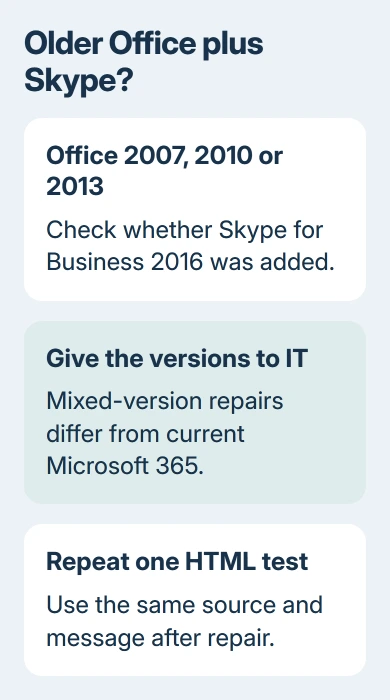
One owner confirmed HTML merging after removing Skype for Business 2016. They then installed the older Skype for Business 2015 and reported that the merge still worked.
Their results point to a conflict between those older versions. Installing a retired communications app isn't a current repair plan. Ask IT to remove the incompatible component or move the installation to supported matching Office products.
Other owners confirmed an older registry workaround: removing the 2.8 entry under HKEY_CLASSES_ROOT\TypeLib\{2DF8D04C-5BFA-101B-BDE5-00AA0044DE52} restored HTML merging in their mixed installations.
Have IT export the specific registry key first and verify which product owns the entry. This repair is for matching older setups. Don't delete the whole TypeLib branch or apply this historical workaround to current Microsoft 365.
Those reports don't explain every HTML merge failure. If Skype for Business 2016 isn't present, continue with the installation checks rather than searching for something to delete.
4. Repair a damaged or mixed Office installation
Another owner had FrontPage installed with Office. Removing FrontPage and running the Office repair let their Access-to-Word HTML mail merge send again on Windows 7 with Office 2010.
Check the installed-product list for older Office-family apps beside your current suite. Give their names and versions to your administrator. An app from another Office version can share components even when it isn't listed as Word.
Office 2010's Windows 7 repair starts at Control Panel > Programs and Features > Microsoft Office 2010 > Change > Repair. Save your documents, then exit all Office applications for the repair.
For current Office on Windows 11, use Settings > Apps > Installed apps, the Office entry's three-dot menu, then Modify. Windows 10 uses Apps & features. For a Click-to-Run copy, the dialog lets you choose Quick Repair or Online Repair.
The Office repair choices depend on installation type. An older installer can offer Repair rather than Online Repair. Repeat the same one-record HTML test after the repair finishes.
I'd keep that test document unchanged while repairing the installation. If the same source and message begin working afterward, you'll have a much clearer result than if you've also rebuilt the mailing during the repair.
When HTML still produces nothing
Closing both apps and starting Word alone helped in a related older discussion. It failed for this asker on Windows Server 2008 R2. You can try that restart, but it didn't repair their terminal-server installation.
Send as plain text temporarily if you don't need the formatting. Rework a copy so the message reads properly without its HTML layout. An attachment sends a separate document and changes what recipients receive.
Ask your administrator or Microsoft Support to check Word-to-Outlook integration. Include both app versions, any Skype or older Office components, what happened with HTML and plain text, and whether a message reached Outbox.
For a shared server, have the server administrator test the same merge with invented data while signed in as another user. Shared Office components need a server-level repair plan rather than repeated changes to one user's letter.
The Short Version
Confirm normal Outlook mail works, then try one HTML merge through classic Outlook. Plain text working while HTML creates nothing points toward HTML integration. Have IT check and repair older mixed Office/Skype installations.
Checked November 17, 2026.
 If you have any business, I can build it online






