

Opening the Excel source before Word's mail merge can clear the external-table format error. Office 2010 owners confirmed this workaround, including a case where Excel needed a password before Word could read the data.
The same message also appeared with mixed Office installations and workbook formats. Keep the original spreadsheet, then try opening it in Excel first before converting a copy or repairing Office.
In this guide
1. Open the source workbook in Excel first
Close the failed merge document, then open the actual source file in Excel. If it asks for a password, enter it there and keep the workbook open. Start Word and reopen your merge document afterward.
In Word 2010, use Mailings > Select Recipients > Use Existing List to select that same source file. Choose the intended worksheet when prompted, then check Preview Results.
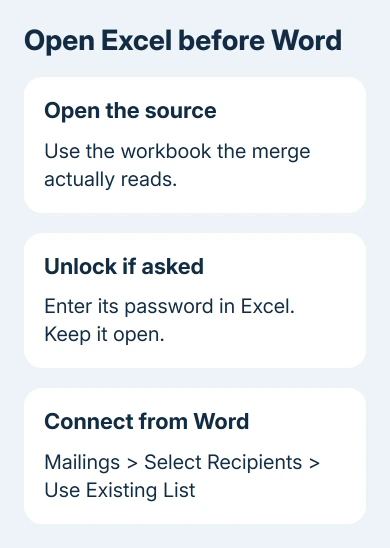
Success means Word displays the recipient data rather than the format error. Check several recipients before creating the merged letters, particularly names, postal codes and dates that could be formatted differently.
Once Mac Word reads the source but sends no email, check its Outlook merge connection as a separate sending fault.
One owner in the original mail-merge discussion confirmed that opening a password-protected workbook made the merge work. Other owners succeeded with an already-open .xlsx source too.
Keep the workbook open for that merge. If closing Excel brings the error back, that tells you the workaround depends on Excel having opened the file; it hasn't repaired the underlying connection.
For the normal setup after the connection succeeds, the Excel-to-Word mail merge steps cover matching fields and previewing records. Don't rebuild all your letter fields while the real failure is opening the source.
2. Save a separate source copy in another workbook format
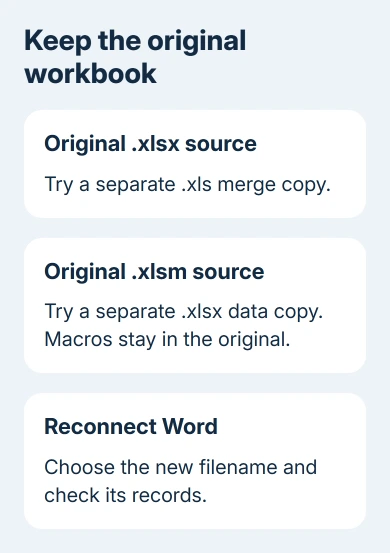
If an open workbook doesn't help, try File > Save As in Excel. Keep the working original and give the merge copy a clear different filename so Word doesn't keep reconnecting to the wrong file.
For the original Office 2010 problem, saving an Excel 97-2003 Workbook (.xls) copy let the asker complete the merge. A later Office 2013 owner also reported that an .xls copy worked when other workarounds failed.
That older format can lose newer workbook features. Read Excel's compatibility message and keep using the original for your normal calculations; the copy is only the source you're testing with Word.
If the source is .xlsm, a workbook that can contain macros, try a separate .xlsx copy containing the merge data. Saving as .xlsx removes macros from that copy, so it shouldn't replace a workbook whose buttons or automation you still need.
A later participant in the thread reported success after the .xlsm-to-.xlsx suggestion. A simpler source copy is another option to try; this error doesn't always mean you need the old .xls format.
Reconnect Word through Select Recipients > Use Existing List and select the new filename. Check the worksheet and recipient rows again. Changing a file on disk doesn't help if the merge still points to the original.
3. Start Access once if it's already installed
Several Office 2010 owners got the merge working by starting Microsoft Access and then closing it. This test doesn't involve creating an Access database.
Close Word, launch Access from Start and let its first-run setup finish. Exit Access, reopen Word and try the same Excel source again. This is a quick option only when Access is already included in your Office installation.
Word uses shared database components to read spreadsheet sources, which explains why Access appeared in a Word-and-Excel discussion. It worked for these owners, but they didn't pin down a cause that explains every case.
If Access isn't installed, skip this step. Office editions without Access also showed the problem, and buying another application isn't a sensible first repair for a merge that used to work.
The workaround failed for some later participants, including the password-protected case and an Office 2013 report. Continue to connection or installation repair if starting Access makes no difference.
4. Try the older DDE connection for a trusted source
Word 2010 can let you choose another way to connect when you turn on its file-format confirmation setting. With DDE, an older connection method, Word gets data through Excel instead of its usual database reader.
In Word, open File > Options > Advanced. Scroll to General, select Confirm file format conversion on open and choose OK. Then reconnect the spreadsheet through Mailings > Select Recipients > Use Existing List.
In Confirm Data Source, select Show all, then choose MS Excel Worksheets via DDE (*.xls). Follow the prompts and check that the records come from the sheet you intended.
Use this only with a source you trust and your organization's permission for that older connection. Don't weaken security settings to force a blocked connection to run.
One participant confirmed success; others reported incomplete results, trouble selecting sheets or a crash. If the needed records don't appear, restore the previous connection rather than merging the wrong data.
5. Repair Office when several sources fail
If new and existing .xlsx files fail across the same computer, check whether different generations of Office products are installed together. The original case included Office 2010 and SharePoint Designer 2007.
An engineer reported that repairing Office 2010 corrected one customer's installation-order problem. Other replies confirmed repair helped some installations; mixed-version cases sometimes needed further work.
For Office 2010 on Windows 7, open Control Panel > Programs and Features, select Microsoft Office 2010 and choose Change > Repair. Let it finish, restart if requested and test the same source again.
For a current installation, Microsoft's Office repair instructions distinguish the repair choices by installation type. Don't look for an Online Repair button in an older setup that offers Repair instead.
Leave registry changes to the administrator handling that mixed installation. Supply the installed Office product versions, Windows version and whether opening Excel first changes the outcome.
If the connection now works but dates display incorrectly, adjust the Word merge date field. That formatting problem occurs after data loads, so treat it separately from this connection error.
When recipients load but HTML produces no email, check Word's Outlook handoff before reconnecting the spreadsheet.
When Word still can't read the spreadsheet
Ask IT to test a small source workbook with invented records on the same computer and another Office installation. That comparison helps IT see whether only your source file fails or this computer also struggles with similar workbooks.
Keep the original workbook and merge document together for recovery. For an Office 2010 installation, ask IT to include a move to supported Office in the repair plan rather than depending permanently on an old-format copy.
The Short Version
Open the source in Excel first, entering its password if needed. Next try a separate format copy, Access if installed, or a permitted DDE connection. Repair mixed Office installations when several sources fail.
Checked November 16, 2026.
 If you have any business, I can build it online






