
Your all-in-one still prints fine, but tap Scan and nothing happens. Image Capture opens to an empty list, or shows the error Failed to open a connection to the device (-21345).
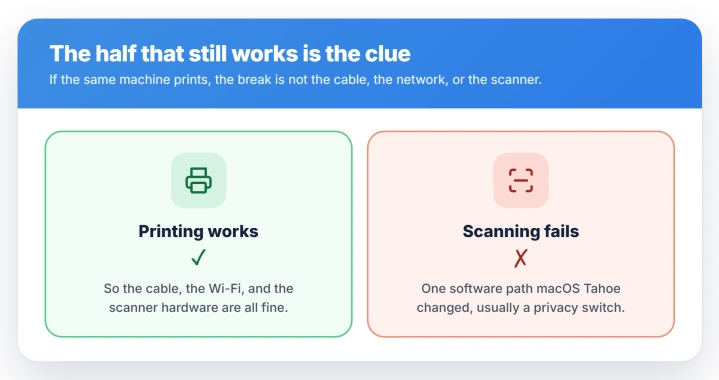
The printing half still working is what rules almost everything out. The cable, the Wi-Fi, and the scanner hardware are all fine, since a real fault there would stop printing too.
What broke is one software path macOS Tahoe changed, most often a privacy switch the update quietly turned off. Let me take you down the causes, most common first, and you can stop at the one that fits.
Turn the scanner's Local Network permission back on
macOS Tahoe tightened how apps reach devices on your network, and the upgrade switched off Local Network access for the small background helper your scanner uses.
Printing runs through a different part of the system, so it keeps working while scanning goes dark.
Open System Settings, then Privacy and Security, then Local Network. Look for an entry with a cryptic name rather than a friendly one, such as EPSON ES0156 or Brother Scanner.
That is the scanner component, and its switch is off.
Turn it on, then open Image Capture or your scanning app again. The scanner should reappear right away.
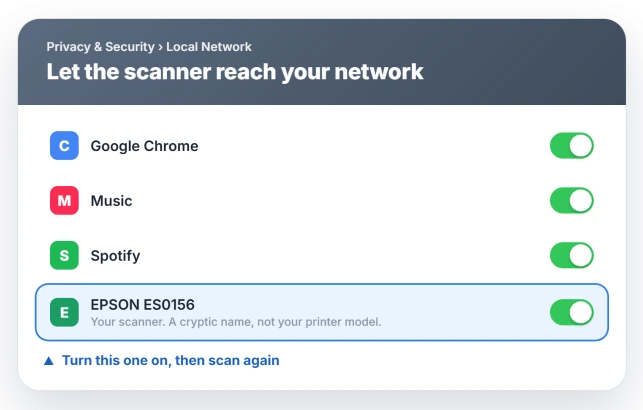
If you see any unfamiliar toggle from your scanner's brand, that is the one.
Tahoe's same privacy clampdown blocks other wireless gear, which is also why Continuity Camera will not connect wirelessly for some people.
Scan from the Mac, not the scanner's own buttons
If you normally walk to the machine, load a page, and press its Scan to Computer button, that push stopped finding the Mac on Tahoe. The button relied on a network path Tahoe no longer answers the same way.
Pull the scan from the Mac instead. Open Image Capture, or in System Settings, Printers and Scanners, select the machine and click Open Scanner, then scan from there.
The same page, started from the computer, goes through.
A USB cable is a fast test here too. If the scanner works wired but not over Wi-Fi, the fault is the network discovery Tahoe changed, not the scanner.
Update the scanner app, or drop the dead one
A scanner that has worked for years may be leaning on software Tahoe no longer loads. Two brands hit this hardest.
- Fujitsu ScanSnap. The old ScanSnap Manager does not run on macOS 26 at all. You need ScanSnap Home version 3.1.1 or later, downloaded fresh from Fujitsu. Older units like the iX500 still work once you are on the newer Home app.
- Canon. A message that the scanner driver is not installed means the Tahoe driver is missing. Get the current version from Canon's support page for your exact model.
For HP, HP Easy Scan or the HP Smart app often scans when Image Capture will not. For Epson, use Epson Scan 2 rather than Image Capture.
Re-add the scanner so its Scan option comes back
If the upgrade left the machine listed as a printer with no way to scan, remove it and add it back.
In System Settings, Printers and Scanners, select the device, click Remove Printer, then add it again with the plus button so Tahoe rebuilds both the print and scan halves.
Apple's own walk-through for stuck scanners is Solve scanning problems on Mac.
Detection on Tahoe can be inconsistent, so if it does not show at once, wait a minute or restart the Mac once and look again.
When your brand has no Tahoe scanner driver yet
Some older or discontinued models never got an updated Tahoe driver.
Rather than replace a working scanner, VueScan is a third-party app with its own built-in drivers for thousands of models, and it scans over both USB and Wi-Fi when the official software has gone quiet.
Status: on macOS Tahoe the update switches off the scanner's Local Network permission, so it will not scan while the same printer still prints. Turn it back on in Privacy and Security, Local Network.
What will not fix it
If it is printing that fails and scanning is fine, that is the reverse problem, covered in printer not printing on a Mac after Tahoe.
For a scanner that prints but will not scan, these standard fixes all fall short, because they target printing or hardware, not the scan path Tahoe changed.
- Reinstalling the printer driver. Scanning uses a separate component, so a fresh print driver does nothing for it.
- Resetting the printing system. That clears the print queue and settings, not the Local Network block or the scanner software.
- An SMC or NVRAM reset. Apple silicon Macs have neither, so any guide telling you to reset them was written for older Intel machines.
- A new cable or reinstalling macOS. The scanner already prints, so the hardware and the system are working. This is a permission and driver issue.
Why does my Mac print but not scan after Tahoe?
Printing and scanning use different parts of macOS.
The Tahoe update switched off the Local Network permission for the background component scanning relies on, while the print side kept its access, so printing still works.
Turn the scanner's entry back on in System Settings, Privacy and Security, Local Network.
Where is the Local Network setting for my scanner on a Mac?
Open System Settings, Privacy and Security, then Local Network. The scanner shows up under a technical name, not your printer's model, so switch on the unfamiliar entry from your scanner's brand.
What is error -21345 on a Mac scanner?
It is Image Capture failing to open a connection to the scanner, usually because Tahoe is blocking that scanner's Local Network access. The same permission toggle clears it.
If it persists, update the scanner software or try VueScan.
Does my old scanner still work on macOS Tahoe?
Often yes, once the software matches. ScanSnap units need Home version 3.1.1 or later, and most other brands need their current Tahoe driver.
If no updated driver exists for your model, VueScan can drive it with its own built-in drivers.
The Short Version
- Printing works but scanning does not because Tahoe switched off the scanner's Local Network permission. Enable that entry in System Settings, Privacy and Security, Local Network, listed under an unfamiliar technical name.
- If you press Scan on the machine itself, scan from the Mac instead: Image Capture, or Printers and Scanners, Open Scanner.
- Update the scanner software. ScanSnap needs Home 3.1.1 or later, since Manager is dead on Tahoe; Canon and others need the current Tahoe driver.
- No driver for your model yet? VueScan brings its own and scans over USB or Wi-Fi.
- Skip the SMC or NVRAM resets and printer-driver reinstalls. Those target hardware or printing, and your scanner is failing on neither.
Where to Next
Being refused at the login window is worse than a scanner refusing to start. A Mac rejecting your correct password after Tahoe takes it from there.
- If it is printing that stopped, not scanning: Printer not printing on a Mac after Tahoe
- Another Tahoe wireless-device block: Continuity Camera won't connect wirelessly to a Mac
- A network drive that vanished after upgrading: Time Machine NAS backups failing on Tahoe

Isaac Smith is the founder and editor of PC Glance, a website that covers computers, laptops, and technology. He is a tech enthusiast and a computer geek who loves to share his insights and help his readers make smart choices when buying tech gadgets or laptops. He is always curious and updated about the latest tech trends.