
You open the Camera app, tap the switch button for a selfie, and get a black screen. The rear camera works fine. It started right after an iOS update.
A camera that dies overnight makes you think of repair bills first. I understand that worry, but for several owners in the forum thread this was software, and an update or a reset brought it back.
I will go through the checks from the cheapest to the most drastic.
What owners saw
The thread was opened after iOS 26.2 and has 260 people saying Me too. The first post says it all: "I updated to iOS 26.2. The front camera stopped working. When I switch cameras, only the rear camera works".
Another owner described the same thing months later: "front camera just won't respond while the rear one works fine". On one iPhone 14, both cameras failed now and then, and "the picture becomes blurry or black".
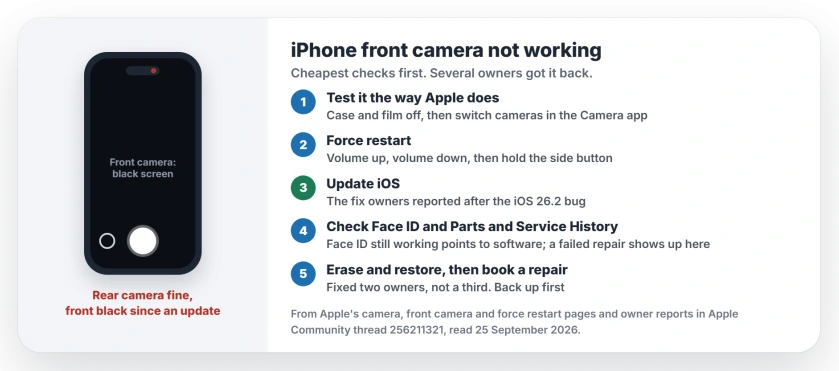
Status: iOS 26 and iOS 27, checked 25 September 2026. Updating fixed it for owners after iOS 26.2. Two more got it back by erasing the iPhone and restoring a backup.
1. Test it the way Apple does
Take any case or screen film off first. Apple's camera page asks you to remove any case, film or accessory that could block the lens or put a magnet near it.
Then open the Camera app and switch cameras. Apple's words: "If your device has a front and rear camera, check if one or both aren't working. To switch cameras, tap the rotate button".
If the front camera fails in every app, FaceTime included, you are seeing what that thread describes.
2. Force restart
This clears a stuck camera process without touching your data. Apple's steps: tap volume up, tap volume down, then keep the side button held down.
Hold it through the black screen and let go at the logo. Then try the front camera again.
3. Update iOS
This is the easiest fix owners reported. After the 26.2 bug, one wrote: "After installing 26.2.1, I did not have the issue anymore".
Another put it simply, "just update to the new ios version, which helped me fixed the glitch issue", and Apple lists the same step on its camera page.
Go to Settings, General, Software Update, and install whatever is waiting, or carry on if you already have the latest version.
4. Does Face ID still work?
Apple's page on genuine front cameras explains that the front camera system is what enables Face ID, so Face ID is a quick clue.
My reading, and it is ours: if Face ID still unlocks your iPhone, the camera hardware is probably fine and software is the likelier cause. If Face ID failed at the same time, a repair is more likely.
5. Check Parts and Service History
If your screen or front camera was ever repaired, check this before anything else. Apple says "With iPhone 12 models and later, you can go to Settings > General > About to see the parts and service history of your iPhone".
A part that is not genuine, or a repair that was never finished, can cause camera problems.
Apple lists problems such as a preview that "appears blank or gets stuck" in some apps. Our Face ID disabled page explains what each label there means.
6. Erase and restore from a backup
Two owners got the front camera back this way, and one of them did it on Apple Support's advice. "they had me do a full reset by erasing all contents after I backed up everything on my iCloud first".
The other had tried everything else first. In their words, "doing a factory reset and then restoring from a back up" is what worked.
It takes an evening, so back up first and check the backup finished. It is not guaranteed, either. Another owner erased their iPhone and the front camera stayed black.
7. Book a repair
If none of this works, the camera needs a technician. A Level 10 volunteer told the owner whose reset failed: "Then it's time to schedule a visit to your Apple Store Genius Bar for service options".
Apple's camera page ends the same way: if it "still isn't working properly, you might need service". If your iPhone is under warranty or AppleCare, the repair may cost you nothing.
Other camera and Face ID problems
If your phone camera shows black in every direction, or photos turn blurry, the general camera checks start with the case and the lens. And if Face ID stopped after an update too, the Face ID fixes for iOS 26 cover that.
Why did my iPhone front camera stop working after an update?
For owners after iOS 26.2 it was a software fault, and a later update fixed it. A failed or non-genuine repair and a hardware fault can cause the same black screen.
How do I fix my iPhone front camera?
Remove the case, force restart and update iOS. Then check Parts and Service History. If it is still black, erase and restore from a backup, or book a repair.
Is my front camera broken if Face ID still works?
Probably not. The front camera system also runs Face ID, so a working Face ID points to software. That is our reading, not an Apple promise.
Will a factory reset fix my front camera?
It fixed it for two owners in the thread, but not for a third. Update iOS first, since that is quicker and fixed it for two owners too.
The Short Version
- Take off the case and switch cameras in the Camera app.
- Force restart.
- Update iOS; that fixed it for owners after iOS 26.2.
- Check Parts and Service History if it was ever repaired.
- Erase and restore from a backup as the last software step.
- Still black? Book a repair.
Where to Next
Check Software Update first. It is quick, and it fixed two owners' cameras.
If your front camera came back, tell me in a comment what did it and which iPhone you have. And if nothing worked, say so too, since that helps the next person decide on a repair sooner.

Isaac Smith is the founder and editor of PC Glance, a website that covers computers, laptops, and technology. He is a tech enthusiast and a computer geek who loves to share his insights and help his readers make smart choices when buying tech gadgets or laptops. He is always curious and updated about the latest tech trends.