FaceTime on a Mac can stop receiving calls when the app is signed out or the address people call isn't selected. Open FaceTime's General settings and check those addresses before changing anything on your iPhone.
For calls that connect with no picture or sound, check which camera, microphone and speakers FaceTime is using. Pick the checks that fit what's happening on your Mac.
In this guide
1. Check the account and the address receiving calls
Open FaceTime from Applications. If a sign-in form appears, enter your Apple Account's email or number and password. You still need to sign in here even if you're already signed into iCloud in System Settings.
Once the call window opens, choose FaceTime > Settings > General from the menu bar. Look under You can be reached for FaceTime at. Enable the address your caller uses for you.
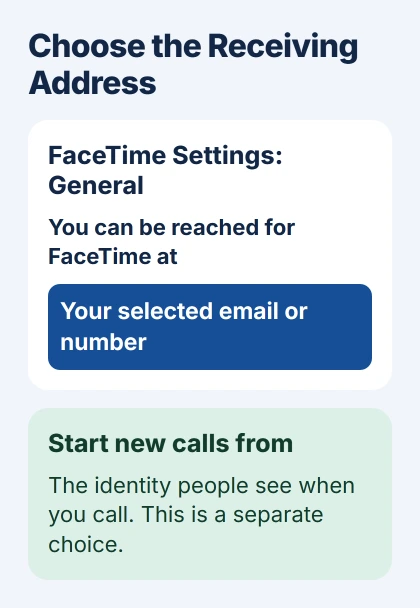
The Start new calls from choice sets the address other people see when you call. It doesn't select all the addresses that can receive calls. Check that the address your friend has saved for you is selected for incoming calls.
Ask your friend to call the selected address directly. If your iPhone rings but the Mac stays quiet, that address may be enabled on only one device. Check that both devices can receive calls at that address before trying other fixes.
To move an ongoing conversation rather than answer a new ring, match the FaceTime Handoff requirements on the receiving device.
For ordinary cellular calls through your iPhone, use the Mac Phone app checks. A working FaceTime audio call and a failed carrier call involve different connections.
2. Try a confirmed address instead of the saved shortcut
Start a fresh FaceTime call using an email address or number the other person confirms they use. Type it instead of choosing a favorite or old contact entry. The address in your contacts may no longer be enabled for FaceTime.
For the specific contact-card rejection, compare the enabled FaceTime address with the saved entry before removing the contact.
The audio-only calling steps show which Mac call-menu choice keeps video off from the start.
Try calling a second person too. If that works, your Mac can make FaceTime calls. Check the first person's address, whether they're available and any calling restrictions before reinstalling apps on your Mac.
Apple says some contacts need an invitation link in its Mac call troubleshooting guide. Someone using Android needs the FaceTime browser invitation route.
Check blocking when only one person's incoming calls fail. Open FaceTime > Settings > Blocked and review the listed addresses. An hourglass beside a person points to a communication limit instead of a bad camera.
Ask the other person to check their receiving addresses too if neither of you can call the other. Note who can call whom, and give support that result when reporting the call failure.
3. Compare the connection when calls freeze or drop
If a call starts and then breaks up, check both connections. Pause large transfers or streaming that use your connection, and move where the Wi-Fi signal is reliable. Ask the other person to do the same, then try again.
Try another trusted network if you can, but call the same person using the same type of call. Otherwise you won't know whether the network change helped.
If the Mac's Wi-Fi disconnects during other tasks too, use the Mac Wi-Fi recovery checks. FaceTime can't maintain video over a connection that keeps disappearing.
If calls work at home but fail on the office network, tell its administrator. The network's access rules or performance may explain the difference. Don't remove a managed security profile to get around a network policy.
If none of the networks you try helps, continue with the app and device checks. During a reported FaceTime outage, wait until the service is working again before changing more account settings.
4. Select the camera and audio devices inside FaceTime
If the call connects but picture or sound is missing, open the Video menu in FaceTime's menu bar. Choose the camera, microphone and speakers you want to use. Despite its name, this menu also has sound settings.
A connected display, headset or iPhone webcam can change which devices FaceTime uses. Choose the device you want instead of leaving the choice automatic. Try the call again and ask the other person to check the sound and picture.
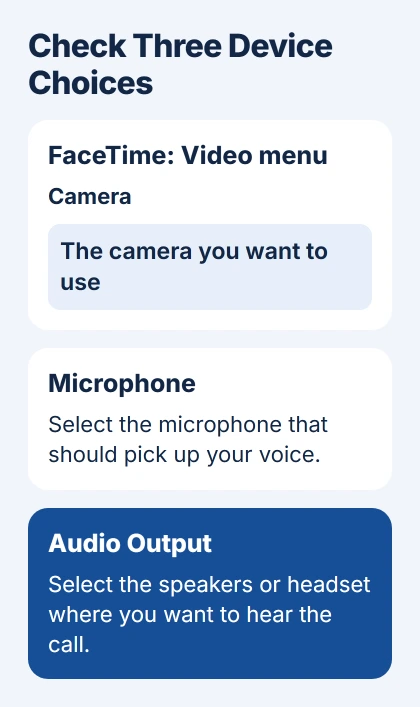
If Use System Setting is selected for audio, open System Settings > Sound and check both Input and Output. Sound coming from a headset on your desk can look like a silent call on the Mac.
Quit FaceTime and open Photo Booth to check the built-in camera. A camera that also fails there needs the Mac's camera checks. If it works there, reopen FaceTime and recheck its selected camera.
5. Review limits and a camera that remains unavailable
Open System Settings > Screen Time if FaceTime shows a time limit or the camera is restricted. Under Content & Privacy > App Restrictions, check Camera. Older macOS versions may label that part Apps.
Check App Limits for FaceTime too. A family organizer may need to approve changes on a child's Mac. Camera access and calling time have separate settings. Start with the control named in your message.
In Privacy & Security > Camera, turn on access for the app you need if it's listed. FaceTime missing from this list doesn't mean it's broken. Check its selected camera and Screen Time settings too.
For an external camera, reconnect its cable and look for its name under Video. If the built-in camera fails in several apps or its light flashes green, arrange service. Changing FaceTime addresses again won't fix that camera problem.
6. Restart, update and describe the remaining failure
Quit FaceTime normally, reopen it and repeat the failed action. If it remains stuck, save your work and restart the Mac. Then check System Settings > General > Software Update for an available macOS update.
I'd avoid signing out of the whole Mac account for one broken call. For a persistent FaceTime sign-in error, send Apple Support its full wording, your macOS version and the result on another trusted network.
If calls still fail, tell support whether you can call a second person and whether the camera works in Photo Booth. Those checks help distinguish account, calling-limit and camera problems before anyone considers erasing the Mac.
The Short Version
Check FaceTime's account and receiving addresses, then compare another contact and connection. For silent or blank calls, select the devices in Video. Review Screen Time and seek support for persistent sign-in or camera faults.
Checked November 5, 2026.
 If you have any business, I can build it online