Individual addresses can appear in Outlook's suggestions while local contact groups disappear. Type the group's name and press Ctrl+K in classic Outlook. Outlook can find it in the address book without needing a suggestion.
This lets you address the email to the group, though it may not restore the missing suggestion. The Outlook 2016 reports describe an old update regression, so keep the difference between a missing suggestion and a missing group clear.
In this guide
1. Resolve the group without its suggestion
Open a new email in classic Outlook for Windows. Click in To, type the saved contact group's name, and press Ctrl+K. Wait for Outlook to finish checking the address book.
Microsoft's contact-group workaround also lists Alt+K. A partial group name may be enough, but use the complete saved name if a short fragment matches several entries.
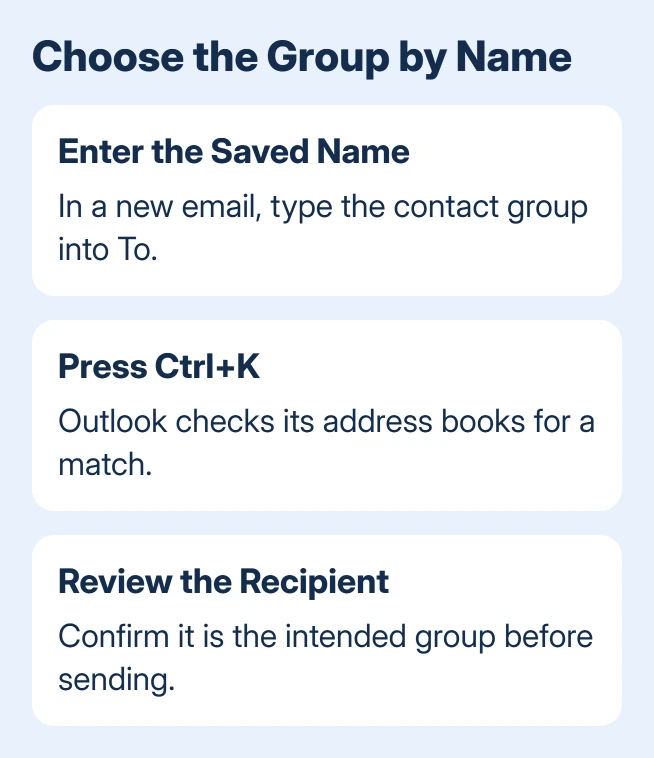
Check which recipient Outlook actually resolved. The resolved entry should represent your intended group, not an individual with a similar name. If Outlook presents several matches, choose the correct group from that list.
An owner also found that typing the full group name and pressing Tab resolved it on several affected computers. When an individual suggestion tried to take its place, pressing Esc before Tab avoided selecting that suggestion.
Use the saved spelling of the group name. The owner described their workaround as sensitive to the name they typed; that report doesn't mean every Outlook address-book lookup requires matching capitalization.
Once the group resolves, you can finish the email. If Outlook can't resolve it at all, use the address book in the next section. That checks whether this Outlook profile has access to the group, even without a recent suggestion.
A resolved group that fails during sending needs the contact-group expansion check, which compares the group with its separate recipients.
2. Select the saved group from the address book
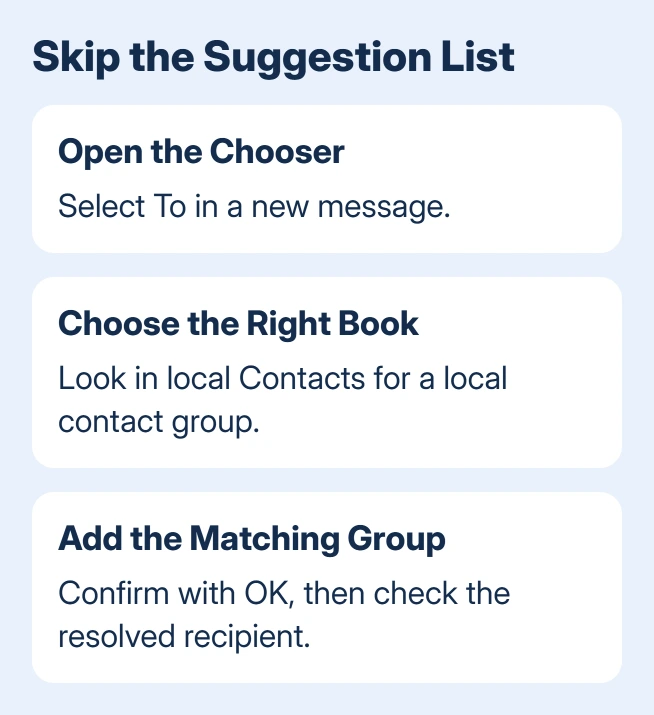
In the new message, select To to open the address-book chooser. Pick the address book or contacts folder containing the group. A local contact group may be in Contacts, rather than your organization's Global Address List.
Search for the group's name, select the matching result, add it to the intended recipient field and confirm with OK. Back in the message, inspect the resolved recipient before sending.
The original reports included a change in address-book order. If the chooser opens the company directory first, switch to the local contacts folder before concluding that the group has vanished. Those are separate collections of recipients.
If People contains individual contacts but the address book stays empty, check the folder and compare a separate classic Outlook profile.
For recipients who shouldn't see each other's addresses, use the appropriate field from the Outlook Bcc guide. Choosing the group successfully doesn't change whether the To or Cc recipients are visible.
A group you can select here still exists even if Auto-Complete never offers it. If it isn't in the expected contacts folder, check your saved contacts instead of repeatedly changing the suggestion list.
3. Check the Outlook profile and group type
Open People in classic Outlook and look in the contacts folder where the group was saved. Open the group to inspect its saved membership. Then close it, leaving the members as they are unless something needs correcting.
A resolved group can deliver mail but lose its voting buttons in transit; check the mail route when direct recipients still receive them.
A local Contact Group is a saved collection in your contacts. A company distribution group comes from the organization's directory. A Microsoft 365 Group has additional collaboration features.
These can have similar names, so check which kind of group you're trying to use.
If the expected local group isn't there, confirm that Outlook is using the account and profile in which it was created. A group saved in another person's contacts or another profile won't automatically appear in this one.
The Outlook contact-group guide covers creating and editing the saved collection. Use that only when the group itself is missing or its membership needs work. Rebuilding an existing group isn't the first response to missing suggestions.
For an individual contact whose Notes field stays locked, check the saved item and Outlook updates rather than rebuilding a recipient group.
For an unresolved company distribution group, send its name and address to the administrator. Ask them to check visibility and your access. A local Auto-Complete reset can't repair an unavailable directory entry.
4. Check Auto-Complete only if individuals fail too
When individual recipients are also missing from suggestions, open File > Options > Mail. Find Send messages, then check Use Auto-Complete List to suggest names when typing in the To, Cc, and Bcc lines.
Enable it if it was turned off, select OK, and try a recipient you previously emailed. This changes whether classic Outlook offers suggestions; it doesn't add every contact or group to that list immediately.
If individuals already appear, leave this option alone. In the original reports, individual addresses still appeared in suggestions, so turning the same enabled option off and on isn't a confirmed repair for it.
Don't use Empty Auto-Complete List as the opening fix for a group-only problem. That clears useful remembered recipients, and the saved reports don't show that it fixes this group-only fault.
At this point, you'll know whether entering the group manually works, the saved group is missing, or individual suggestions fail too. Let those checks guide the next repair instead of resetting the whole suggestion list.
5. Update without returning to a 2017 Office build
Open File > Office Account > Update Options > Update Now when your installation offers it. Reopen Outlook after updating and check the same group. On managed computers, have IT review your current build and its update channel.
The archived issue names Outlook 2016 Build 8625.2121 and later; the Q&A also has Version 1707 reports. Those older reports explain why the workaround was suggested. They don't tell us that current releases have the same fault.
The old page suggests a 2017 build rollback with updates disabled. I'd keep the current installation and resolve the group manually. That old build would leave years of fixes missing.
One owner temporarily recovered group suggestions by opening Outlook in safe mode, closing it and reopening normally. The issue returned later. Keep the address-book route available while waiting for a lasting repair.
If a saved group won't resolve, report its type and Outlook build to the mailbox administrator, or use Microsoft Support for a personal account. Include the address-book and Ctrl+K results, plus whether individual suggestions work.
The Short Version
Resolve the group's name with Ctrl+K, or select it through To and the right address book. An absent suggestion can leave the saved group intact. Check Auto-Complete settings if individuals are missing too, and update Office.
Checked November 16, 2026.