

Word's vertical ruler can stop offering the margin drag control when the top and bottom page space is hidden. Turn on Show white space between pages in Print Layout view in File > Options > Display before changing the document's margins.
A ruler that's completely missing needs a separate display setting. Start by matching what you see: a visible side scale without a usable margin boundary, or no side scale at all.
In this guide
1. Bring back the hidden top and bottom space
Start with the affected file in Windows desktop Word. Choose View > Print Layout so you're looking at fixed pages. Then open File > Options > Display.
Under the page display options, select Show white space between pages in Print Layout view and choose OK. Return to the page and check whether its top and bottom margins are visible again.
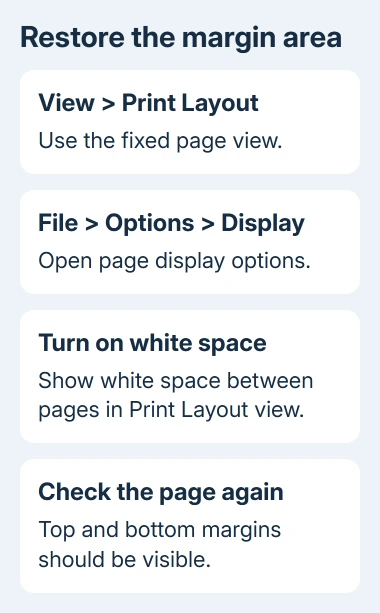
An owner confirmed that restoring white space fixed the problem. Their horizontal ruler worked, but the side ruler no longer offered the control for dragging the top margin.
This is a display change. It restores the page space Word was hiding; it doesn't create a new margin measurement in your document. That distinction matters when the printed page was already correct.
Check the boundary between the margin area and the main text area on the vertical ruler. Move the pointer slowly around that boundary. When the resize pointer appears, the margin control is available again.
Don't drag just to check the control if the page layout is already correct. If the margin is visible and the resize pointer appears, the display fix has worked. If the whole side scale is absent, use the next section instead.
2. Turn on the side scale if it is missing
Select View > Ruler. If only the horizontal scale appears, open File > Options > Advanced, scroll to Display, and select Show vertical ruler in Print Layout view. Confirm with OK.
Return to Print Layout and look for the left-side scale. Those options show the ruler itself. The Display option in section 1 restores the blank space around your page content.
If horizontal tabs move only once before Word needs minimizing, check the ruler-freezing workaround instead of changing page margins.
The Word ruler guide covers that visibility setup in more detail. Use it when the ruler is missing, rather than treating a hidden margin area as a broken installation.
In Word 2007, the application options start from the Microsoft Office Button > Word Options. The original thread's File > Options route fits Word 2010 and later Windows desktop editions; it isn't a Windows 7 setting.
That's why I'd check Word before changing Windows display preferences. The reported behavior comes from Word's page view. Check Word's own options before changing resolution, scaling, or mouse settings across the computer.
If the left scale now appears but its top margin area still looks cut off, return to the white-space option in section 1. Turning the ruler on doesn't automatically restore that hidden area.
3. Use the page edge shortcut when the options are on
There is also a shortcut for restoring hidden page space. In Print Layout, point at the top or bottom edge of a page until the pointer becomes a double-pointed resize symbol, then double-click.
Microsoft's missing top margin instructions describe this toggle for current Windows and Mac desktop editions. Double-clicking the page boundary again hides that space again.
Use the boundary of the page for this shortcut, not the margin boundary inside the ruler. The two actions look similar but do different jobs: one changes what the view shows, and the other adjusts document formatting.
If you accidentally hide the space while moving around the page, the text can appear to jump upward and the header area can disappear from view. That doesn't mean the header or margin was deleted from the document.
Restore the page space before trying to recreate headers or adding blank paragraphs. Those edits change the file to compensate for a viewing option, which can leave unnecessary space when the normal page view returns.
If clicking is awkward, use the checkbox route in section 1 instead. You can see whether the option is on, rather than guessing whether your double-click showed or hid the page space.
4. Change the margin numerically when that is the task
Once the page looks normal again, decide whether its margins need adjusting. The side ruler offers upper and lower margin controls; it doesn't change the physical paper height.
For a precise setting in current Word for Windows, open Layout > Margins > Custom Margins. In Word 2010, the tab is named Page Layout. Enter the required Top and Bottom measurements and review Apply to.
The Word margin instructions explain the difference between presets and custom values. Typing the measurements helps when your document needs to meet a school, publisher, or office requirement.
Check whether the change should affect the whole document or only the current section. A chapter with different margins can be intentional. Changing the entire document to solve a display problem can overwrite that layout choice.
If your goal is a taller or shorter sheet, use the paper Size control instead. If one paragraph starts too far down, check its spacing. Neither problem is solved by making the vertical ruler visible.
Check Print Preview after changing a margin. The text should move in the way you expected, and page breaks may shift because the available text area has changed. Undo a mistaken formatting change before making another one.
When the control still behaves differently
Open a blank file as a comparison, keeping both documents in Print Layout. If margin dragging works in the new document, tell support it only fails in the original file. Include whether that file has sections or a fixed template.
On a Mac, try the page-edge shortcut for hidden margins. Ruler visibility uses Word > Preferences > View > Vertical ruler. Mac, browser, and phone editions don't have Windows' File > Options controls.
For unresolved desktop behavior, reach support through Word's Help controls. Send the version, pointer behavior, and a cropped page-boundary image. Ask whether page space is hidden or margin editing is restricted.
The Short Version
Restore white space in File > Options > Display when the vertical ruler is visible but won't offer its margin control. Show a missing side scale separately. Change numeric margins only when the document's actual layout needs adjustment.
Checked November 17, 2026.
 If you have any business, I can build it online






