

Clearing a sort in Excel won't return the rows to their original order. Try Undo while that sort remains in history. Otherwise, you'll need a stored sequence column, an earlier copy, or a backup containing that order.
A filter is different: clearing it shows hidden rows, but doesn't reverse sorting. That's why removing a sort symbol or deleting its rule can leave every row exactly where it is.
In this guide
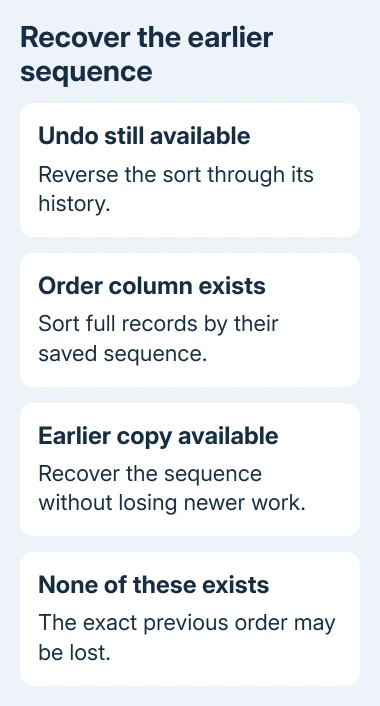
1. Undo the sort while its history is available
If the workbook is still open, check the Undo control or press Ctrl+Z to reverse the latest undoable action. On a Mac, use Command+Z. If sorting was the latest action, its previous row order should return.
If you've edited cells since sorting, those newer actions come first in the undo history. Check what Undo will reverse before continuing, particularly if those edits contain work you need to keep.
Saving doesn't automatically make Undo unavailable in desktop Excel. The Office undo instructions explain that saved changes can still be undone within the available history.
That corrects a misleading point in the old Excel 2010 discussion, where an accepted reply treated saving as the cutoff. Check whether the sort is still in Undo history, even if you've clicked Save.
After recovery, compare familiar records and their neighboring values. Names, dates, and amounts should still belong together. Reversing a single-column sort matters more than hiding its symbol.
When Undo is unavailable or no longer reaches the sort, don't keep reversing unrelated work. Move to a stored order value or an earlier copy. Excel can't infer the original sequence from a sort indicator alone.
2. Sort by an order value that already existed
Look for a column that preserves the intended sequence, such as a record number or a reliable creation date. It must have existed before the unwanted sort, and its values must actually represent the order you want.
An employee ID isn't automatically a joining-order number. Check a few known records before using it. Likewise, a date column shared by many records may restore groups without recovering the exact order inside each group.
Select all columns belonging to the records. In Data > Sort, choose the sequence column under Sort by and its ascending or oldest-first order. Check the header setting before applying it.
When Excel offers to expand your selection, keep the related columns together. Sorting just the original-order numbers while leaving names and amounts in place would break the very relationship you're trying to recover.
The Excel date-sorting guide covers a date-based order. Use that only when the date represents your intended sequence, rather than selecting any available date because the original order is missing.
After sorting, compare recognizable records from both ends of your list. If the sequence is correct, save a copy under a clear name. If none of your existing columns can restore the old order, try an earlier version next.
3. Recover the sequence from an earlier copy
Keep the current workbook before opening backups. An earlier copy may contain the right row order but lack later corrections, formulas, or new records. Restoring it over your current file can trade one problem for another.
For a OneDrive or SharePoint workbook, open the file's Version History controls. Inspect a version from before the sort and confirm it contains the sequence you need before choosing any restore action.
For a file on a company server, ask IT for a backup from before the sort. Give them the full file path and the approximate date and time. Backups on the server are different from recovery options on your own computer.
In the original Excel 2010 report, the asker found no available previous versions and had a month-old copy with substantial later work missing. They didn't report recovering the order from a backup.
If the older workbook has the right sequence, it can serve as a reference instead of replacing the current data. Match records by a unique identifier, preserve the old sequence in an order column, and check unmatched new records separately.
For an unfamiliar sheet, compare copies with IT or the person who manages it. Duplicate names aren't safe identifiers. Match by reliable IDs to keep current amounts with the right people while recovering their sequence.
4. Clear filters only when rows are hidden
If the problem is missing records rather than changed order, click inside the list and choose Data > Clear in the Sort & Filter group. That removes filtering so records excluded by filter conditions can show again.
Removing filter buttons through Data > Filter also doesn't reconstruct a previous row order. Those buttons and indicators show the available controls or current sort. They don't store the sheet's earlier row order.
Microsoft says clearing a sort won't restore old row order. Deleting a sort level changes the rule, not the arrangement that existed before the rule ran.
The Excel filtering guide covers narrowing a list without rearranging its records. Choose filtering when you want to show a subset while keeping the list's stored sequence intact.
5. Preserve the order before the next sort
Once you've recovered the intended sequence, add an Original Order column. Enter 1 and 2 in the first two data rows, select both cells, and fill the series through the remaining records.
Keep those as fixed numbers that move with each complete record. A formula that displays the current row number won't preserve the old sequence when the records move. Include this column in every later sort.
New records need their own unused sequence values when they're added. Then sorting the complete list by Original Order, smallest to largest, lets you restore that order without relying on Undo history.
Without usable history, a stored sequence, or an earlier copy, the exact original order may be lost. Ask the data owner for an original export. Reinstalling Excel can't recreate an order the workbook didn't retain.
The Short Version
Try Undo first, even if the open workbook was saved. Otherwise sort the full list by an existing sequence value or recover that sequence from an earlier copy. Clear removes filters; it doesn't reverse a completed sort.
Checked November 17, 2026.
 If you have any business, I can build it online






