Disconnected Samsung earbuds can still appear in Samsung Find or SmartThings Find if their model and earlier setup support it. Open their saved entry first. Ring needs Bluetooth, so it can't ring earbuds out of your phone's reach.
The map, nearby search and ringing do different jobs. An old location can guide a search through places you visited, but dead batteries or a case lost without the earbuds limit what the service can find.
In this guide
1. Open the earbuds already saved to your account
On a compatible Galaxy phone, open Samsung Find, tap Devices, then select your Galaxy Buds. Check the model, location and any update information shown. The map might show an earlier position rather than where the earbuds are now.
Samsung says the available finding apps depend on the phone's software and the earbuds in its lost Galaxy Buds instructions. Start with that saved entry even when the earbuds aren't connected for listening.
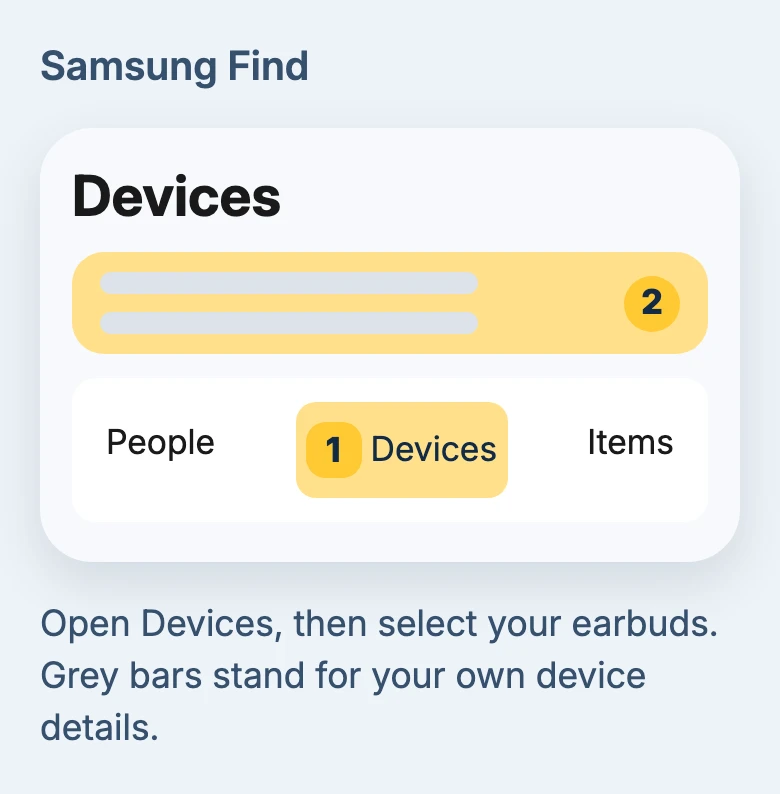
Use the Samsung account that was used with the earbuds. Creating another account after losing them won't bring the saved pair into its device list. If several pairs appear, choose the model you lost, not a previous set.
The Galaxy Wearable app also offers Find My Earbuds and can pass you into Samsung Find or SmartThings Find. On One UI 6.1 and later, its name can appear as Wearable. That naming change doesn't mean the finding entry was deleted.
If the earbuds aren't listed, check the account and app you used before the loss. Don't unpair or reset their saved entry while trying to locate them. Keep whatever location information is still available.
2. Read the location before trying to ring them
Look for the displayed location's update time, if shown. A saved position tells you where the earbuds were detected, but they might have moved since then. Think about whether you used them afterward or moved the case.
Tap Refresh to request updated information. If it stays old or the device remains unavailable, use that position to narrow your physical search. Repeated taps won't recharge the earbuds or put another finding device near them.
I'd check the last place you took them out of your ears before searching the whole map area. Look through coat pockets and bag compartments there. The map won't identify a particular shelf or seat.
Supported earbuds can be detected through Samsung's finding network without their usual phone connection. That needs finding set up beforehand and a nearby device to detect them. Don't expect each earbud to report a live GPS position.
If you've lost the phone as well, use the Samsung phone finding routes for that separate device. A phone's position and the earbuds' position can differ once they're separated.
3. Use Search nearby when you're in the right area
In SmartThings, open Life > Find, then select the buds. The map screen can offer Search nearby and Refresh. Use Search nearby when you're near the area where the earbuds were last detected.
Keep Bluetooth available on the searching phone and follow the app's prompts. If the earbuds come within reach, the app can help with the local search. If no nearby device is detected, check the case and battery limits in the next section.
For Buds3 and Buds3 Pro, the SmartThings device list can show the earbuds individually. Check each side if separate entries appear. Finding one earbud doesn't tell you the other is in the same pocket.
A nearby-search failure doesn't erase a saved map result. Go back to the last detected location and check whether it fits your movements. It may be the last useful information when the batteries have run down since the loss.
4. Check the case and battery limits for your model
Galaxy Buds FE, Galaxy Buds2 and earlier models don't support Nearby search while inside the charging case, according to the model notes. A phone beside a closed case can therefore fail to find those earbuds through that control.
Don't apply that older-model restriction to every newer pair. Check the controls offered for the exact Buds model and phone software. Finding features differ, even though all the products connect through Bluetooth for ordinary listening.
If both the case and earbud batteries are completely empty, the earbuds can't be located. A previously saved location may still guide the search, but the buds can't send a fresh detection or make a sound without power.
The charging case alone can't be located separately through these instructions. If both earbuds are with you and only the empty case is missing, the map isn't a separate case tracker. Retrace where you last charged or stored them.
For one missing side, use its own entry if the service shows separate sides. If only one combined entry is available, don't assume the displayed location identifies the side you still haven't found.
5. Ring them after the phone can connect
Select the buds in Samsung Find > Devices, then tap Ring. In SmartThings Find, choose Ring, then Start when prompted. Stop the alert once the earbuds are recovered.
The Ring feature needs the earbuds connected to the phone through Bluetooth. An offline map result by itself can't make distant buds ring. Use the map to reach the search area, then try ringing after a connection becomes available.
Keep the earbuds out of anyone's ears while sounding the alert. If you're helping someone search, check that neither side is being worn before starting. The sound is meant to help find them nearby.
On Android 15 or earlier, Galaxy Wearable > Find My Earbuds can offer Start > Play sound. On Android 16 or later, the supported route can be Settings > your Galaxy Buds > Find My Earbuds, followed by the same sound controls.
If those screens aren't available, use the Samsung Find or SmartThings route your phone supports. After recovery, the model-specific Buds pairing controls help restore an ordinary audio connection.
6. Turn on finding options once they're recovered
For supported Buds3 models, open SmartThings Find, then More options > Settings > Allow devices to be found. Enable the buds' switch and Offline finding where offered. Do this while you have the devices available.
The earbud finding options also include notifications on supported setups. Notify when left behind can warn about a future separation; it doesn't locate an already missing, unregistered pair.
If you can't find one bud or the case, ask Samsung Support about a replacement for the exact model and how to link replacement earbuds. Give the model number from the saved device information or your purchase record.
The Short Version
Open the saved Buds entry, check its location's age, then use nearby search in that area. Ring requires Bluetooth. Empty batteries, unsupported in-case search, or a missing case alone can mean you'll need to retrace your steps.
Checked November 27, 2026.
 If you have any business, I can build it online