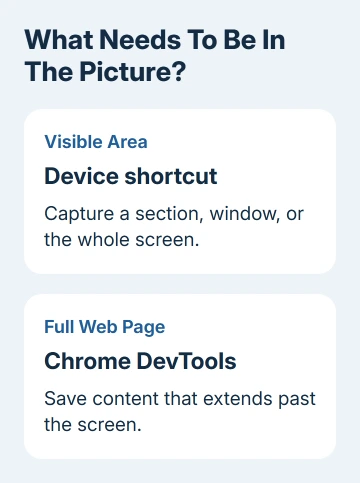
Chrome screenshots work two ways: use your device's screenshot shortcut for what's visible, or use Chrome's desktop developer tools to save the whole web page. A normal screen capture won't include the part you haven't scrolled to.
For a quick picture on Windows, press Windows + Shift + S. On a Mac, press Shift + Command + 4. Use the full-page procedure when you need a long receipt, article, or order summary in one image.
In this guide
Capture the part of Chrome that's on the screen
Open the tab and get the page ready to share. Close menus that cover the important text, and move the pointer away from anything that opens a tooltip.
For either Windows 10 or 11, press Windows + Shift + S, choose a rectangular capture, then drag around the area. Release the mouse button to take the picture. Select the notification to open it in Snipping Tool.
Save the image from the editor if you need a file. A copy on the clipboard is useful for pasting into a message, but saving a file gives you something you can attach later without capturing it again.
Microsoft says the Snipping Tool controls include a window capture. Use it when the address bar or a browser error needs to be in the picture.
On a Mac, press Shift + Command + 4 and drag over the area. For the Chrome window, press that shortcut, then Space, then click the window. Pictures normally save to the desktop unless you've changed the location.
The Mac screenshot shortcuts cover save and clipboard choices. Neither device shortcut scrolls the page for you.
Save the full web page with Chrome's own tools
Desktop Chrome has a screenshot command inside DevTools, its built-in tools for inspecting web pages. You can use it without editing the page or entering code.
- Open the page and let the content finish loading.
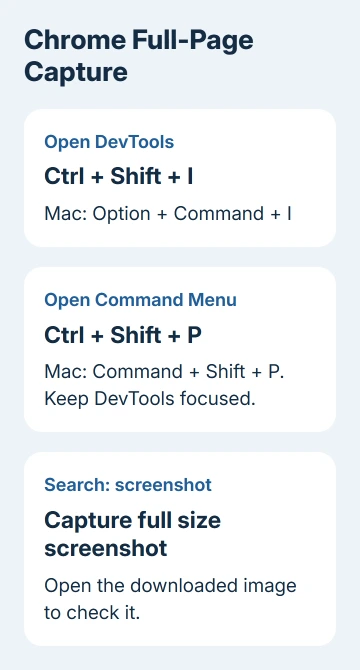
- Open DevTools with Ctrl + Shift + I on Windows or Linux, or Option + Command + I on a Mac.
- Click inside DevTools, then press Ctrl + Shift + P on Windows or Linux, or Command + Shift + P on a Mac.
- Type screenshot in the command box.
- Select Capture full size screenshot.
- Find the downloaded image, or choose where to save it if Chrome asks.
Click inside DevTools before using the shortcut in step 3. If the page is still selected, the shortcut can trigger another browser action instead of opening the command box.
Open the downloaded picture. It should include content outside the visible window without Chrome's address bar or tabs. That suits a receipt, but a window capture is better for showing a toolbar fault.
I'd use this built-in command before installing an extension for an occasional capture. One long page rarely needs another installed tool.
Keep the right layout and load missing content
Opening DevTools can narrow the page and change its layout. A wide table may shrink, or a desktop menu may become a compact menu. Check the layout before running the capture command.
DevTools' device toolbar has a Responsive mode for setting the page width. Its menu includes full-size capture, covered in the device toolbar instructions.
That mode changes how much space the website has to display its content. Turn it on to capture the site's mobile layout. Leave it off when you're trying to keep the normal desktop appearance.
Some websites load pictures only as you approach them. Scroll through the page once, wait for images to appear, then return to the start before capturing it. Check the saved image for blank pictures or missing sections.
A page with an endless feed has no fixed end to capture. A message panel that scrolls separately from the page may also be cut short in a full-page image. Capture it in readable sections if the downloaded image leaves content out.
Take a Chrome screenshot on a phone or Chromebook
On most Android phones, open Chrome and press Power + Volume down together. The preview offers editing or sharing controls. On Android 12 and newer, supported screens offer Capture more to extend the selection beyond one screen.
Use Capture more when it appears; the option depends on your phone and the screen you're capturing. Android Chrome doesn't have the desktop DevTools menu.
On a Face ID iPhone, press side button + Volume up. On a Home-button iPhone, press Home + side button, or Home + top button when its power control sits on the top edge.
Open the preview to crop the result. If the preview offers Full Page for the current content, use it for an extended capture; don't assume every Chrome page or iPhone version will show that choice.
On a Chromebook, press Shift + Ctrl + Show windows to open screen capture, then choose the screenshot area. A keyboard with a dedicated Screenshot key can open the tool directly.
Our Chromebook screenshot guide covers its capture choices and saved files. Chromebook screen capture and Chrome's full-page capture are separate features.
Check the file before sharing it
Zoom in on the saved picture. Long screenshots can look tiny in chat previews even when the file is sharp. Crop a copy if the recipient only needs one paragraph or error message.
Remove personal details before sharing an account page, receipt, or conversation. Check both ends of a long picture too, where an address or account number can sit outside the main section.
For a missing file, check Downloads with Ctrl + J on Windows/Linux or Command + Shift + J on Mac. If a managed browser blocks it, have the administrator review its download restrictions.
If the result is consistently incomplete on one website, send that site's support a normal screenshot of the affected area and describe which section the full-page image misses. It gives them something readable to work with.
The Short Version
Use your device shortcut for a visible area. In desktop Chrome, open DevTools, open its command menu, search for screenshot, and choose Capture full size screenshot for the whole page. Check the saved file before sending it.
Checked November 11, 2026.