A Windows 11 update in late November 2024 switched on a shorter taskbar clock that drops the AM/PM and the year. Unticking Show abbreviated time and date in the Date & time settings brings both back on PCs that got that change.
Microsoft pulled the short clock again after poor feedback, so newer builds may not show that box at all. On those PCs the clock follows your region's short time and short date formats, and those decide whether AM/PM and the year appear.
In this guide
Short clock or a format setting?
The two look alike at a glance. The short clock shows the time with no AM/PM and the date as month and day only, like 9:41 over 11/19, and it arrived with an update rather than with anything you changed.
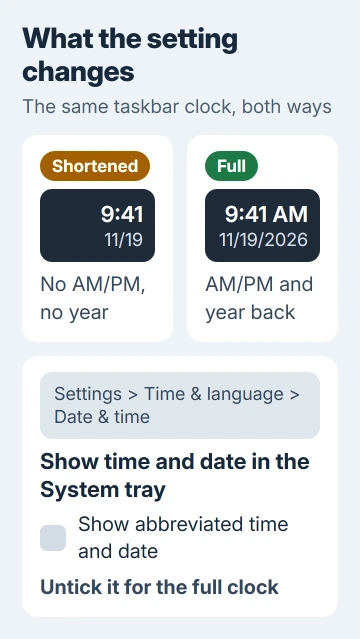
A 24-hour format is a different thing: an evening time reads 21:41, never 9:41 PM. A short date without the year comes from the Short date format itself, and it stays that way even with the short clock turned off.
So section 1 fixes the update's short clock, and sections 2 and 3 fix the formats. Your clock may need both.
1. Untick Show abbreviated time and date
The change came with the optional November 21, 2024 updates: KB5046740 for Windows 11 24H2 and KB5046732 for 22H2 and 23H2. One owner traced it to KB5046732, which takes 23H2 to build 22631.4541.
Microsoft's release notes for KB5046740 describe the shortened date and time and tell you to clear the check mark for this setting to get the long form back. To change it:
- Right-click the clock on the taskbar and choose Adjust date and time. You can also open Settings > Time & language > Date & time.
- Click Show time and date in the System tray to expand that section.
- Untick Show abbreviated time and date.
The clock changes as soon as the box clears, with no restart needed. Several owners fixed it exactly this way, and one called the setting a sneaky new default.
I'd check that box before touching any format. Ten seconds there settles whether your PC got the short clock at all.
If the section opens without the abbreviated box, your build doesn't have the short clock. Leave the seconds option alone unless you want seconds on the clock, and move on to your formats.
2. No box? Set the short time and short date formats
The taskbar clock uses your account's Short time and Short date formats. Pick a 24-hour time format and AM/PM disappears. Pick a short date without the year and the year disappears.
- Open Settings > Time & language > Language & region.
- Expand Regional format and click Change formats.
- Under Short time, pick an entry that ends in AM or PM.
- Under Short date, pick an entry that shows all four digits of the year.
The clock updates the moment you choose. A forum adviser gave these same steps for 12-hour time with AM/PM, and more than 200 people marked that answer helpful.
On Windows 10, the same Short time and Short date lists sit under Settings > Time & Language > Region > Change data formats.
A 24-hour clock is a perfectly good choice, by the way. It just never shows AM or PM, so pick the 12-hour entry only if that's what you're used to reading.
3. Type your own format in Control Panel
Settings only offers a handful of formats. Control Panel lets you type any pattern, which helps when you want the weekday or the month spelled out on the taskbar.
- Open Control Panel > Clock and Region > Region.
- On the Formats tab, click Additional settings.
- On the Time tab, set Short time to h:mm tt for a 12-hour clock with AM/PM.
- On the Date tab, set Short date to a pattern with yyyy in it, such as M/d/yyyy or dd/MM/yyyy.
- Click Apply, then OK.
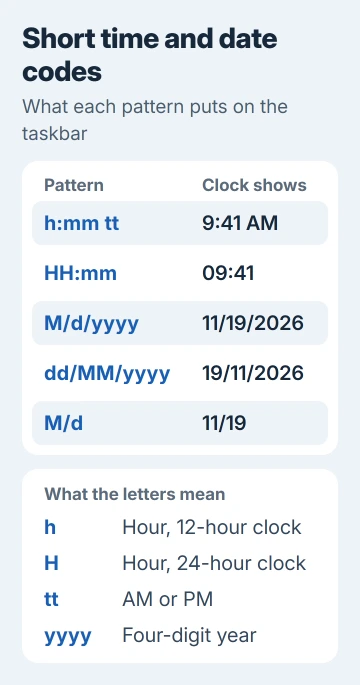
The letters are simple once you see them. Lowercase h is a 12-hour hour and capital H a 24-hour one, tt adds AM or PM, and yyyy is the four-digit year.
One owner in the UK typed a long pattern with the weekday and full month and got the whole date on the taskbar. That's the payoff of the Control Panel route.
One caution before you get creative: File Explorer, Excel and other apps use the same short date. A very long custom date fills their columns too, so keep it reasonably short.
Changed your mind? The Reset button in that same Customize Format window puts numbers, currency, time and date back to your region's defaults.
4. When the clock still looks wrong
If the time itself is off rather than its format, the clock that drifts after a restart page covers that. If the clock freezes on one time, the stuck taskbar clock steps restart it.
Your employer or school may set regional formats for you on a PC they manage. If the Change formats page won't keep your choice, check with IT, since a policy they set on managed PCs can lock those formats.
If the taskbar doesn't redraw after a change, give Windows Explorer a restart in Task Manager; the stuck clock steps show how.
Still missing AM/PM or the year with the formats right and no abbreviated box? Install the latest update in Settings > Windows Update, then press Windows key + F to report it in Feedback Hub, adding the build number from winver.
The Short Version
Untick Show abbreviated time and date under Settings > Time & language > Date & time. If that box is missing, pick a Short time with AM/PM and a Short date with the year under Regional format > Change formats.
Checked November 19, 2026.