

Align can stay gray in Word 2010 when several selected objects sit inside a drawing canvas. Try aligning the shapes outside the canvas on a document copy. In current desktop Word, check selection and text wrapping first.
The distinction matters when your drawing uses connectors. Removing the canvas can change how that drawing works, so don't dismantle a connected flowchart just to straighten one row.
In this guide
1. Select the objects instead of the surrounding canvas
Click one shape, then hold Ctrl while clicking the other shapes you want to align in Word for Windows. Look for selection handles on the individual objects. A single frame around the canvas means you've selected the canvas itself.
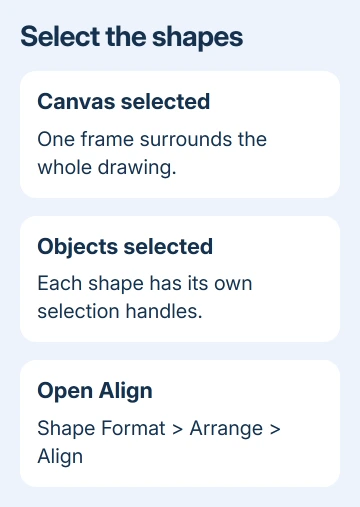
Open Shape Format > Arrange > Align. Older ribbons use Drawing Tools > Format. For pictures, the corresponding tab is Picture Format or Picture Tools > Format. Clicking ordinary document text won't show those tabs.
Microsoft's current drawing-canvas instructions describe selecting the objects with Ctrl before using Align. Those steps cover current desktop releases; they don't promise to fix Word 2010.
Try two simple shapes in a spare document when the original drawing is crowded. If Align works there, your original selection or drawing is causing the problem, rather than all objects in Word.
On Mac desktop Word, hold Shift while selecting the objects, then open Shape Format > Align. Use Arrange > Align if the tab puts the command inside Arrange. The Windows 2010 canvas workaround isn't a Mac instruction.
2. Change wrapping when a picture acts like a text character
With In Line with Text wrapping, an object moves along with its paragraph. That's useful for a photograph in a report, but it limits how freely you can arrange several objects.
Right-click each affected picture and choose Wrap Text. Select a floating option such as Square, then select the objects again and reopen Align. On a Mac, Control-click the object to reach Wrap Text.
Check whether the commands become available. If they do, the inline layout was restricting the selection. Arrange the objects, then inspect nearby paragraphs because wrapping changes how text flows around them.
Don't change every picture in a long document at once. Start with the two objects involved in the fault. It's easier to judge one changed paragraph than to repair several pages of shifted layout afterward.
For a heading that needs its own movable frame, the Word text-box steps explain that separate object. Centering ordinary paragraph text won't align a picture beside it.
If the objects already use floating wrapping and Align stays gray only inside a Word 2010 canvas, try the next workaround.
3. In Word 2010, try the alignment outside the canvas
The original Word 2010 discussion describes gray alignment commands on Windows 7 and Vista. Its accepted answer says objects have to be moved outside the canvas to use alignment.
Save a separate document copy first. Select the objects inside the canvas, cut them, click in the document outside its frame, then paste. Confirm that the shapes themselves are selected before opening Drawing Tools > Format > Align.
Start with two uncomplicated objects. Choose an alignment and check their edges. If Align works outside the canvas, that matches the limitation in the older thread. Word's ribbon isn't failing everywhere.
This workaround has a cost: the thread also reports losing the canvas connector behavior outside it. I'd keep a connected diagram intact and use the position check in the next section before moving its parts out.
For separate decorative objects, grouping can make the aligned arrangement easier to move afterward. The Word grouping guide covers the selection requirements and the difference between one group and several objects.
Don't assume that pasting everything back into the canvas will fix its commands. The workaround changes where alignment happens; it doesn't repair Word 2010's canvas controls.
4. Keep the canvas and compare numeric positions
An owner later reported aligning objects inside the canvas through More Layout Options, entering position numbers instead of using the disabled commands. Try this if your version offers those position controls.
Select one object and open its layout options. Look for the Position controls and note the horizontal and vertical settings, including what each position is measured relative to. Compare the same controls on the second object.
If the object also refuses size changes, check Word compatibility and exact dimensions before rearranging the drawing.
Matching horizontal positions can put left edges together; matching vertical positions can put top edges together. Measure both from the same place. A position measured from the page isn't the same as one measured from a margin.
Change one position number and check the drawing. Leave the other unchanged when straightening a row or column. If the objects don't offer these controls, stop rather than trying paragraph indents as a substitute.
The report doesn't give one set of position numbers for every canvas. Work with whichever position controls your version offers, and keep your document copy so you can reverse an unwanted move.
5. Choose alignment before equal spacing
Align Left puts left edges together. Align Top puts top edges together. Align Center and Align Middle act on different axes, so choosing the wrong one can stack objects unexpectedly.
For equal gaps, use Distribute Horizontally or Distribute Vertically with at least three selected objects. Spacing objects evenly is a separate step from lining up their edges. Undo immediately if the chosen command covers another object.
When current Word offers Align Selected Objects, use that to arrange the selection relative to itself. Page or margin alignment controls where the objects sit on the document page instead.
If two floating shapes fail in a new document, ask Microsoft Support to review a sample with personal details removed. Include the installed Word release and whether those shapes align outside a canvas.
For Word 2010, plan a supported Office upgrade rather than waiting for a new canvas patch.
The Short Version
Select individual objects and check wrapping. Word 2010 has an outside-canvas workaround, but connectors complicate that choice. Numeric position controls offer another owner-reported route when available.
Checked November 16, 2026.
 If you have any business, I can build it online






