

Word opens your document, shows it perfectly, and then refuses to save a single change. Excel does the same. The error reads "Unknown Error. An unknown error has occurred. The error code is: 0x0."
Almost everyone hitting this blames the macOS update they installed a few weeks earlier. It was not the update.
A Microsoft licensing certificate reached its expiry date on 13 July 2026, and Microsoft published that date back in May.
One Office update clears it for most people. On Office 2019 or macOS 11 it cannot, and reinstalling there only costs you the read-only access you still have.
Why the macOS update took the blame
Your Mac restarts when it updates, and Office revalidates its license when it next launches. That is simply when the expired certificate shows itself, which is why the two feel connected.
It covers Word, Excel, PowerPoint, Outlook, and OneNote together. A macOS update does not reach into five Microsoft apps and disable saving in all of them at once.
So there is nothing to gain from rolling macOS back, reinstalling it, or booking a Genius Bar appointment. The fix is on the Microsoft side.
If Apple's own apps are the ones failing to open, that is a genuinely different problem, and Photos or Passwords refusing to open covers that instead.
Your files are fine, and printing still works
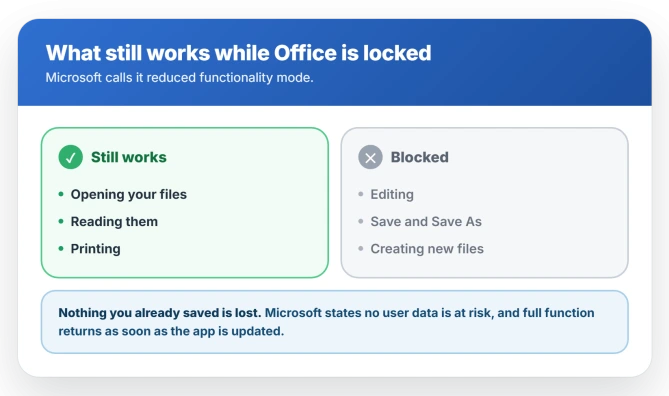
Microsoft calls this reduced functionality mode.
- Still works: opening files, reading them, and printing.
- Blocked: editing, Save, Save As, and creating new files.
Microsoft states plainly that no user data is lost or at risk, and that full function returns the moment the app is updated. Nothing you already saved has gone anywhere.
Which of the three groups you are in
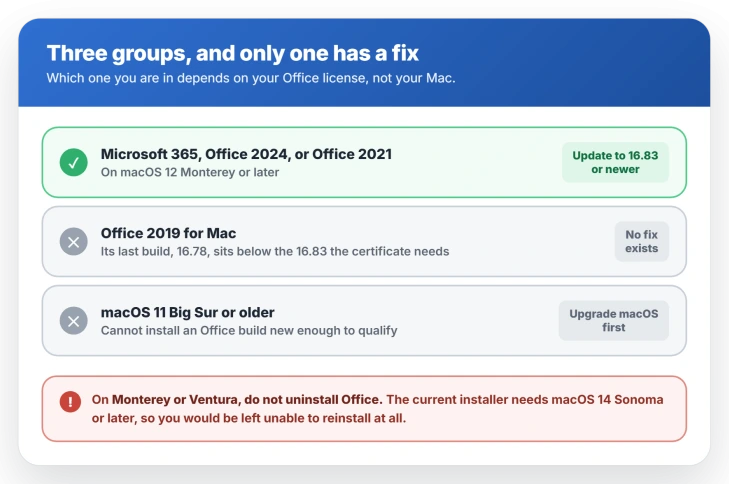
Which group you are in decides whether this is a five-minute fix or no fix at all.
- Microsoft 365, Office 2024, or Office 2021 on macOS 12 or later. Fixable. You need build 16.83 or newer.
- Office 2019 for Mac, any build, any macOS. No fix exists. The build you need cannot run the license you own.
- macOS 11 Big Sur or older. No fix while you stay on it. Your macOS cannot install a new enough Office build.
Not sure which edition you own? Open Word, click Word in the menu bar, then About Word. That panel names your license as well as your build number.
If you are on macOS 12 Monterey or 13 Ventura, do not uninstall Office. The normal download at Microsoft's site now requires macOS 14 Sonoma or later, so uninstalling trades read-only Office for no Office.
Reinstalling then means hunting down an older installer package from Microsoft's update history, which is not a route most people will find.
Status: Microsoft's licensing certificate expired on 13 July 2026. Updating Office to build 16.83 or later fixes it for most people, but Office 2019 for Mac has no fix at all.
If you can update (most people)
Open Word, click Help in the menu bar, then Check for Updates. When Microsoft AutoUpdate opens, choose Update All.
Then quit the app completely rather than just closing the window, reopen it, and sign out and back in from the app's Account settings.
Microsoft names that last step specifically for anyone still stuck in read-only after updating.
If Office will not open far enough to reach that menu, run the updater on its own. Microsoft AutoUpdate does not live in your Applications folder.
In Finder, press Command Shift G, paste /Library/Application Support/Microsoft/MAU2.0/, and open Microsoft AutoUpdate from there.
Installed from the Mac App Store instead? Update it there, under Updates in the sidebar.
If the update will not take, do not uninstall and reinstall. On Monterey or Ventura that is a one way door.
And if you ever do reinstall, use the source you installed from originally, since a one time purchase license and a Mac App Store build refuse to work together.
Reading your build number without getting it backwards
Open Word, click Word in the menu bar, then About Word.
Read that number carefully, because the format trips people up. The part after 16 is a whole number, not a decimal. 16.110 is far newer than 16.83, even though it looks smaller.
Anything from 16.83 upward carries the renewed certificate.
If you are on Office 2019 for Mac
This group has no way out, and the reason is two build numbers that never meet.
Microsoft's last build that accepts an Office 2019 license is 16.78. The renewed certificate only exists in 16.83 and later. Those two numbers do not overlap, so the build you need cannot run the license you own.
That is why reinstalling backfires here. A fresh download hands you a current build, which then refuses your 2019 license outright, and you lose even the read-only access you had.
Office 2019 for Mac reached its end of support in October 2023, so no further build is coming. The remaining options are the free web versions of Word and Excel, or moving to Office 2024 or a Microsoft 365 subscription.
Worth knowing if you are weighing that spend: Office 2021 for Mac reaches its own end of support on 13 October 2026, which puts it on the same path a few years behind.
If you are on Monterey, Ventura, or Big Sur
Older macOS versions cap how new an Office build you can install, and where that cap lands decides everything.
Monterey and Ventura are fine, just pinned. Monterey tops out at build 16.88 and Ventura at 16.101. Both clear the 16.83 line, so updating to your cap fixes this.
Big Sur and older cannot get there. Big Sur stops at 16.77, which sits just under the line.
Upgrading macOS is the way out, and if that stalls, an installation that keeps failing has its own set of causes.
Apple's guide to downloading and installing a newer macOS covers the supported path.
If your Mac is too old to run Sonoma at all, you are where Office 2019 users are, and the free web versions of Word and Excel are the remaining route.
If you arrived here from a Windows result
The "0x0" error on Windows is a completely separate and heavily written-about topic, usually blamed on the registry or corrupt system files, and some of those pages push cleaner downloads.
None of it applies to a Mac. On macOS the code means one thing: Office could not validate its license.
Why do Word and Excel say error code 0x0 on my Mac?
Microsoft's license validation certificate expired on 13 July 2026. Office builds older than 16.83 do not contain the renewed one, so they drop into reduced functionality mode and refuse to save.
It is not caused by macOS 26.5.1 or 26.5.2. Office revalidates its license when it launches after a restart, which is when the expired certificate shows itself.
Can I still get my work out of a document?
Yes. Opening, reading, and printing all still work, and Microsoft confirms no data is lost. If you need to edit before you can update, upload the file to OneDrive, then open it in the free web version of Word or Excel.
Why does reinstalling Office make it worse on Office 2019?
Because a fresh install gives you a current build, and current builds reject Office 2019 licenses entirely. You go from read-only access to no access. Do not reinstall if you are on Office 2019.
Do I need to undo my macOS update?
No, and rolling back would not help. The certificate expiry is on Microsoft's side and applies whichever macOS you run.
The Short Version
- The error is a Microsoft licensing certificate that expired on 13 July 2026, not your macOS update.
- You can still open, read, and print. Editing, saving, and new files are blocked, and nothing already saved is lost.
- Most people fix it by updating Office through Help then Check for Updates. You need build 16.83 or later, and build numbers read as whole numbers, so 16.110 is newer than 16.83, not older.
- Office 2019 for Mac has no fix, because its last supported build is 16.78 and the certificate needs 16.83. Do not reinstall it.
- On Monterey or Ventura, update to the capped build but never uninstall, because the current installer needs macOS 14 or later.
Where to Next
- Apple's own apps refusing to launch: Photos or Passwords won't open on macOS Tahoe
- An upgrade that will not complete: macOS Tahoe installation failed
- Files that vanished after updating: where your desktop files went

Isaac Smith is the founder and editor of PC Glance, a website that covers computers, laptops, and technology. He is a tech enthusiast and a computer geek who loves to share his insights and help his readers make smart choices when buying tech gadgets or laptops. He is always curious and updated about the latest tech trends.