

You open your Pictures folder and see plain icons where your photos should be. Some folders show thumbnails and others do not, which is frustrating when you are hunting for one picture.
I would check whether those folders sit inside OneDrive first, before changing any setting at all. Three owners on Microsoft's forum found exactly that, and their thumbnails came back once the files were on the PC again.
80+ people have backed one Microsoft Q&A question about it, and 50+ another.
Why OneDrive folders lose thumbnails
OneDrive can keep a file in the cloud and leave only a placeholder on your PC. Microsoft says on its Files On-Demand page: "Online-only files don't take up space on your computer".
Ours: a placeholder has no picture inside it yet, so File Explorer has nothing to draw a thumbnail from.
If the files never download, OneDrive may not be syncing at all. Folders you never moved into OneDrive look normal, which is why only some go blank.
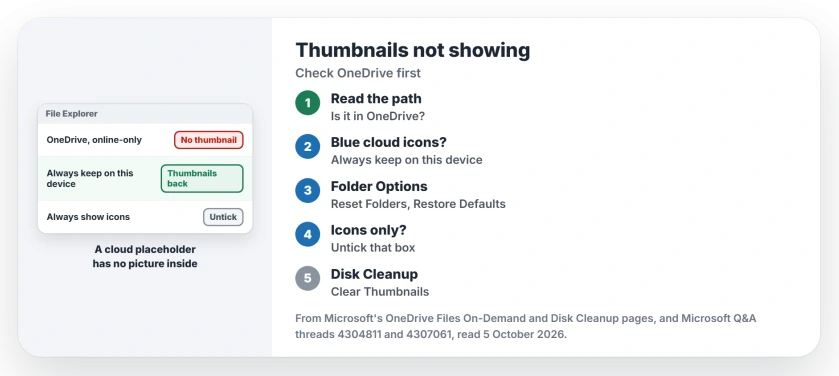
Status: checked 5 October 2026. Three owners fixed it by getting their pictures out of OneDrive's online-only state, and another by resetting File Explorer's view settings.
1. Check where the folder lives
Look at the path shown in the address bar at the top of File Explorer. Does it run through OneDrive? A blue cloud on the files means online-only. That is your answer.
One owner on the 80+ thread: "What finally fixed it was the discovery that all the folders with the problem were in the Onedrive folder". In their words, "As soon as I moved them out of there the thumbnails were fine".
Another on the 50+ thread had copied files to a new PC: "I did not realize it put everything under OneDrive rather that in my local Documents folder". Then: "I moved everything and now working fine".
2. Keep them on the PC instead of moving them
Moving files out of OneDrive stops them backing up to the cloud, which you may not want. Ours: right-click the folder and choose "Always keep on this device" instead, which is Microsoft's own option for files you want locally.
The files download once. Then the thumbnails come back. OneDrive still keeps a copy. I would try this before moving anything.
3. Reset the folder view
One owner found a setting they had changed long ago: "Mine was a careless choice I'd not check in a long time". Their route was to "Open File Explorer and click on Reset Defaults".
Ours: in File Explorer, open the three-dot menu, Options, then the View tab, and use Reset Folders and Restore Defaults. Make sure Always show icons, never thumbnails is unticked while you are on that tab. On our own PC it was off.
4. Clear the thumbnail cache
Windows keeps old thumbnails in a cache, and a damaged one shows blanks. I would clear it last. Disk Cleanup lists Thumbnails as one of the items it removes, ticked by default.
Run Disk Cleanup for drive C:, keep Thumbnails ticked, and let Windows rebuild them as you browse.
Why did OneDrive move my pictures?
One owner put it plainly: "The entire issue/problem was caused by OneDrive". They had backup turned on, and in their words "OneDrive shifted all the files to the MS Cloud completely". Folder backup in OneDrive is the setting behind that.
Does this happen with videos too?
Ours: yes, the same placeholder rule applies to video files in OneDrive. Keep them on the device and their preview frames come back the same way photos do.
Will clearing the cache delete my pictures?
No. It only removes the small preview images Windows made, never the files themselves. Your photos stay put.
The Short Version
- Thumbnails often vanish for OneDrive files that are online-only.
- Check the folder path for OneDrive and a blue cloud.
- Right-click and choose Always keep on this device.
- Reset Folders in File Explorer's options.
- Untick Always show icons, never thumbnails.
- Clear the thumbnail cache with Disk Cleanup.
Where to Next
Open the folder with blank thumbnails and read its path in the address bar at the top. If OneDrive is in it, keep the folder on your device and wait for the download.
Was yours a OneDrive folder too? Tell us in the comments, along with the folder name it took over.

Isaac Smith is the founder and editor of PC Glance, a website that covers computers, laptops, and technology. He is a tech enthusiast and a computer geek who loves to share his insights and help his readers make smart choices when buying tech gadgets or laptops. He is always curious and updated about the latest tech trends.