
Your external hard drive worked yesterday. Today every Excel file on it opens read-only, and copying anything to your PC brings up Access Denied and a request for administrator permission. Nothing you can find explains it.
I would open your antivirus before you touch permissions or the drive. The Super User owner found their antivirus had locked the drive, and one setting fixed it at once.
The question has 1,910 views since May.
What the owner saw
In their words: "all the Excel files on the drive started opening in read-only mode, even though the read-only option was not selected in the file properties". Then copying failed as well.
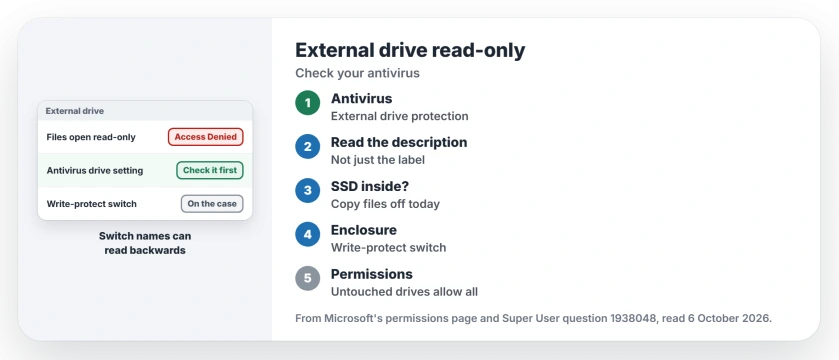
Status: checked 6 October 2026. An external drive went read-only and copies failed with Access Denied. The owner's antivirus was blocking it; changing its drive setting fixed it at once.
They tried permissions first and got nowhere. A commenter pointed out a detail to check on your screen: "It is access denied on the destination folder".
1. Check your antivirus's external drive setting
The owner found the cause: Quick Heal Antivirus. Their words: "The issue was being blocked by Quick Heal Antivirus". After a security scare days earlier, they had changed its external drive protection.
Confirmed by an owner: "Once I enabled external drive protection again, the issue was resolved immediately". Ours: other antivirus suites have similar USB or removable drive controls, so look for one by name.
2. Watch for confusing switch names
Members argued over which position caused it. One explained the naming: "The protection feature when OFF makes external drives read-only".
Ours: read the description next to the switch, not just its label. In this case, switching protection on was what made the drive writable again.
3. Rule out a failing SSD
An external drive that is really an SSD inside can lock itself when it starts to fail. A member wrote that such a drive may have "switched itself into READ-ONLY mode to prevent further damage to your files".
If your antivirus is not the cause, copy what matters off that drive today. I would not wait to find out whether it fails completely.
4. Look for a write-protect switch
The same member suggested checking the drive's case. They wrote to look "to see if the enclosure it is in has a write-protect switch that has accidentally been switched on".
Ours: some enclosures and adapters hide this switch on the side, so slide it, then reconnect the drive.
How NTFS permissions fit in
Microsoft's permissions page states the default: the built-in group that covers all users gets "Allow Full Control permissions to the root of each NTFS drive". So a drive that never had its permissions changed should let you in.
That is why a sudden lock on a drive you never touched points elsewhere, at a security tool or the hardware.
For a different message, the disk is write protected covers the diskpart fix; if the drive vanished instead, see external drive not showing up.
The Short Version
- Read-only files and Access Denied on an external drive can come from your antivirus.
- One owner fixed it by changing Quick Heal's external drive protection.
- Switch names can be backwards, so read the description.
- A failing SSD can lock itself; copy your files off it today.
- Check the enclosure for a write-protect switch.
- An untouched NTFS drive gives all users full control at its root.
Where to Next
Open your antivirus now and search its settings for USB or external drive protection; if nothing there changed, copy your important files off the drive before anything else.
Which antivirus was blocking your drive? Name it in the comments.

Isaac Smith is the founder and editor of PC Glance, a website that covers computers, laptops, and technology. He is a tech enthusiast and a computer geek who loves to share his insights and help his readers make smart choices when buying tech gadgets or laptops. He is always curious and updated about the latest tech trends.