

Word or Excel crashing on OneDrive files while local copies work points to the cloud connection or document cache. Keep a separate copy, update Office and refresh its sign-in. Use its cache controls if crashes continue.
Older forum advice recommends deleting cache folders in AppData. Current guidance warns that doing this by hand can cause crashes and lost changes. A file that also crashes outside OneDrive needs a different check.
In this guide
1. Compare one downloaded file with the cloud copy
Choose a document that reliably crashes. Download a copy through OneDrive on the web and put it in a folder that doesn't sync to OneDrive. Check the full path: Documents and Desktop may already be backed up to OneDrive.
Open the downloaded copy from Word or Excel using File > Open > Browse. Keep the original in OneDrive. This comparison should use the same document, not a different small file that happens to work.
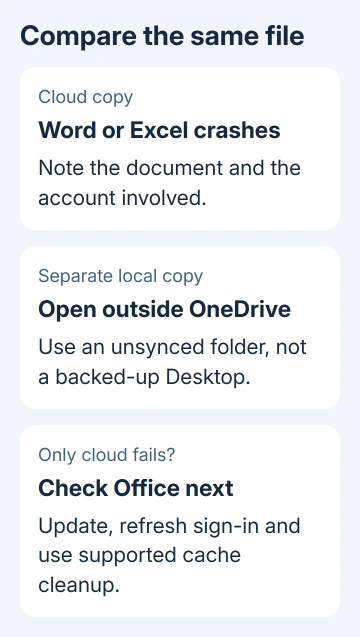
If the local copy opens and saves, you can work on the document outside OneDrive. That makes the Office account connection and document cache the next places to check. The comparison alone doesn't tell you which caused the crash.
If that copy also crashes, try a new blank document in the affected app. If both local and cloud files crash, Office needs more than a OneDrive fix. Don't keep resetting OneDrive for a failure that happens without it.
An R6025 crash during Save after installing Aspen needs the Aspen add-in checks even when the workbook is local.
On an older Mac where Excel opens unwanted files rather than crashing, check its startup folders and restored windows as a separate opening problem.
The original owner in Microsoft's forum could edit and save the same files from an external drive. Quick Repair, Online Repair and reinstalling both apps had failed. I'd check the cloud connection before reinstalling again.
2. Update the affected Office installation
Open Word or Excel without opening the failing document. Create a blank document, then choose File > Account > Update Options > Update Now. Save other open work before allowing the updater to close the apps.
Use Enable Updates first if that is offered instead. If update controls are missing, have your help desk review the installed build and update channel, which controls which updates you receive. Managed apps can have different controls.
A warning about incompatible Office products also needs a review of standalone apps and their installation types.
After the updater finishes, reopen the same OneDrive file. Check that you can both open it and save changes. A document that opens once but crashes after an edit still needs attention.
For an offline server copy that opens without crashing, the Office offline-copy repair checks the older collaboration setting.
If a document opens normally but its Outlook cloud attachment gives a URL error, use the shared-attachment repair route.
The 2021 thread includes an owner who recovered after resetting Windows, updating it and installing Office again. They reported working Excel build 16.0.13929.20222 and OneDrive 21.078.0418.001 afterward.
Those are historical results, not versions to install today. They changed several things together, so we can't tell whether resetting Windows was needed. Start with supported updates before considering a system reset.
3. Reconnect Office to the document's account
First, save a local copy of edits that haven't synced. In Word or Excel, select File > Account > Sign out. Close the Office applications, reopen the affected app and choose the login for that cloud location.
Check the account shown on File > Account, then reopen the document from that account's OneDrive or SharePoint location. Office can hold personal and workplace profiles together, so the email address matters.
Use the Office sign-out procedure for the account change. It temporarily disconnects cloud services and can limit editing during the signed-out period.
Retest the same file before making another change. If reconnecting repairs it, stop there. If it still crashes while the local copy works, continue with the document cache that Office uses for cloud files.
If OneDrive itself isn't signed in, use the separate OneDrive sign-in repairs. A crash inside Office needs different checks from a OneDrive app that can't connect.
Mac documents displaying Upload Blocked or Contacting the server need the Mac account and sync-integration route.
4. Clear cached documents through Office's settings
Create an empty document, then select File > Options > Save. Look for Cache Settings > Delete cached files. Use that control when your Office version provides it, then reopen the affected cloud document.
Microsoft's document-cache guidance gives this supported route and warns against manual deletion. The cache holds cloud-document data used by Word, Excel and PowerPoint.
Save a separate copy of work that hasn't uploaded before accepting a prompt to remove those files. Newer versions can show a separate confirmation for those items. A cached document may hold changes that haven't reached OneDrive yet.
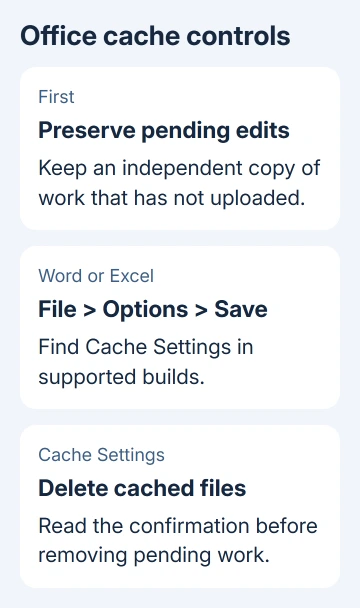
If the cache controls aren't available in your build, give IT the Office version and ask for the supported cache repair for that installation. Don't substitute a search-and-delete of every folder whose name ends in Cache.
The older successful forum workaround bundled signing out, removing saved credentials and deleting Office cache folders. The current guidance changes what you should do: use the app's control instead of repeating that folder deletion.
Also check any low-disk-space warning inside Office. Free space through the offered control if it appears. Office needs room to write its working files, even when the document's permanent home is online.
An unexpectedly small online allowance needs a work OneDrive quota check, separately from the Windows disk capacity.
5. Repair Office if cloud documents still crash
On Windows 11, open Settings > Apps > Installed apps, find Microsoft 365 or Office, open its three-dot menu and choose Modify. On Windows 10, use Settings > Apps > Apps & features, select Office and choose Modify.
For a Click-to-Run installation, try Quick Repair first. If it doesn't help, Online Repair is the more complete option, requiring an internet connection. Follow the prompts and allow it to finish before reopening Office.
Try opening the downloaded copy and cloud original afterward. Report which one still fails. The original thread shows that repair won't cure every case, so don't keep repeating repairs if they don't help.
Give support the cloud-versus-local result
Ask IT to report the crash to Microsoft 365 support. Send the app and OneDrive versions, the affected library and whether the local copy works. Include whether both Word and Excel crash and whether a second account works.
Use the OneDrive restart instructions only if the sync app also needs relaunching. For a persistent Office crash, ask support to review the crash report and cache handling before proposing a Windows reset.
The Short Version
Open the same document outside OneDrive, install Office updates, and refresh its account connection. Use built-in cache cleanup if cloud files still crash. Preserve pending edits and give support the local-copy result if repair fails.
Checked November 16, 2026.
 If you have any business, I can build it online






