
A USB mouse or keyboard can often get you past Samsung PIN buttons that won't react, as long as you can see the display and know the code. First check for a frozen screen or TalkBack, since either can make normal taps seem broken.
Don't start by erasing the phone. A forgotten PIN and a keypad that won't accept a known PIN need different help, and Samsung documents USB input as a way to regain access when touch fails.
1. Check whether taps fail or the code is rejected
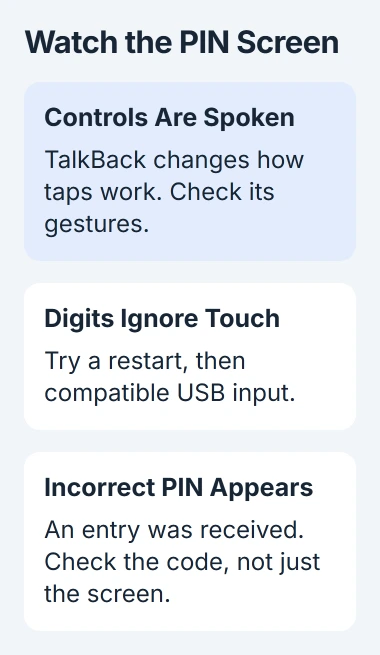
Tap one digit and watch the PIN field. Does a dot appear, does your phone say the number aloud, or does nothing happen? That response tells you which check to try next.
A message saying the PIN is incorrect means the phone received an entry. If you've forgotten the code, use the Samsung forgotten-PIN options instead of treating that message as a dead touchscreen.
Status: Samsung's touch and USB-access instructions checked November 3, 2026. A mouse or keyboard still requires the correct screen lock; it doesn't remove that lock.
If the phone announces controls as you touch them, TalkBack may be active. Samsung says this accessibility feature changes the gestures: tap to select an item, double-tap to activate it, and scroll with two fingers.
Use those gestures on the lock screen. Once you've unlocked the phone, you can review Settings > Accessibility > TalkBack. Keep TalkBack enabled if you need its spoken guidance.
If the phone stays silent and the digits don't react, try the touch checks next. Don't guess codes while part of the keypad isn't responding; you could enter a different number from the one you meant.
2. Remove the simple causes of missed touches
Use a dry, soft cloth to wipe away surface moisture. Dry your hands and remove gloves. Unplug the charging cable for the test, especially if the problem happens only while that charger is connected.
Samsung lists moisture, accessories, and a damaged charger as possible causes. If your keypad works as soon as you unplug the charger, check that charger before changing phone settings.
Take off the case if it presses against the display or blocks its edges. If you just added a removable screen protector, follow its removal instructions and see whether touch works better without it.
On a foldable Galaxy, leave the fitted inner-screen film in place. If that film or the inner display is damaged, have Samsung check it.
If a crack crosses the dead area, or the same strip won't respond on several screens, have the phone checked for repair. Wiping away moisture can help, but cleaning can't fix broken glass or a failed touch sensor.
3. Restart a frozen phone with its physical buttons
Press Side and Volume Down together and keep holding for more than seven seconds, until the phone restarts. Older models may label the Side key Power. Release when the restart begins.
Samsung recommends this button hold for an unresponsive touchscreen. It lets you restart when tapping the power menu isn't possible.
The Galaxy restart guide explains the difference between briefly opening the menu and holding until a frozen phone reboots. A brief press may capture the screen instead.
When the lock screen returns, enter the known PIN again and check that every digit registers. The phone may require its PIN after restarting even if you normally unlock with a fingerprint or your face.
If restarting brings the keypad back, back up your phone and watch for the problem to return. If you still can't enter the code, try a USB mouse or keyboard instead of restarting into the same stuck screen again.
4. Enter the known PIN with a USB mouse or keyboard
A USB OTG adapter lets you plug USB accessories into your phone. Choose one that fits your model's port: most recent Galaxy phones use USB-C, while older models may use micro-USB.
A basic wired USB mouse is a practical first choice. Samsung's broken-touchscreen access guide describes connecting a mouse or keyboard through the matching adapter.
- Connect the mouse's USB plug to the adapter's USB socket.
- Connect the adapter to the phone's charging port.
- Look for a pointer on the phone's visible display.
- Use it to select the PIN digits and the confirmation button, if shown.
- Alternatively, connect a USB keyboard to enter a PIN or password.
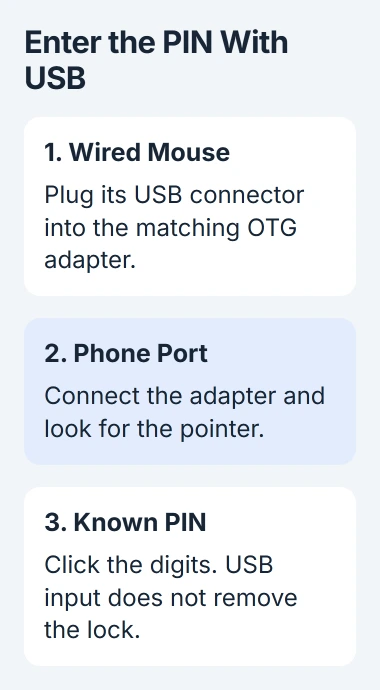
A mouse or keyboard gives you another way to enter the code. You'll still need the right PIN, any waiting period still applies, and a reset can still require account verification.
I'd borrow a simple mouse and adapter before paying for recovery software. If no pointer appears, check that the adapter supports USB accessories and try the mouse on another device before deciding the phone can't use it.
If the display is completely black, don't enter codes you can't see. Some Galaxy models support an external display and others don't, so ask Samsung what your model can use before buying an HDMI hub.
5. Back up first, then check recurring touch trouble
Once you're in, back up important data using your usual backup options. Samsung says ordinary USB file access from a computer requires the phone to be unlocked, so plugging in a locked phone alone isn't enough.
If you use a screen protector, try Settings > Display > Touch sensitivity. Samsung includes this setting in its touch guidance. See whether it makes your screen respond better with the protector on.
For delays, check Settings > Accessibility > Interaction and dexterity. Touch-and-hold delay, tap duration, and ignored repeated touches can change how taps work. Change only settings you know were turned on by mistake.
Google says to check whether the same screen area fails in its Android touch guidance. Tell the repair team which digits or parts of the screen don't respond and whether a USB mouse or keyboard works.
If the keypad fails again after a restart, or the screen is damaged, back up what you can and arrange Samsung service. Ask whether your data can be kept before agreeing to a reset or a replacement circuit board.
The Short Version
Check TalkBack and missed touches, restart once, then try a compatible USB mouse or keyboard with the PIN you know. Back up once you're in. If parts of the screen still won't respond, have them checked rather than guessing more codes.

Isaac Smith is the founder and editor of PC Glance, a website that covers computers, laptops, and technology. He is a tech enthusiast and a computer geek who loves to share his insights and help his readers make smart choices when buying tech gadgets or laptops. He is always curious and updated about the latest tech trends.