
Sidecar runs fine over USB and will not connect wirelessly the moment you unplug it. macOS says the iPad's Wi-Fi network is unavailable, and the Wi-Fi is usually fine.
That cable is more useful than it looks.
Working over USB clears the hardware, the model support and everything both paths share, which leaves the fault inside a short list of conditions that apply only to the wireless path.
There are six of them on iPadOS 26 with macOS Tahoe 26, and Apple does not carry all six on any single page, so let me go through the lot with you.
What wireless Sidecar needs that USB does not
Both paths need the same Apple Account with two-factor authentication on both devices, and a Mac and iPad on Apple's supported list. USB adds only that the iPad trusts the Mac.
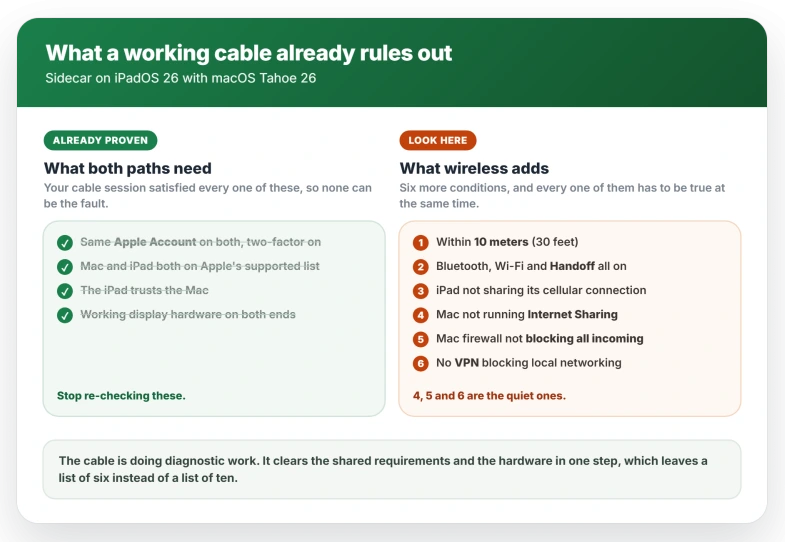
Everything that follows is wireless-only, and all of it has to be true at once.
- Within 10 meters (30 feet) of each other, which is Apple's stated figure in its Sidecar requirements.
- Bluetooth and Wi-Fi on, and Handoff on. Mac: System Settings > General > AirDrop & Continuity, where the switch reads "Allow Handoff between this Mac and your iCloud devices." iPad: Settings > General > AirPlay & Continuity. The panes carry different names on each system for the same switch.
- The iPad must not be sharing its cellular connection. iPad: Settings > Personal Hotspot. This exists only on Wi-Fi + Cellular iPads.
- The Mac must not be sharing its internet connection. Mac: System Settings > General > Sharing > Internet Sharing. This one appears only in the support article, not in either user guide.
- The Mac firewall must not be blocking everything. Mac: System Settings > Network > Firewall > Options, and turn off Block all incoming connections. Apple lists this on no Sidecar page, so treat it as a lead. It is a known cause for iPhone Mirroring on a Mac, and Continuity Camera fails the same way because it negotiates on a random high-numbered port that a block-all rule can never open. Whether Sidecar uses that same mechanism is undocumented, but this is the one setting that would take out the wireless path and leave a cable working.
- No VPN blocking local networking. Apple's iPad guide warns that a VPN configuration which prevents local networking can interfere with Continuity. One community responder goes further and suggests deleting the profile at Settings > General > VPN & Device Management > VPN and restarting instead of switching it off, though in the thread where he suggested it the VPN turned out not to be the cause. If it is a work VPN you cannot remove, test on a personal network.
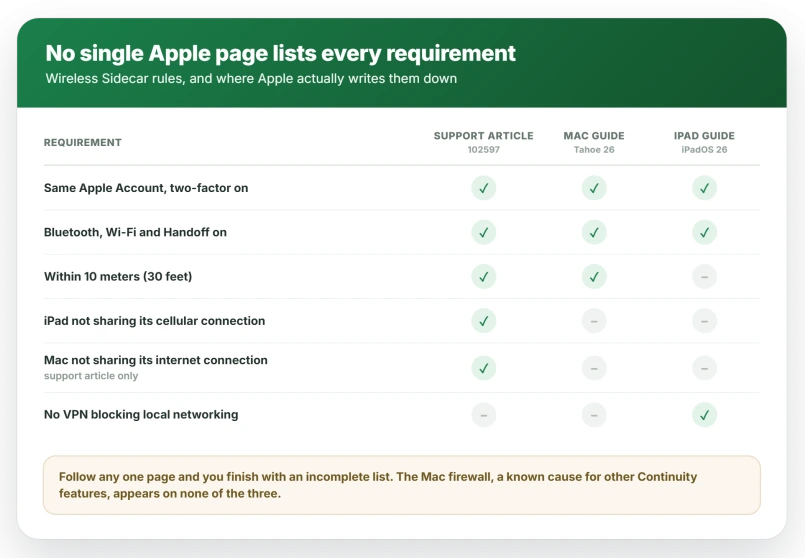
Internet Sharing, the firewall and the VPN profile are the three Apple documents least prominently.
The support article carries the first, neither user guide does, and only the iPad guide mentions the VPN.
Note that Internet Sharing and the firewall both need an admin account on the Mac, so a managed work machine may not let you change them.
Continuity Camera is governed by much the same set, so a camera that will not connect wirelessly covers overlapping ground if both are failing on the same Mac.
iPad not showing up? Add the display by hand
If the requirements all check out, stop waiting for the iPad to be offered and add it yourself.
This is the highest-voted actual fix in the main discussion thread, at five votes, from an owner on an M1 Mac mini with a 10th generation iPad whose iPad was listed there even though it never appeared on its own.
Open System Settings, click Displays, then click the + button at the bottom of the pane and choose your iPad. There is no text label reading Add Display.
It is a plus button, and on Tahoe it moved to the bottom of the pane from where it used to sit next to Arrange.
This doubles as a test. If the iPad is listed there, the Mac can see it and the account side is fine.
One long-standing behavior makes this confusing, and it is not new in Tahoe.
When no AirPlay or Sidecar target is available, the plus button disappears entirely instead of showing an empty list. A community member demonstrated it on Sequoia by switching off Wi-Fi and then Bluetooth and watching the button vanish.
An iPad that is not being seen therefore looks identical to a Mac where the feature was removed.
If the button is missing, the Mac is not seeing the iPad at all, so go back to the requirements and start with the firewall.
Detect Displays, on the same pane, will not help here. Holding Option swaps the Night Shift button for it, but Apple scopes it to a display you just plugged in.
When Sidecar and iCloud stop working together
One owner who solved it in July 2026 found wireless Sidecar was not the only thing down.
He wrote that iCloud syncing had stopped while Sidecar showed a Wi-Fi error, and that Sidecar started working again when syncing resumed.
That is one report and other owners fixed it differently, so treat it as a fast thing to rule out, not as the answer.
To see whether syncing itself has stalled, add a note in the Notes app on the iPad and watch for it on the Mac. If it does not cross over within a minute or two, iCloud sync is the thing that is down.
Check the sign-in on both: System Settings and your name at the top on the Mac, Settings and your name at the top on the iPad.
Confirm it is genuinely the same account on both, not two accounts sharing an email alias.
Disconnecting and reconnecting the Apple Account restored it for one owner. On the Mac, open System Settings, click your name, scroll to the bottom and choose Sign Out.
macOS asks whether to keep a copy of your iCloud data on this Mac, and saying yes is the safe answer. Restart, then sign back in.
It did nothing for another owner in the same thread, so try it once rather than repeating it.
There is a wrinkle here that Apple does not explain.
Apple lists the same-account rule as applying to Sidecar in general, not only to the wireless path, so a completely broken account link should take USB down too.
In these reports it did not, which suggests what stalls is the live registration between the two devices rather than the sign-in itself. That is an inference, not something Apple documents.
Sidecar says Wi-Fi is unavailable but Wi-Fi works
The message reads that Sidecar cannot connect wirelessly because the iPad's Wi-Fi network is unavailable, and tells you to turn on Wi-Fi and make sure it is not being used for modem mode.
Wording varies by region, and the feature it means is Personal Hotspot.
On a cellular iPad with Personal Hotspot running, that message is correct and switching it off is the fix.
On every other iPad it points at something that is not there, because Personal Hotspot exists only on Wi-Fi + Cellular models.
Apple is explicit that it shares a cellular connection and cannot reshare a Wi-Fi network.
If the Wi-Fi genuinely is unreliable rather than merely being blamed, an iPad losing Wi-Fi after iPadOS 26 has its own causes.
What does not help
- Turning off iPhone Mirroring. A claim that circulates confidently in these threads says it blocks wireless Sidecar. Nobody reported it fixing anything, one affected owner does not own an iPhone at all, and the owner whose Sidecar recovered found iPhone Mirroring started working at the same time rather than the opposite. Apple documents the conflict only the other way round, listing Sidecar as something that stops iPhone Mirroring from starting. Apple's forum software flags that post as the top-ranking reply on the thread despite it having no votes, which is a fair part of why it spreads.
- Following that advice on an iPad. The suggested path removes your Mac from an iPhone Mirroring list. iPhone Mirroring has no iPadOS version at all, so an iPad owner cannot perform the step.
- Resetting the Bluetooth module. The reset option that older guides describe inside the Shift and Option click menu was removed in macOS Monterey, so it is not on Tahoe 26.
- Re-running the same checklist. Owners in these threads confirmed the same account, the same network, Bluetooth on, Handoff on and the devices side by side before they posted, so those were already true when it broke. Internet Sharing, the firewall and the VPN profile are the three that change the outcome.
- Falling back to the cable. One owner lost USB Sidecar too after months of it working, so the cable is not a guaranteed floor. Another had it clear up on its own after about seven weeks with no update and no changed setting, which points away from damaged hardware but is not a plan.
- Calling Apple Support first. One owner spent about ninety minutes on restarts, First Aid and a test user account with no change, and the next suggestion was reinstalling macOS.
Status: Apple has published no fix note for this, and no macOS Tahoe 26 update note from 26.0.1 through 26.6 mentions Sidecar. Reports run from September 2025 to July 2026.
Why does Sidecar work with a cable but not wirelessly?
Both paths need the same Apple Account with two-factor authentication and a supported Mac and iPad. USB adds only that the iPad trusts the Mac.
The wireless path then adds Bluetooth, Handoff, proximity, no connection sharing on either device, and a firewall that is not blocking everything.
A cable succeeding rules out hardware and narrows the fault to that shorter wireless-only list.
Why does my iPad not show up in Add Display?
Most often the Mac is not seeing it at all, and the plus button is missing rather than empty.
Work through the wireless-only requirements, starting with the Mac firewall and Internet Sharing, then check Handoff on both devices.
If the plus button is present but the iPad is absent from the list, confirm both devices are on the same Apple Account.
Do both devices need the same Wi-Fi network?
Apple's formal requirement is Bluetooth, Wi-Fi and Handoff being on, not a shared network.
But both of Apple's current user guides, including the Mac one, tell you to put the devices on the same Wi-Fi network in their troubleshooting steps, so treat it as expected and not optional.
What disqualifies the wireless path outright is either device sharing its connection.
The Short Version
- USB working is useful information. It clears hardware and everything both paths share, leaving the wireless-only conditions.
- Six of those: proximity, Bluetooth and Wi-Fi and Handoff, no iPad hotspot, no Mac Internet Sharing, no block-all firewall, no VPN blocking local networking.
- The three usually missed are Internet Sharing, the firewall, and deleting rather than disabling a VPN profile.
- Add the iPad by hand with the + button at the bottom of System Settings > Displays. If that button is missing, the Mac is seeing no target at all.
- Handoff sits under AirDrop & Continuity on the Mac and AirPlay & Continuity on the iPad.
- If iCloud has also stopped syncing, look at the account link before Wi-Fi. Test it by adding a note on the iPad and watching for it on the Mac.
- Ignore the iPhone Mirroring advice. It is unsupported, and that feature does not exist on iPadOS.
Where to Next
- The Mac side of Continuity failing: iPhone Mirroring timed out on Mac
- A camera that will not link wirelessly either: Continuity Camera won't connect wirelessly on Mac
- Using a real monitor with the iPad instead: iPad won't extend to an external display

Isaac Smith is the founder and editor of PC Glance, a website that covers computers, laptops, and technology. He is a tech enthusiast and a computer geek who loves to share his insights and help his readers make smart choices when buying tech gadgets or laptops. He is always curious and updated about the latest tech trends.