
Start with Home > Add-ins to install an Excel Store add-in. Built-in tools and supplied Excel add-in files use the desktop add-in manager instead. Windows COM add-ins have their own list.
Find out which kind the provider supplies before changing settings. Installing something from the Store won't activate an unrelated desktop add-in, and clearing a desktop checkbox doesn't necessarily uninstall its software.
In this guide
Choose the add-in list that matches the product
Open Excel and check the provider's instructions. A Store listing, an Excel add-in file, and an installed Windows integration are different starting points, even if all three are described as Excel add-ins.
Open Store add-ins through Excel's Add-ins controls. Traditional Excel add-ins include tools activated from Excel Add-ins. COM Add-ins are Windows integrations managed through their own desktop list.
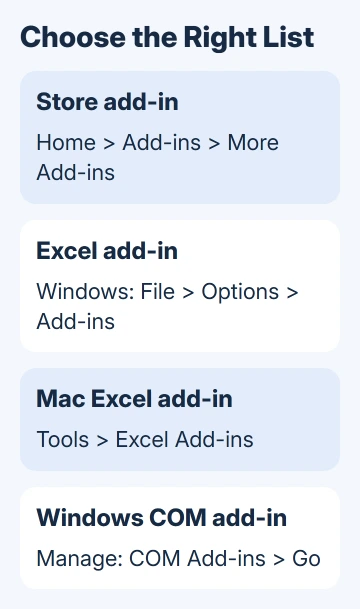
Microsoft documents separate add-in management routes. Read the part for your operating system and add-in type rather than applying every installation method in sequence.
A Mac doesn't have the Windows File > Options layout. The desktop steps also differ from browser Excel. Make sure you're following the provider's instructions for your version of Excel and operating system.
If your organization manages the add-in for you, ask whether it's already assigned to your account. You may need to open the assigned product rather than install another copy from a public listing.
I'd check the exact product name and publisher before doing anything else. Products with similar names can do different jobs, and choosing the wrong one makes later account and activation checks much harder.
Install a Store add-in from inside Excel
In a current supported desktop Excel version, select Home > Add-ins. Open More Add-ins when needed, then browse or search for the product. Existing installed products appear in My Add-ins.
Open the description before selecting Add, Try, or Buy, whichever the listing offers. Check the publisher and what the product does. Some listings require a separate subscription instead of including every feature for free.
If Excel requests an Office sign-in, use the account intended for the add-in. Review the privacy information and complete the displayed setup. When the download finishes, sign in if the provider's service asks you to.
Return to My Add-ins and select the installed product. Depending on the product, it can open a task pane or add its own command. Follow its instructions to perform one small task in a practice workbook.
For example, use a copy containing a few invented rows when learning a data tool. Check the result against those rows before opening your actual workbook. Then you can see the changes that command makes.
The Office Add-in installation page explains the Store and My Add-ins controls. If your copy uses a different layout, use its available Add-ins entry instead of matching an older ribbon picture.
Activate a traditional Excel add-in on Windows
For a traditional desktop add-in, open File > Options > Add-ins. At the bottom, set Manage to Excel Add-ins, then choose Go. Check the required item and select OK.
On the old build 12430.20050, update Excel before opening the add-in manager, because that dialog was one of the reported crash points.
If the provider sent an add-in file, you may need to select Browse in that dialog. Select the file the provider supplied, then follow the remaining instructions. Leave the original file in the location the provider recommends.
Don't lower Excel's security settings across all workbooks just to open an unfamiliar download. Ask the provider or administrator for a supported installation method when a file is blocked.
For the specific startup warning, check the blocked add-in file before changing attachment protection.
After activation, look for the command in the location its documentation names. Not every add-in gets a new ribbon tab. The add-in can be active even if you don't see a new tab.
For Excel 2010 commands that remain absent, check the Trust Center blanket block and legacy Add-Ins tab before reinstalling the tool.
If the item isn't listed, confirm you received the add-in rather than an ordinary workbook containing sample data. File type and installation instructions matter more than the fact that both files can open in Excel.
When a tool supplies new worksheet functions, check an example formula from its own instructions. A formula entered incorrectly can fail even when the add-in loaded correctly.
Use the Mac route for compatible desktop add-ins
In desktop Excel for Mac, open Tools > Excel Add-ins. Select the checkbox beside an available add-in and choose OK. Use Browse to find a compatible add-in file.
Check the provider's Mac support before copying a Windows installation across. This Mac dialog can't activate an add-in that depends on Windows COM integration.
Store add-ins use the Mac app's Home > Add-ins controls. Search for the product there when its provider directs you to the Store, rather than using the traditional file-based dialog.
If the expected command doesn't appear after activation, close and reopen the relevant workbook as directed by the provider. Give support the Mac version, Excel version, add-in version, and the step where setup stopped.
Manage Windows COM integrations through their own list
For an installed Windows integration, open File > Options > Add-ins, change Manage to COM Add-ins, and choose Go. Read the names before changing any checkbox.
For the legacy Fuzzy Lookup runtime error, check its entry and the owner-confirmed all-users installation route.
For an Inquire entry that returns a runtime error, check the Excel loading fix before repeating its activation.
Check the intended integration to load it, or clear its checkbox to stop loading it. Confirm with OK, then follow the provider's restart instructions if it requires Excel to close and reopen.
Clearing the checkbox stops Excel from loading the add-in; it doesn't remove the installed program. Use the provider's uninstall instructions when your goal is to remove the software from Windows entirely.
An enabled add-in also figured in the older Excel splash-screen bug, together with a disabled Start screen.
For an unknown integration on a work laptop, give its name to the administrator. It may belong to a reporting or document system your workplace manages, so changing it can affect more than one workbook.
If the reason for checking this list is a startup message, the hidden-module compile error guide follows that fault. It separates an add-in problem from a workbook-specific error.
An object-library error at every Excel launch also needs a check for conflicting Office components when disabling an integration changes nothing.
Remove the right item and confirm the result
For a Store product, open Home > Add-ins > More Add-ins > My Add-ins, select the item, and choose Remove. Confirm the removal when asked. Some current layouts offer removal directly from the add-in's ribbon entry.
To stop loading a traditional Windows Excel add-in, return to Manage: Excel Add-ins > Go, clear its checkbox, and confirm. On Mac, clear the item in Tools > Excel Add-ins.
If Excel itself is failing across workbooks, use the Excel opening checks rather than reinstalling every extension. For an individual product, ask its provider to check compatibility and account activation.
The Short Version
Use Home > Add-ins for Store products, Excel Add-ins for traditional tools, and COM Add-ins for Windows integrations. Check the publisher and test a small task. Stopping an add-in from loading doesn't uninstall its software.
Checked November 16, 2026.





