

You click a folder and File Explorer freezes, with Not Responding in the title bar. Then it crashes, or shows the folder for a second and freezes again on the next click.
Restarting Explorer from Task Manager buys you a minute. Then it freezes again.
Before you reset Windows or reinstall anything, I would look at the Windows Search service in the background. On one PC it kept crashing, and each time it took File Explorer down with it.
The fix is an index rebuild. An owner found it and posted it on Super User in January 2024, after trying everything else first. The question now has 81,101 views and a long row of thank you comments.
What the freeze looked like
The asker had already run System File Checker and a virus scan, the two steps that usually come first when Windows starts acting up.
They had restarted, updated Windows 11, cleared File Explorer history and checked free space, and nothing helped. They ended the question with "What else can I do?"
Then they opened Services. Windows Search was stopped, so they started it again by hand to see what happened. In their words, "Upon restarting it, it stopped automatically after about 2-3 seconds."
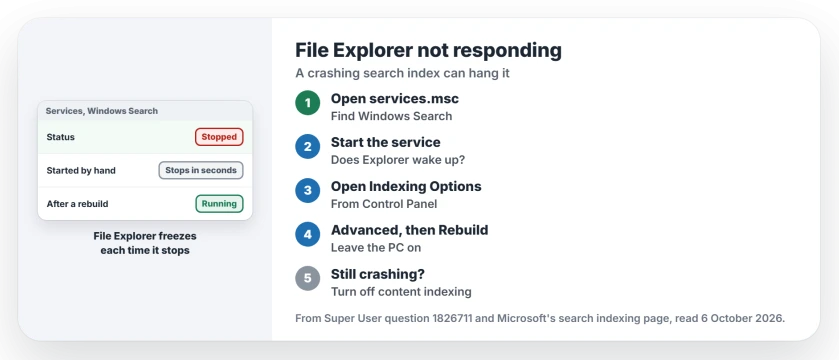
Status: checked 6 October 2026. File Explorer froze on Windows 11 while Windows Search kept crashing. Rebuilding the index in Indexing Options fixed it for the owner and several commenters.
Then they watched closely. The link between the two was plain. File Explorer woke up each time the service started, and froze each time it died. "But once the Windows Search service crashes again, the File Explorer would also freeze again."
Ours: File Explorer asks the search index for file details as it draws a folder. When the indexer keeps dying, File Explorer sits and waits for an answer that never comes, and that wait is your freeze.
1. Test the Windows Search service
Press Windows key + R, type services.msc and press Enter to open the full list of Windows services. Scroll down to Windows Search, which sits low in the alphabetical list, and look at the status column.
Stopped? Right-click it and choose Start, then keep an eye on File Explorer while you do. Watch the frozen window. If it wakes up, you have found your cause.
One commenter had no stopped service at all, but they restarted it anyway. Their result: "I restarted the Windows Search service and boom, File Explorer sprang back to life."
2. Rebuild the index
This is the accepted fix. Open Control Panel and search for Indexing Options. Choose Advanced, then select Rebuild in the Troubleshooting section.
On Windows 11 you can reach the same dialog from the Settings app too, if Control Panel feels old. Open Privacy & security, then Searching Windows, then Advanced indexing options at the bottom of that page.
Microsoft's search indexing page explains what you are rebuilding. Microsoft says indexing means "cataloging their information, such as the words and metadata in them." A first pass takes a while. Leave your PC on.
The asker's report afterwards was short: File Explorer responded normally, and the search service stopped crashing too.
Owners report the same in the comments. One whose Outlook kept hanging as well wrote: "This solved all freezes and crashes that was happening during last week."
3. If your indexer keeps crashing
A second owner went further. In their case Windows was stuck indexing the contents of files, so they turned content indexing off. You keep file names in search that way, while searching inside your documents gets slower.
I would keep that for last. Only do it after a rebuild fails. If your search stays broken afterwards, our Windows Search page has Microsoft's reset script and the troubleshooter.
When only one folder hangs
A freeze in one folder alone points somewhere else, and our File Explorer help page covers that case. Often one video or picture in your folder is the problem, because Windows is busy reading it.
The search fix fits a different pattern. Every folder froze for this asker. Restarts did not change that. If that sounds like your PC, start with the service and leave the folders alone.
How long does a rebuild take?
It depends on your drive. A big one with lots of files can take hours. Microsoft's page calls the first indexing slow and says it then runs in the background as you work. Your File Explorer can recover before the rebuild ends, because the service no longer crashes.
The Short Version
- File Explorer freezing in every folder can come from Windows Search crashing.
- Check it in services.msc.
- If Explorer wakes when the service starts, that is your cause.
- Rebuild the index: Indexing Options, Advanced, Rebuild.
- Turning off content indexing is a last resort.
- A freeze in one folder only is a different fault.
Where to Next
Open services.msc, find Windows Search, and see whether it is running. Then open Indexing Options and rebuild.
Did the rebuild stop your freezes, or did the search service keep stopping? Tell me in a comment, with your Windows build.

Isaac Smith is the founder and editor of PC Glance, a website that covers computers, laptops, and technology. He is a tech enthusiast and a computer geek who loves to share his insights and help his readers make smart choices when buying tech gadgets or laptops. He is always curious and updated about the latest tech trends.